⚖️ Our Verdict
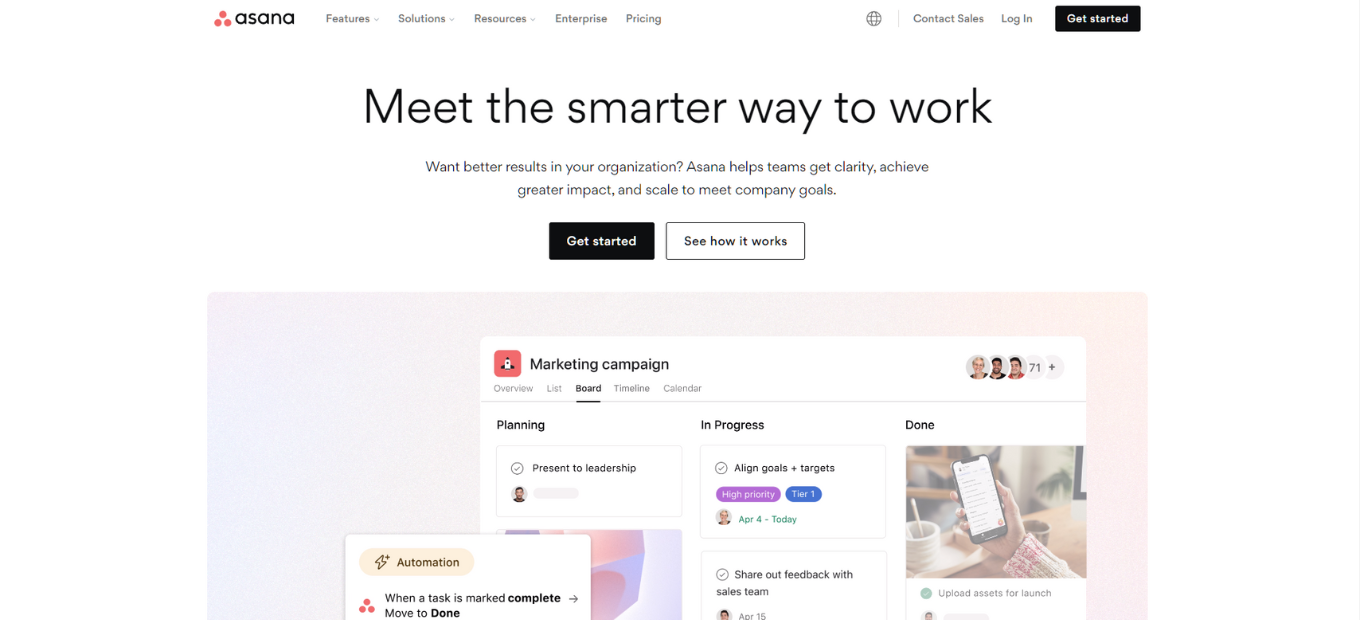
Asana is a comprehensive project management tool designed to help teams orchestrate their work, from daily tasks to strategic initiatives. With Asana, you can connect all your work in one place and bring teams together, anywhere. From lists to boards, to calendars and gantt charts, organize work your way.
👍 Pros
- Comprehensive Features: Offers detailed project planning and tracking features.
- Customization: Allows for personalized project views and workflows.
- Integration: Seamlessly integrates with a variety of third-party applications.
- Collaboration: Facilitates real-time collaboration and communication among team members.
👎 Cons
- Complexity: Can be overwhelming for new users due to its range of features.
- Pricing: The free version is limited, and premium features come at a cost.
🌟 About Asana
Asana was born out of the need to improve team collaboration and productivity. It provides teams with a clear, visual, and accessible platform to manage projects, tasks, and deadlines. With a focus on simplicity and efficiency, Asana has become a favorite for teams looking to streamline their workflows and achieve more.
🎁 What’s In It For You?
- Visual Project Management: Easily organize and prioritize tasks and projects.
- Real-Time Collaboration: Work together effortlessly, no matter where your team is located.
- Integrations: Connect with popular apps to automate and enhance your workflows.
🔍 How Does It Work?
To start using Asana, follow these step-by-step instructions:
1. Sign Up:

- Go to Asana’s website.
- Click on the “Get Started” button on the top right corner of the homepage.
- Enter your email address to sign up, or you can sign up with your Google account.
2. Confirm Your Email:
- Check your email inbox for a confirmation email from Asana.
- Click on the confirmation link in the email to verify your email address.
3. Create Your Account:
- Fill in your name and create a password.
- Click on the “Sign Up” button.
4. Set Up Your Team:
- Enter your team name.
- You can also invite team members by entering their email addresses.
- Click on the “Continue” button.
5. Create Your First Project:
- Choose a project template or start from scratch.
- Name your project and add a description if needed.
- Click on the “Create Project” button.
6. Add Tasks:
- Click on the “+” button or “Add Task”.
- Enter the task name and details.
- Assign the task to a team member and set a due date if needed.
7. Organize Tasks:
- Create sections to organize tasks.
- Use drag and drop to move tasks between sections.
8. Track Progress:
- Use the timeline, calendar, or board view to track task and project progress.
- Update task status and add comments as needed.
9. Explore Features:
- Explore additional features like integrations, workload, goals, etc., depending on your chosen plan.
10. Mobile App:
- Download the Asana mobile app from the App Store or Google Play to manage tasks and projects on the go.
Note:
- If you need more advanced features, consider upgrading to a Premium, Business, or Enterprise plan as per your organizational needs.
Now, you’re all set to use Asana for managing your tasks and projects efficiently!
💸 Pricing Plans & Support

The Asana Pricing page outlines the different plans offered by Asana, including their features and pricing. Here’s a summary:
1. Basic Plan:
- Price: Free forever.
- Features:
- Unlimited tasks, projects, messages, and activity log.
- File storage up to 100MB per file.
- Collaboration with up to 15 teammates.
- List, board, and calendar view projects.
- Assignee and due dates, project overview, and brief.
- iOS and Android mobile apps.
- Time tracking with integrations and over 100 free integrations with other apps.
2. Premium Plan:
- Price: Billed per user, per month, annually or monthly.
- Features:
- Everything in Basic, plus timeline, workflow builder, unlimited dashboards.
- Reporting across unlimited projects, advanced search, and custom fields.
- Unlimited free guests, forms, rules, start dates and times, task templates, milestones.
- Admin console, private teams, and projects.
3. Business Plan:
- Price: Billed per user, per month, annually or monthly.
- Features:
- Everything in Premium, plus portfolios, goals, workload.
- Custom rules builder, forms branching & customization, approvals, proofing.
- Lock custom fields, advanced reporting, time tracking.
- Advanced integrations with Salesforce, Adobe Creative Cloud, Tableau, Power BI.
4. Enterprise Plan:
- Custom Pricing: Contact sales for pricing.
- Features:
- Advanced admin and security features.
- Bundles for flexible, fast, and efficient processes across teams.
Additional Information:
- Nonprofits: 50% off for eligible nonprofit organizations.
- Payment: Major credit cards, bank transfer, or check for annual subscriptions over 20 members. PayPal and SEPA payment also available.
- Basic: Free with limited features, ideal for small teams or personal use.
- Premium & Business: Paid plans offering advanced features and support.
📍 The Competition:
Trello

- Pros: Intuitive design, easy to use, and offers visual task management.
- Cons: Limited advanced features, basic reporting, and analytics.