🏆 Our Verdict
PDFescape emerges as a dynamic and accessible PDF editing tool that offers a robust alternative for users looking to manage PDF documents online. It provides essential PDF functionalities accessible directly through your web browser without the need for extensive software downloads.
✅ Pros & ❌ Cons
Pros:
- 🌐 Web-Based Convenience: PDFescape offers a fully operational online version that requires no downloads, enabling quick edits and updates.
- 🛠️ Essential Editing Tools: Includes capabilities such as adding text, images, form fields, and annotations to PDFs.
- 🔗 Integration: Provides basic integration with other web services for streamlined operations.
- 🆓 Cost-Effective: Offers a free version for basic PDF editing tasks, which is great for casual users.
Cons:
- 🖥️ Limited Features in Free Version: The free version has significant limitations compared to the full version, which might require an upgrade for advanced tasks.
- 💼 Less Robust Than Competitors: Compared to Adobe Acrobat Pro, it lacks some advanced features like sophisticated multimedia integration, extensive editing, and document comparison tools.
- 📞 Support Options: Limited customer support options compared to more comprehensive software solutions like Adobe Acrobat Pro.
📖 About PDFescape
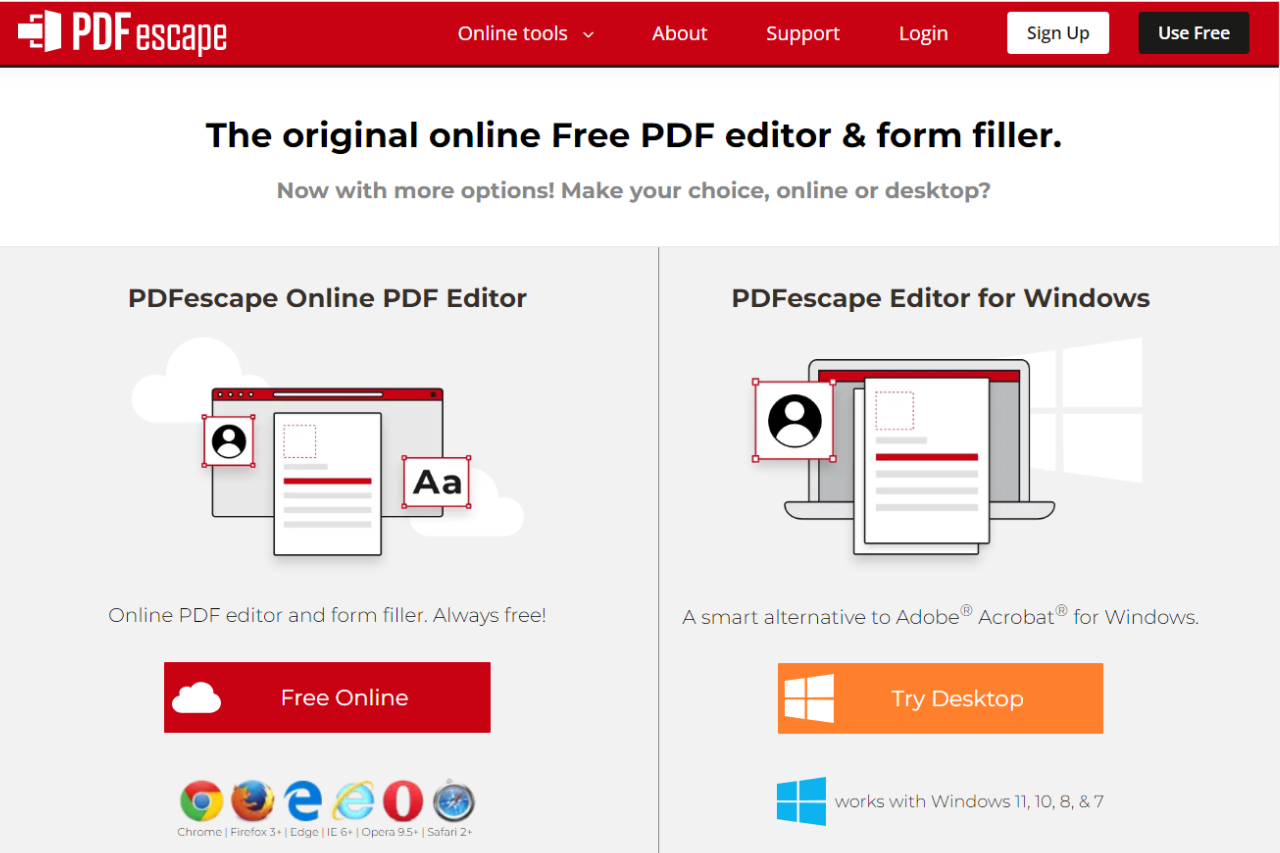
PDFescape is a free, online PDF reader, editor, form filler, and form designer offering solutions to enhance your PDF handling capabilities without installing complex software. Since its inception, it has provided users with an easy escape from the typical software requirements for PDF management.
🗓️ How It Works

- Access Online and Sign Up: Navigate to PDFescape’s website.
- Upload PDF: Simply drag and drop your PDF into the web interface.
- Edit & Save: Utilize the tools provided to edit your PDF, then save or download the edited file directly to your computer.
- Optional Account: For access to more features, create an account or purchase the premium version.
💲 Pricing Overview
PDFescape offers the following subscription plans:

- Free Plan:
- Basic online PDF editing and form filling.
- Limited feature access.
- Premium Plan:
- Monthly: $5.99
- Yearly: $2.99/month
- Advanced online and desktop PDF editing features.
- Additional features such as PDF conversion, annotation, and advanced form filling.
- Ultimate Plan:
- Monthly: $8.99
- Yearly: $5.99/month
- All Premium features plus desktop power PDF editing tools.
- Enhanced security features and unlimited document storage.
All plans come with a 15-day money-back guarantee. More details can be found on their pricing page.
🥊 Competition
PDFescape vs. Adobe Acrobat Pro

| Features | PDFescape | Adobe Acrobat Pro |
|---|---|---|
| Accessibility | Web-based, accessible without installation | Desktop software with more extensive tools |
| Functionality | Good for basic editing and annotations | Advanced features for professional use |
| User Interface | Simple and easy to navigate | Comprehensive and tailored for professionals |
| Pricing | Free version available, cheaper premium | More expensive, but offers extensive tools |
📌 Conclusion
Discover the ease of managing PDFs directly from your browser with PDFescape. Ideal for both personal and professional use, it provides essential tools without the complexity or cost of traditional PDF software.
Unlock your PDF potential with PDFescape, where simplicity meets functionality!
PDFescape FAQ
Is PDFescape free? Yes. The online editor is free to use in a browser for basic editing, annotation, and PDF form filling. Paid Premium and Ultimate tiers remove the free-tier limits and unlock a Windows desktop app, but you can do a lot without paying anything.
What are the limits on the free online version? The free online tier is meant for everyday documents rather than large files. It typically caps uploads at around 10 MB or 100 pages per document. If you regularly work past that, the Premium tiers or a desktop tool fit better.
LOOKING FOR A ONE-STOP SOLUTION TO YOUR GROWTH NEEDS?
Is PDFescape safe to use? The free version runs in the browser, so your file uploads to PDFescape’s servers to be edited. That is fine for routine paperwork. For confidential contracts or anything you would rather not upload, the desktop app on the paid plan keeps the file on your own machine.
Is there a desktop or offline version? Yes. PDFescape Desktop ships with the paid Premium and Ultimate plans on Windows, so you can edit without uploading. The free experience stays online-only.
What is the best PDFescape alternative? It depends on the job. Smallpdf is good for quick browser tasks like merging or compressing. Adobe Acrobat covers full professional editing with OCR and redaction. PDFelement is the cheaper desktop suite if you want Acrobat-style features without the subscription.
PDFescape vs the alternatives: which to pick
PDFescape is not the only way to edit a PDF without buying Acrobat. Here is how it lines up against three common alternatives on the things that usually decide the choice: what you get for free, whether it works offline, and the job it suits best.
| Tool | Free tier | Works offline | Best for |
|---|---|---|---|
| PDFescape | Yes, editing, annotation and form filling in the browser | Desktop app on paid Windows plans only | Free online form filling and quick edits |
| Smallpdf | Limited free tasks per day | No, browser based | Quick convert, merge and compress |
| Adobe Acrobat | Trial only | Yes, full desktop suite | Professional editing, OCR and redaction |
| PDFelement | Watermarked free mode | Yes, desktop app | Acrobat-style features at a lower price |
Pick PDFescape when you want to fill or mark up a PDF in the browser without paying or installing anything. Move to Smallpdf for one-off conversions, to Adobe Acrobat when you need professional editing and OCR, and to PDFelement if you want a desktop editor that costs less than Acrobat.
Fixing the four things that usually go wrong
Most PDFescape complaints come down to a limit that is not stated in the editor itself. Here is what each one is and what to do about it.
The file will not upload
The free browser edition caps uploads at 10 MB. Paid plans raise that to 40 MB. PDFescape also applies separate ceilings on image upload sizes, page sizes, print page counts and usage rate, so a document under 10 MB can still be refused if it carries very large images. Compress the images or split the document and the upload goes through.
The file you saved yesterday is gone
Free accounts hold up to 10 files and keep recent file history for 7 days. Paid plans hold 100 files for 30 days or longer. Treat the account as a workspace rather than storage: download the finished PDF as soon as you are done and keep the copy that matters on your own drive.
The print comes out with a URL and a date on it
That text is added by the browser, not by PDFescape. PDFescape’s own help pages recommend printing from Firefox, where you can set Headers and Footers to blank and leave the margins at 0.5. Chrome offers no way to switch that header and footer text off, so either print from Firefox or download the file first and print it from a PDF reader.
The whiteout tool is not redaction
This one matters if you handle anything sensitive. Drawing a white box over a name in the online editor hides it visually, but the text underneath is still in the file and still selectable. Redaction that actually erases the content, along with password protection and 256 bit encryption, sits in the paid Desktop application for Windows. If a document is going to a third party, redact it there or use a tool that does true redaction in the browser.