⚖️ Our Verdict
Tango should be used by everyone that finds creating how-to guides dreading. It instantly creates guides for you so you can save a lot of time and effort. This is important especially in the work environment where constant communication between employees is occurring. With this tool, you do not have to repeat what you just said or demonstrated.
People should use Tango to onboard and train newly employed workers. It can also be used to establish and circulate best practices and SOPs. With tango, you can release notes on new product updates. Not only that, but you can also make customer service easier with this application.
The unique thing about this app is that it uses screenshots instead of the actual video recording of the process. All in all, Tango is easy to use, essential, and effective for creating how-to guides instantly.
| 👍 Pros | 👎 Cons |
| 👍 Instant how-to guides using screenshots 👍 Easy to use 👍 Free 👍 Good User Interface | 👎 Available as Chrome extension only 👎 Screenshot tool only 👎 Only works on Chrome browser |
🌟 About Tango
Teaching people how to use software… is a TIME SUCK…🌀
— Tango (@Tango_HQ) September 16, 2021
… and that's why there's Tango✨https://t.co/zyd7XHqjJV
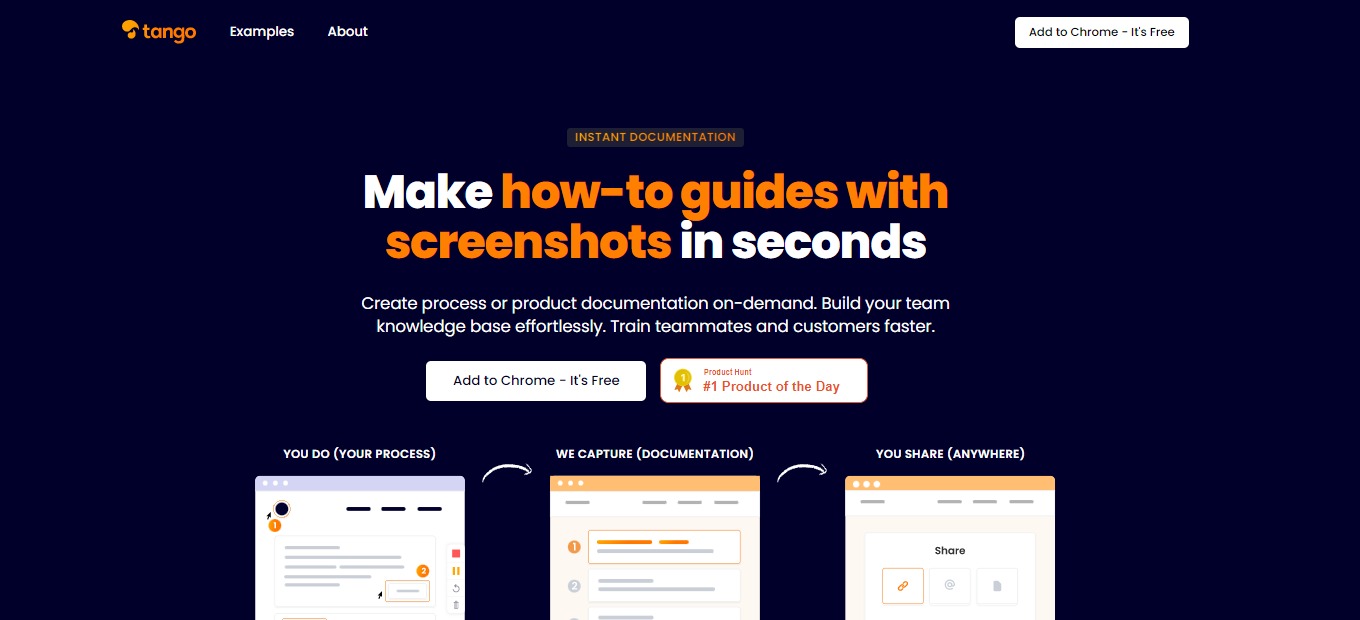
Tango is a documentation application that allows you to make how-to guides with screenshots instantly. It was created to make systems training and process documentation easier. Writing guides and screenshotting every step is stressful and takes a lot of time. With Tango, it resolves that problem.
Tango is a Chrome Extension, but this does not hide the fact that Tango is a compact and powerful tool. Using it is also easy as you just hit “Capture” and the rest is done by the application. The how-to guide that is created by Tango is editable by the user. With this, create a process or product documentation in an instant, build your team knowledge base easily, and train teammates and customers faster! “You do, we capture, and you share”.
🎁 What’s In It For You?
Tango lets you automatically capture your actions in the browser, on any site. Tango allows you to edit and annotate the titles, descriptions, and URLs for more customization. For more privacy and emphasis, Tango lets you mark up and blur parts of your screenshots. This application offers an easy way to create how-to guides. It saves your time and effort!
The screenshot cropping and annotation are automatically done by Tango, but you can always opt to edit it by yourself. It also generates the step-by-step instructions automatically. After everything, Tango allows you to store and retrieve your guides and share them anywhere.
🖥️ How Does It Work?
- Add Tango to your Chrome Extensions then open it to begin.

- Click the “Capture Workflow” to start recording and documenting your procedures automatically.

- The Tango Controller allows you to pause the recording and capture only when you want to.

- Do all the procedures and let Tango record it for you automatically.

- The steps are shown on the left side of the screen. Click the red button to generate your Workflow.

- On the Web App, you can view, edit, and share your Workflow.

- When you are done editing, click on the share and export button. Copy the link and send it to any platform.

💲 Pricing Plans & Support
Tango being a great and useful application is unbelievably free! Since this application is new, the paid version with additional team-focused features is set to be released in December 2021. Fortunately, there will always be a free version!
📍 The Competition

| 👍 Pros | 👎 Cons |
| 👍 Create demo videos using screen recording 👍 Simple and easy to use 👍 Free app | 👎 Cannot add files other than photos and videos 👎 Website lag |