Bear: The Elegant Note-Taking App for Apple Users

πŸ† Our Verdict

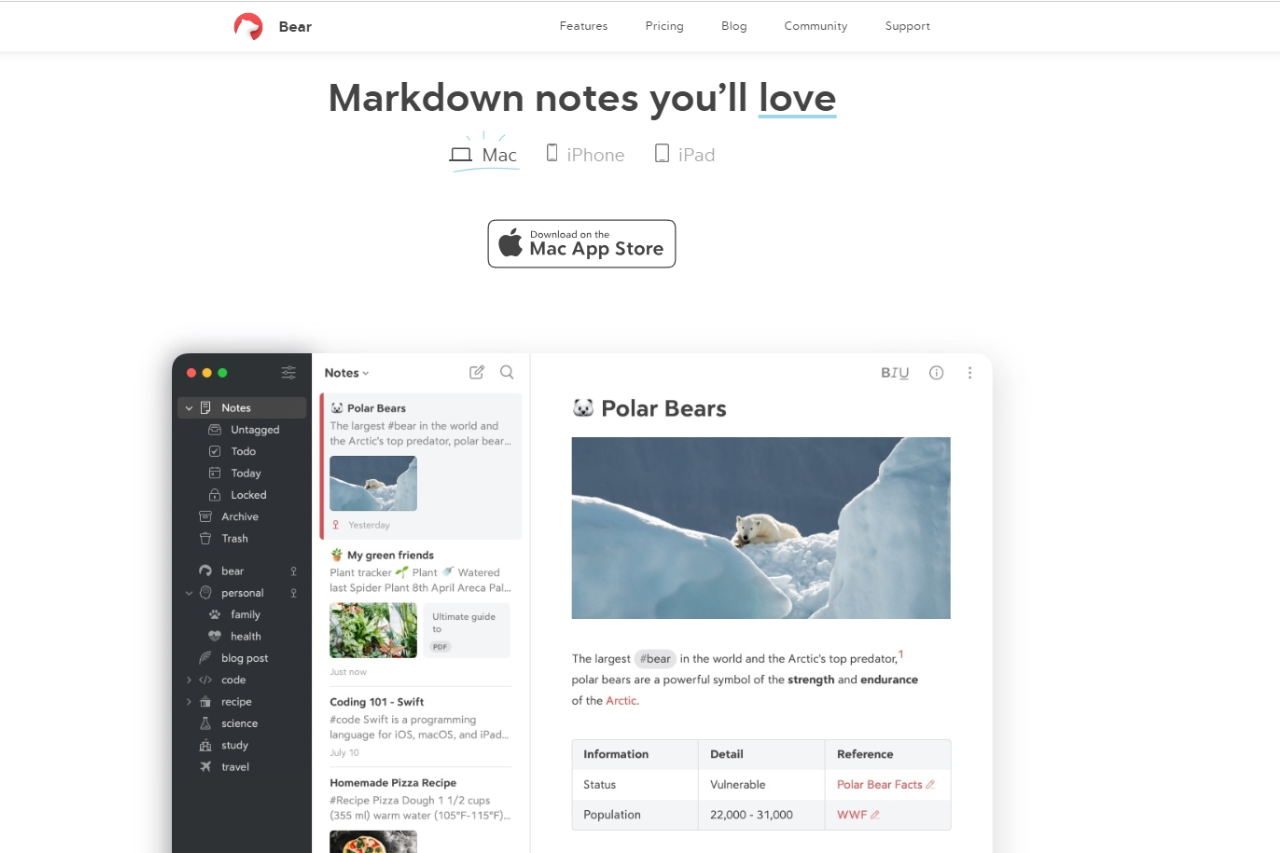
Bear is a beautifully designed, user-friendly note-taking app tailored for Apple devices. It combines simplicity with powerful features, making it an excellent choice for writers, students, and professionals alike. Its rich markdown support and seamless organization capabilities effectively position Bear as a competitor to apps like Notion.

βœ… Pros & ❌ Cons

Pros:

  • User-Friendly Interface: Intuitive design makes it easy to navigate and use for taking notes.
  • Markdown Support: Allows users to format text effortlessly, enhancing the writing experience.
  • Tagging System: Organizes notes using hashtags, making retrieval simple and efficient.
  • Sync Across Devices: Syncs notes across iPhone, iPad, and Mac seamlessly through iCloud.

Cons:

  • Apple Ecosystem Only: Limited to iOS and macOS, which excludes Windows and Android users.
  • No Web Version: Lack of a web-based interface restricts accessibility from non-Apple devices.
  • Limited Free Version: The free version has restrictions, and users must subscribe to access all features.

πŸ“– About

Bear is an open-source note-taking application developed specifically for the Apple ecosystem. It focuses on providing a distraction-free writing environment while supporting markdown formatting. Users can create notes, organize them with tags, and export them to various formats. Bear’s design and functionality have garnered positive reviews, especially for those heavily invested in Apple products.

πŸ—“οΈ How It Works

  1. Installation: Bear can be downloaded from the Mac App Store or the iOS App Store for free.
  2. Note Creation: Users can create new notes quickly using a simple interface and start typing.
  3. Markdown Formatting: Supports markdown syntax for formatting text, which can be used inline as users write.
  4. Tagging and Organization: Notes can be tagged with hashtags for easy categorization and searching.

πŸ’² Pricing Overview

Bear offers a straightforward pricing structure that ensures users have access to robust features while supporting further development of the app.

Free Version

  • Local Access to Your Notes: Store notes locally on your device without needing a subscription.
  • Document Scanning: Scan documents directly into the app for easy storage and reference.
  • Export Options: Export your notes to multiple formats including:
    • TXT
    • Markdown
    • TextBundle
    • RTF
    • PDF
    • JPG
    • HTML
    • DOCX
    • ePub
  • Customization: Access to 3 free themes and 1 app icon for personalization.
  • Search Functionality: Search within PDFs and images.
  • iCloud Sync: Sync your notes seamlessly with iCloud for access across your Apple devices.

This free version provides substantial value, particularly when compared to other note-taking apps for Mac, iPhone, and iPad, which often charge upwards of $80 per year for similar features.

Bear Pro

Bear Pro offers enhanced capabilities for users who need more from their note-taking app:

  • Price: A 7-day free trial is available, after which it costs:
    • $2.99 per month (or a discounted price of $29.99 per year when billed annually, saving you 15%).
  • Enhanced Features Include:
    • Local Access to Your Notes: Similar to the free version but with additional features.
    • Document Scanning: Ability to scan documents.
    • Export Options: Export your notes to the same formats as the free version, plus additional formatting options.
    • 28+ Themes: A broader selection of themes for greater customization.
    • 15 App Icons: More choices for personalizing your app icon.
    • Search Functionality: Enhanced search capabilities, including within PDFs and images.
    • iCloud Sync: Continued syncing of notes with iCloud.

Bear aims to provide a fair price for its Pro version to ensure regular updates and the ongoing development of the application, maintaining a balance between affordability and feature richness.

For more information about Bear and its pricing, you can visit the official website: Bear Pricing.

πŸ₯Š Competition

FeatureBearNotion
User-Friendly InterfaceYesYes
Markdown SupportYesYes
Tagging SystemYesYes
Sync Across DevicesYes (Apple only)Yes (multi-platform)
Web VersionNoYes
PricingFreemiumFreemium

πŸ“Œ Conclusion

Bear is an outstanding choice for those within the Apple ecosystem looking for a clean, efficient, and powerful note-taking app. While it lacks a web version and is limited to Apple devices, its elegant design and rich feature set make it a valuable tool for writing and organization.

Bear: Your Elegant Solution for Organized Note-Taking!

Cross-platform alternative: Bear is Apple-only by design. If you work across Linux or Windows machines as well, Boost Note is the open-source option built for the same markdown-first workflow.

Eclipse: The Leading Open-Source IDE for Java Development

πŸ† Our Verdict

Eclipse is a highly versatile and powerful Integrated Development Environment (IDE) primarily geared towards Java development. With its extensive ecosystem of plugins and features, Eclipse is a strong competitor in the market, effectively challenging alternatives like IntelliJ IDEA. It is particularly favored by developers who value customization and flexibility in their development environment.

βœ… Pros & ❌ Cons

Pros:

  • Open-Source Flexibility: Being open-source, Eclipse allows for extensive customization and a wide range of plugins.
  • Rich Plugin Ecosystem: Offers a vast selection of plugins that enhance functionality across various programming languages and frameworks.
  • Cross-Platform Compatibility: Available on Windows, macOS, and Linux, ensuring accessibility for all developers.
  • Integrated Tools: Provides built-in tools for debugging, version control, and testing, streamlining the development process.

Cons:

  • Steep Learning Curve: New users may find the interface and configuration options overwhelming compared to simpler IDEs.
  • Performance Issues: Can be resource-intensive, especially with multiple plugins installed, leading to slower performance.
  • User Interface: Some users feel the interface is less modern and intuitive compared to competitors like IntelliJ IDEA.

πŸ“– About

Eclipse is an open-source IDE that primarily supports Java development but also accommodates a variety of programming languages through plugins. Originally developed by IBM, it has evolved into a robust platform with a strong community. Eclipse provides tools for coding, debugging, testing, and deploying applications, making it a comprehensive environment for software development.

πŸ—“οΈ How It Works

  1. Installation: Eclipse can be easily downloaded from its official website and installed on multiple platforms.
  2. Workspace Setup: Users can create and manage multiple workspaces for different projects, allowing for organized project management.
  3. Code Editing: The editor features syntax highlighting, code completion, and real-time error checking to enhance coding efficiency.
  4. Plugin Management: Users can install and manage plugins from the Eclipse Marketplace to extend functionality based on their needs.

πŸ’² Pricing Overview

Eclipse is completely free to use and open-source, providing a cost-effective solution for developers without the need for licensing fees.

πŸ₯Š Competition

FeatureEclipseIntelliJ IDEA
Open-SourceYesCommunity edition is free; Ultimate is paid
Plugin EcosystemExtensiveExtensive
Learning CurveSteepGentler
Integrated ToolsYesYes
User InterfaceFunctional but datedModern and intuitive
PerformanceCan be resource-intensiveGenerally better optimized

πŸ“Œ Conclusion

Eclipse remains a solid choice for developers looking for a powerful and customizable IDE for Java and other programming languages. While it may not have the modern interface or performance optimizations of competitors like IntelliJ IDEA, its extensive features and open-source nature make it a valuable tool for many.

Eclipse: Your Versatile Partner in Java Development!

WebStorm: The Powerful IDE for JavaScript Development

πŸ† Our Verdict

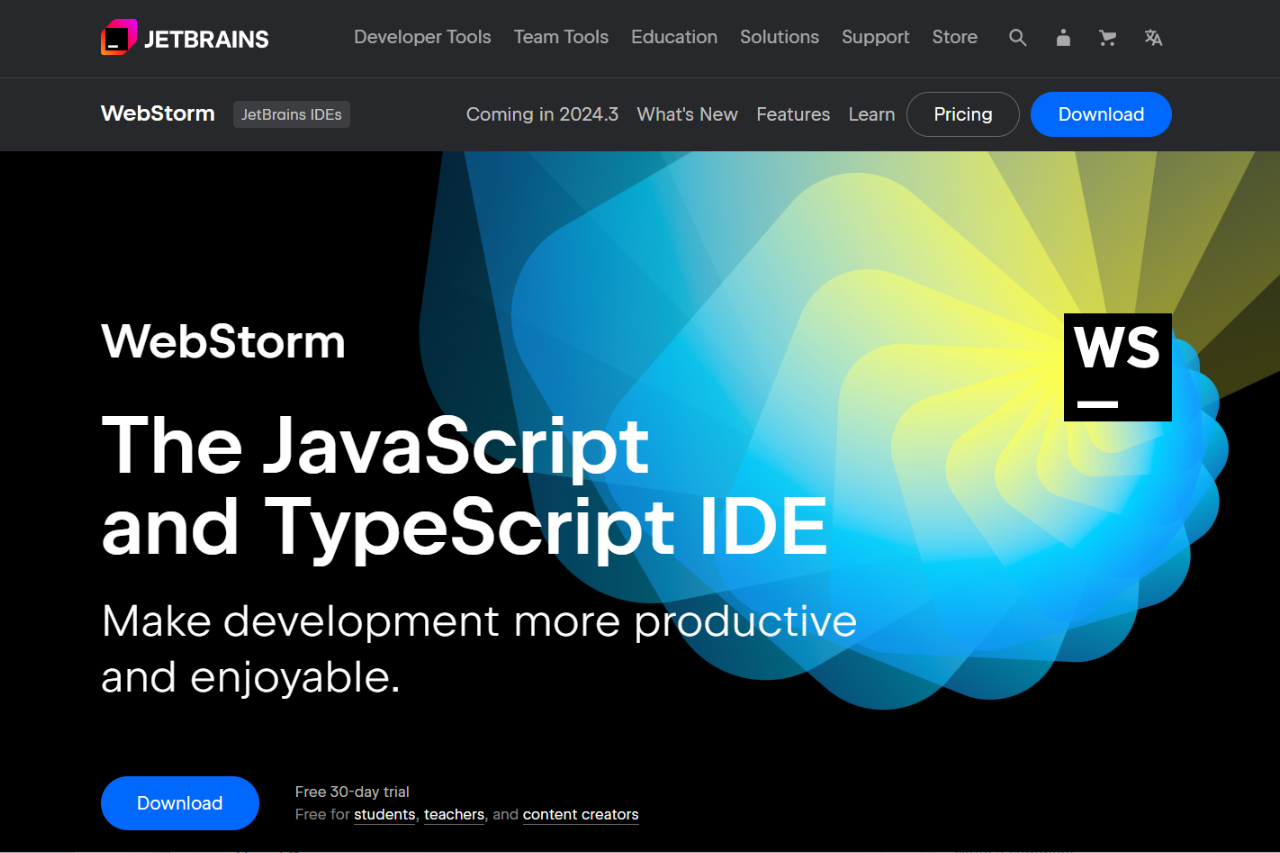
WebStorm is a highly robust and feature-rich Integrated Development Environment (IDE) specifically tailored for JavaScript, TypeScript, and related technologies. Its comprehensive set of tools and intelligent code assistance makes it a leading choice among developers, effectively competing with alternatives like Visual Studio Code. WebStorm’s focus on productivity and efficiency ensures a smooth coding experience, making it ideal for both individual developers and teams.

βœ… Pros & ❌ Cons

Pros:

  • Intelligent Code Assistance: Provides smart code completion, on-the-fly error detection, and suggestions, enhancing productivity.
  • Integrated Debugging: Offers powerful debugging tools, allowing developers to test and troubleshoot applications seamlessly.
  • Version Control Support: Integrates well with version control systems like Git, simplifying collaboration.
  • Rich Ecosystem: Supports numerous frameworks and libraries, including React, Angular, and Node.js, enabling versatility in projects.

Cons:

  • Subscription Pricing: Requires a paid subscription, which may be a drawback for some users, especially those looking for free alternatives.
  • Resource Intensive: Can be heavy on system resources, potentially affecting performance on older machines.
  • Learning Curve: While user-friendly, the extensive features may take time to learn for new users.

πŸ“– About

WebStorm is an IDE developed by JetBrains designed for JavaScript and related technologies. It provides comprehensive support for modern web development, including powerful tools for code editing, debugging, and testing. With features such as smart code completion, refactoring capabilities, and integration with various frameworks, WebStorm aims to streamline the development process and enhance developer productivity.

πŸ—“οΈ How It Works

  1. Installation: WebStorm can be downloaded and installed from the JetBrains website with ease.
  2. Project Setup: Users can create or import projects and set up their development environment quickly.
  3. Code Editing: Provides a rich editor with syntax highlighting, code completion, and linting, allowing for efficient coding.
  4. Debugging and Testing: Integrated debugging tools help identify and fix issues quickly, with support for unit testing frameworks.

πŸ’² Pricing Overview

WebStorm is available through a subscription model, with pricing options for individuals, businesses, and educational institutions. A free trial is available for new users to explore its features.

  1. Standard Pricing:
    • First Year: $200.00 per user
    • Second Year: $159.00 per user
    • Third Year Onwards: $127.00 per user
  2. All Products Pack (includes 12 IDEs, 3 extensions, 2 profilers):
    • First Year: $779.00 per user
    • Second Year: $623.00 per user
    • Third Year Onwards: $467.00 per user

Additional Options

  • The prices may vary based on whether you opt for features like JetBrains AI Pro, which can enhance the functionality of WebStorm.

These variations in pricing can lead to different amounts being quoted depending on the specific package or option you are looking at. It’s always a good idea to check the latest prices on the official JetBrains website for the most accurate and current information: WebStorm Pricing

πŸ₯Š Competition

FeatureWebStormVisual Studio Code
Intelligent Code AssistanceYesYes
Integrated DebuggingYesYes
Version Control SupportYesYes
PricingSubscriptionFree
Resource UsageHighModerate
CustomizabilityModerateHigh

πŸ“Œ Conclusion

WebStorm is an exceptional choice for developers focused on JavaScript and web development. While it may come with a subscription cost and require some time to master, its robust features and integrated tools make it a valuable asset for any development team.

WebStorm: Your All-in-One IDE for Efficient JavaScript Development!

Bluefish: The Lightweight HTML Editor for Web Development

πŸ† Our Verdict

Bluefish is a fast and powerful open-source editor that excels in web development, offering a rich feature set while maintaining a lightweight footprint. Its user-friendly interface and support for multiple programming languages make it a strong competitor in the market, effectively challenging alternatives like Visual Studio Code. Ideal for developers seeking a focused environment for coding, Bluefish provides tools that enhance productivity without unnecessary complexity.

βœ… Pros & ❌ Cons

Pros:

  • Lightweight and Fast: Designed for speed and efficiency, making it ideal for quick edits and large projects.
  • Multi-Platform Support: Runs on Windows, macOS, and Linux, ensuring accessibility for a wide range of users.
  • Syntax Highlighting: Supports numerous programming languages with syntax highlighting, improving code readability.
  • Powerful Search and Replace: Features advanced search and replace capabilities that streamline the editing process.

Cons:

  • Limited IDE Features: Lacks some advanced features found in more comprehensive IDEs, like integrated debugging.
  • Less Frequent Updates: Development updates are not as frequent as some competitors, which may affect new feature availability.
  • User Interface: The interface may feel outdated compared to modern editors, which could impact user experience.

πŸ“– About

Bluefish is an open-source text editor primarily designed for web development. It provides a lightweight yet powerful platform for editing HTML, CSS, JavaScript, and other programming languages. With features like code folding, syntax highlighting, and an easy-to-navigate interface, Bluefish aims to support developers in their workflow while maintaining simplicity and speed.

πŸ—“οΈ How It Works

  1. Installation: Bluefish can be easily downloaded and installed on various operating systems from its official website.
  2. Code Editing: Users can write and edit code with real-time syntax highlighting and code folding, enhancing clarity and organization.
  3. Project Management: Bluefish allows users to manage multiple projects efficiently, facilitating easy navigation between files.
  4. Customizable Interface: Users can adjust the interface and toolbars to fit their individual preferences, making for a personalized coding experience.

πŸ’² Pricing Overview

Bluefish is completely free to use, providing an open-source solution for developers without any licensing fees.

πŸ₯Š Competition

FeatureBluefishVisual Studio Code
LightweightYesNo (can be resource-heavy)
Multi-Platform SupportYesYes
Syntax HighlightingYesYes
Integrated DebuggingNoYes
CustomizabilityBasicExtensive
User InterfaceSimple but outdatedModern and intuitive

πŸ“Œ Conclusion

Bluefish is an excellent choice for web developers looking for a fast, lightweight editor that doesn’t compromise on features. While it may not offer the comprehensive capabilities of competitors like Visual Studio Code, its speed and simplicity make it a valuable tool for many coding tasks.

Bluefish: Your Efficient Partner for Rapid Web Development!

Emacs: The Versatile Text Editor for Power Users

πŸ† Our Verdict

Emacs is a highly powerful and extensible text editor that caters to both novice and advanced users. With its extensive capabilities and customization options, it remains a formidable competitor in the market, effectively challenging alternatives like Visual Studio Code. Emacs is especially favored by those who appreciate its keyboard-centric operation and its ability to be tailored for a wide range of tasks beyond just text editing.

βœ… Pros & ❌ Cons

Pros:

  • Extensible and Customizable: Users can tailor Emacs to fit their specific needs through extensive configuration and numerous packages.
  • Powerful Scripting Language: Built-in Emacs Lisp allows for advanced scripting and automation of tasks.
  • Multi-Functional: Functions as a text editor, IDE, email client, calendar, and more, all within one platform.
  • Cross-Platform: Available on various operating systems, including Windows, macOS, and Linux.

Cons:

  • Steep Learning Curve: New users may find the interface and commands overwhelming compared to more intuitive editors.
  • Resource Intensive: Can be heavy on system resources, especially when loaded with many packages.
  • Complex Setup: Initial setup and configuration may be daunting for users who prefer straightforward tools.

πŸ“– About

Emacs is an open-source text editor known for its versatility and extensibility. Originally developed in the 1970s, it has evolved into a robust platform for programming, writing, and productivity. Emacs supports various programming languages and provides an extensive library of packages to enhance functionality. Its user interface is keyboard-driven, making it appealing to those who prefer to minimize mouse usage.

πŸ—“οΈ How It Works

  1. Installation: Emacs can be downloaded and installed from its official website for various platforms.
  2. Editing Capabilities: Users can create and edit text files with syntax highlighting, auto-completion, and powerful search features.
  3. Customization: Configuration files (.emacs or init.el) allow users to set preferences and load packages for added functionality.
  4. Package Management: Users can install packages to extend Emacs’ capabilities, covering everything from programming languages to project management.

πŸ’² Pricing Overview

Emacs is completely free to use and open-source, making it a cost-effective solution for anyone looking for a powerful text editing environment.

πŸ₯Š Competition

FeatureEmacsVisual Studio Code
ExtensibilityYesYes
Multi-FunctionalYesLimited
Learning CurveSteepGentle
Custom ScriptingEmacs LispJavaScript and TypeScript
Cross-Platform SupportYesYes
Integrated DebuggerLimitedYes

πŸ“Œ Conclusion

Emacs stands out as a powerful text editor for users who value customization and versatility. While its steep learning curve may deter some, its extensive capabilities and active community make it a valuable tool for anyone looking to enhance their productivity.

Emacs: Your Ultimate Editor for Customizable and Efficient Text Editing!

TextMate: The Elegant Text Editor for Mac Users

πŸ† Our Verdict

TextMate is a versatile text editor that blends simplicity and power, designed specifically for macOS users. Its intuitive interface and robust feature set make it a strong competitor in the market, particularly for developers who appreciate customization and efficient workflow. While it faces competition from popular alternatives like Sublime Text, TextMate’s unique capabilities and macOS integration provide a compelling option for many users.

βœ… Pros & ❌ Cons

Pros:

  • MacOS Integration: Seamlessly integrates with macOS features, enhancing user experience.
  • Customizable Snippets: Users can create and manage snippets to speed up coding tasks.
  • Extensible with Bundles: Supports bundles that add functionality and syntax highlighting for various languages.
  • Lightweight: Fast and efficient, making it suitable for quick edits and larger projects.

Cons:

  • Limited Cross-Platform Support: Primarily designed for macOS, which may alienate Windows or Linux users.
  • Learning Curve: The extensive customization options can be overwhelming for new users.
  • Fewer Features than IDEs: Lacks some advanced features found in full-fledged IDEs like Sublime Text.

πŸ“– About

TextMate is an open-source text editor created for macOS, focusing on simplicity and versatility. It supports a wide range of programming languages and offers features such as customizable snippets, code folding, and a robust bundle system. TextMate is particularly favored by developers who work on web applications and need a fast, efficient editor that integrates well with the macOS environment.

πŸ—“οΈ How It Works

  1. Installation: TextMate can be easily downloaded from its official website and installed on macOS.
  2. Code Editing: Users can write code with syntax highlighting and automatic indentation, improving readability.
  3. Custom Snippets: The snippet management feature allows users to create reusable code blocks to enhance productivity.
  4. Bundle Management: Users can install and manage bundles to extend functionality and support for various programming languages.

πŸ’² Pricing Overview

TextMate is free to use and open-source, making it an accessible choice for developers without the need for expensive licenses.

πŸ₯Š Competition

FeatureTextMateSublime Text
MacOS IntegrationYesNo
Custom SnippetsYesYes
Extensible with BundlesYesYes
LightweightYesNo (can be resource-heavy)
Cross-Platform SupportNoYes

πŸ“Œ Conclusion

TextMate is an excellent choice for macOS users looking for a powerful yet lightweight text editor. While it may not have all the advanced features of competitors like Sublime Text, its ease of use and customization options make it a valuable tool for developers.

TextMate: Your Elegant Solution for Efficient Text Editing on macOS!

Is TextMate still worth using in 2026?

TextMate is free, open source, and still runs on current macOS, but active development slowed years ago and new releases are rare. As a fast, native editor that opens instantly and stays out of the way, it holds up. Treat it as stable and mature rather than actively evolving.

Who it suits

Writers and developers who want a lightweight macOS editor with snippets, macros, and the bundles system for language support. If your day is mostly quick edits, config files, and small scripts, TextMate is still pleasant to live in. Anyone who needs a large plugin ecosystem, live collaboration, or the same experience on Windows and Linux will feel the gaps.

The closest alternatives

On macOS, BBEdit is the maintained heavyweight and Nova is the modern Panic option. Sublime Text is the fast cross-platform pick, and Visual Studio Code covers the rest with the largest extension library. Move when you need active updates or a feature TextMate no longer ships. Stay if a calm, native editor is all you want.

TextMate vs BBEdit vs Sublime Text vs Nova

TextMate is a long-standing Mac editor, but it is not the only option for macOS. Here is how it compares with three editors people weigh against it, on the points that usually decide the pick: price, how native it feels on the Mac, and the work it suits best.

EditorPriceNative macOSBest for
TextMateFree and open sourceYes, built for macOSLightweight editing and scripting on a Mac
BBEditPaid, with a free modeYes, long-time Mac appHeavy text wrangling and large files
Sublime TextPaid, unlimited trialCross platformFast editing with a big plugin ecosystem
NovaPaidYes, modern Mac appWeb development with built-in tools

Choose TextMate when you want a free, native Mac editor that stays out of the way. Reach for BBEdit on very large files, Sublime Text when you want speed and plugins across platforms, and Nova when you want a modern Mac app with web tooling baked in.

Troubleshooting TextMate: four problems and what actually fixes them

TextMate is a small app that expects to live inside a shell workflow, and almost every problem people hit is at that seam rather than in the editor. All four fixes below are documented by MacroMates, so none of them needs a plugin.

The mate command is not found in Terminal

TextMate ships its own command line tool, but it is not installed with the app. Open Preferences, go to the Terminal page and install it from there, then run mate with the help flag to confirm you get a version number back. After that, mate followed by a dot opens the current folder as a project, which is the fastest way into a repository you are already standing in. If you are editing a file you do not own, run mate under sudo rather than saving and answering the admin prompt: TextMate accepts the authorization the shell already has, and your password stays cached for the next file instead of being tied to the one document.

Git commits before you have finished writing the message

Commands that hand off to an editor expect it to block until you are done. TextMate returns immediately unless you tell it to wait, so setting EDITOR to mate on its own makes Git commit an empty message and makes any other tool that shells out behave the same way. Add the wait flag in your profile and both stop. Crontab is the exception, because it does not accept arguments in that variable at all: create a symbolic link to mate whose name ends in underscore wait, and point EDITOR at the link. TextMate reads the suffix and waits.

Your commit message opens with the cursor halfway down the file

This looks like a bug and is a side effect of a feature. Git reuses one file for every commit message in a repository, and TextMate restores the cursor to wherever you left it, reading that position from the file’s extended attributes. Current versions no longer write those attributes for commit messages, but they still read the ones an older version left behind, so old repositories keep doing it. Set the Git editor, either through the environment variable or through the core.editor setting, to mate with the wait flag and line one. That pins the cursor to the top without your having to strip the attributes by hand.

TextMate asks you to pick an encoding every time you open a file

It only asks after four checks have all failed. It looks for a byte order mark, then for a com.apple.TextEncoding extended attribute, then for an encoding setting in a .tm_properties file, then it tests whether the content is valid ASCII or UTF-8. A legacy file in a regional encoding fails all four. The fix is the third check: put a .tm_properties file at the top of the project and declare the encoding once, and every file under it opens without a prompt. Do not reach for a UTF-8 byte order mark to silence the dialog. It works, and MacroMates says plainly in the same paragraph that it is not the right answer.

Light Table: The Innovative Code Editor for Modern Developers

πŸ† Our Verdict

Light Table is a cutting-edge open-source code editor designed to improve productivity and enhance the coding experience. With its unique features like live evaluation and inline feedback, it stands out as a powerful tool for developers. Although it competes with well-established editors like Visual Studio Code, Light Table’s innovative approach makes it a compelling choice for those seeking a modern coding environment.

βœ… Pros & ❌ Cons

Pros:

  • Live Feedback: Offers real-time evaluation of code, allowing developers to see results instantly.
  • Inline Documentation: Provides inline documentation and suggestions, enhancing the coding process.
  • Extensible Architecture: Supports a wide range of plugins, making it customizable to fit individual workflows.
  • User-Friendly Interface: Clean and intuitive design that is easy to navigate, even for beginners.

Cons:

  • Limited Community Support: Smaller community compared to larger competitors, which may impact the availability of resources and plugins.
  • Less Frequent Updates: Development has slowed down, raising concerns about long-term support and feature updates.
  • Performance Issues: Some users report performance lags, particularly with larger projects.

πŸ“– About

Light Table is an open-source code editor designed to facilitate the coding process by providing immediate feedback and a streamlined workflow. Built with web technologies, it aims to create a more interactive and engaging coding experience, especially for web developers. Its key features include a real-time coding environment, support for various programming languages, and a customizable interface.

πŸ—“οΈ How It Works

  1. Installation: Light Table can be easily downloaded and installed from its official website.
  2. Real-Time Code Evaluation: Users can write code and see results instantly within the editor, enhancing the development process.
  3. Plugin Management: The editor supports numerous plugins, allowing users to tailor their environment to their needs.
  4. Inline Feedback: Provides real-time suggestions and documentation as developers code, making it easier to learn and implement new concepts.

πŸ’² Pricing Overview

Light Table is completely free to use, offering an open-source solution for developers without the burden of licensing fees.

πŸ₯Š Competition

FeatureLight TableVisual Studio Code
Live FeedbackYesNo
Inline DocumentationYesYes
Plugin EcosystemModerateExtensive
CustomizabilityHighVery High
Integrated DebuggerNoYes
LightweightYesNo (can be resource-heavy)

πŸ“Œ Conclusion

Light Table is an excellent choice for developers looking for a modern, interactive coding experience. While it may not offer all the features of competitors like Visual Studio Code, its unique approach to real-time feedback and ease of use make it a valuable tool for those in web development.

Light Table: Revolutionizing the Way You Code!

Related read: Light Table bet on live evaluation and inline feedback, and the idea outlived the project. For a look at what happens to a code editor after its company moves on, Komodo Edit is the fuller case: still installable, still open source, and dated December 2022.

Brackets: The Modern Open-Source Code Editor

πŸ† Our Verdict

Brackets is a powerful and user-friendly open-source code editor that is particularly well-suited for web development. With its live preview feature and preprocessor support, it provides an excellent platform for developers looking to enhance their productivity. While it faces strong competition from alternatives like Visual Studio Code, Brackets remains a favorite for its simplicity and intuitive design.

βœ… Pros & ❌ Cons

Pros:

  • Live Preview: Allows developers to see changes in real-time as they edit, streamlining the development process.
  • Preprocessor Support: Offers built-in support for preprocessors like LESS and SCSS, which is beneficial for modern web development.
  • Extensive Extensions: A rich library of extensions and themes that enhance functionality and customization.
  • Lightweight: Fast performance and a clean interface make it easy to use for both beginners and experienced developers.

Cons:

  • Limited Features: May not have as many advanced features as competitors like Visual Studio Code.
  • Development Status: The development and updates have slowed down, raising concerns about long-term support.
  • Collaboration Tools: Lacks built-in collaboration features, which are available in other editors.

πŸ“– About

Brackets is an open-source code editor designed primarily for web development. Created by Adobe, it focuses on front-end development, making it easy to work with HTML, CSS, and JavaScript. Brackets is built on web technologies and aims to provide a streamlined workflow for developers with features like live preview, preprocessor support, and a flexible extension architecture.

πŸ—“οΈ How It Works

  1. Installation: Brackets can be easily downloaded from its official website and installed on various operating systems.
  2. Code Editing: Users can write and edit code with syntax highlighting and code completion features, improving efficiency.
  3. Live Preview: The live preview feature allows users to see changes instantly in the browser as they edit files.
  4. Customization: Users can enhance functionality through a wide range of extensions available in the Brackets community.

πŸ’² Pricing Overview

Brackets is completely free to use and open-source, making it an accessible choice for developers without the need for costly software licenses.

πŸ₯Š Competition

FeatureBracketsVisual Studio Code
Live PreviewYesNo
Preprocessor SupportYesYes
Plugin EcosystemExtensiveExtensive
CustomizabilityModerateHigh
Integrated DebuggerNoYes
LightweightYesNo (can be resource-heavy)

πŸ“Œ Conclusion

Brackets remains a solid choice for web developers seeking a lightweight, user-friendly code editor. While it may not match the extensive features of competitors like Visual Studio Code, its focus on web development and unique features like live preview make it a valuable tool for front-end work.

Brackets: Your Go-To Editor for Effortless Web Development!

Brackets is a desktop editor for the web stack. For server-side or polyglot work in a browser tab, see our AWS Cloud9 review on the cloud-IDE side of the same spectrum.

For Mac writers: Brackets focuses on web design with a live HTML and CSS preview. If you want a general-purpose, native macOS editor for prose, scripts, and config files instead, TextMate keeps things fast and out of the way.

Related read: the slowed development that shows up in the cons above is not unique to Brackets. Komodo Edit went further down the same road: its vendor pulled the download pages entirely, and the last build now lives on GitHub. Useful context if you are deciding how much weight to give an editor’s release cadence.

Vim: The Powerful Text Editor for Developers

πŸ† Our Verdict

Vim is a highly efficient and customizable text editor renowned for its powerful features and flexibility. It caters to both beginner and experienced users, making it a strong choice for developers and writers alike. While it may have a steeper learning curve compared to alternatives like Visual Studio Code, Vim’s unparalleled speed and versatility make it a favorite among many.

βœ… Pros & ❌ Cons

Pros:

  • Highly Efficient: Vim’s modal editing system allows for faster navigation and editing compared to traditional editors.
  • Extensive Customization: Users can configure Vim to fit their workflow through scripts and plugins.
  • Cross-Platform Availability: Works on various operating systems, including Windows, macOS, and Linux.
  • Lightweight: Minimal resource consumption makes it suitable for older hardware and quick edits.

Cons:

  • Steep Learning Curve: The unique modal interface can be challenging for new users.
  • Limited GUI Features: Primarily a command-line tool, lacking some graphical user interface features found in modern editors.
  • Initial Setup Complexity: Customizing Vim requires familiarity with its configuration files, which can be daunting for beginners.

πŸ“– About

Vim is an open-source text editor that focuses on efficiency and speed. It employs a unique modal editing system, allowing users to switch between different modes for navigation, editing, and command execution. Vim supports a wide range of programming languages and offers numerous plugins for extended functionality, making it suitable for both coding and text editing.

πŸ—“οΈ How It Works

  1. Installation: Vim can be easily installed on various platforms using package managers or from the official website.
  2. Editing Modes: Users can switch between different modes (Normal, Insert, Visual) to perform various tasks efficiently.
  3. Customization: Vim can be customized using configuration files (.vimrc) to enhance the user experience.
  4. Plugin Management: Users can install plugins to extend Vim’s capabilities and tailor it to their workflow.

πŸ’² Pricing Overview

Vim is completely free to use and distribute, providing an open-source solution for anyone looking to edit text or code without the burden of expensive software.

πŸ₯Š Competition

FeatureVimVisual Studio Code
Modal EditingYesNo
GUI SupportMinimalExtensive
CustomizationHighly customizableModerately customizable
Plugin EcosystemExtensiveExtensive
Learning CurveSteepGentle
Integrated DebuggerNoYes
Cross-PlatformYesYes

πŸ“Œ Conclusion

Vim is an exceptional choice for anyone seeking a powerful, efficient text editor. While it may not provide the intuitive GUI experience of competitors like Visual Studio Code, its unparalleled speed and extensive customization options make it a valuable tool for developers and writers alike.

Vim: Your Ultimate Tool for Fast and Efficient Text Editing!

Notepad++: The Essential Text and Code Editor for All

πŸ† Our Verdict

Notepad++ is a powerful, open-source text and code editor that stands out for its simplicity and versatility. It caters to a wide range of users, from casual writers to professional developers, thanks to its extensive features and lightweight design. While it faces stiff competition from alternatives like Visual Studio Code, Notepad++ remains a go-to choice for many due to its ease of use and robust functionality.

βœ… Pros & ❌ Cons

Pros:

  • Lightweight and Fast: Quick to install and run, making it ideal for quick edits and lightweight tasks.
  • User-Friendly Interface: Simple layout that is easy to navigate, even for beginners.
  • Extensive Plugin Support: Offers numerous plugins for added functionality, allowing customization to fit user needs.
  • Multi-Language Support: Supports multiple programming languages with syntax highlighting, making it versatile for developers.

Cons:

  • Limited Advanced Features: Lacks some advanced IDE features found in competitors like Visual Studio Code.
  • No Integrated Git Support: Does not include built-in Git version control, which may be a drawback for collaborative projects.
  • Windows-Only: Primarily designed for Windows, with limited support for other operating systems.

πŸ“– About

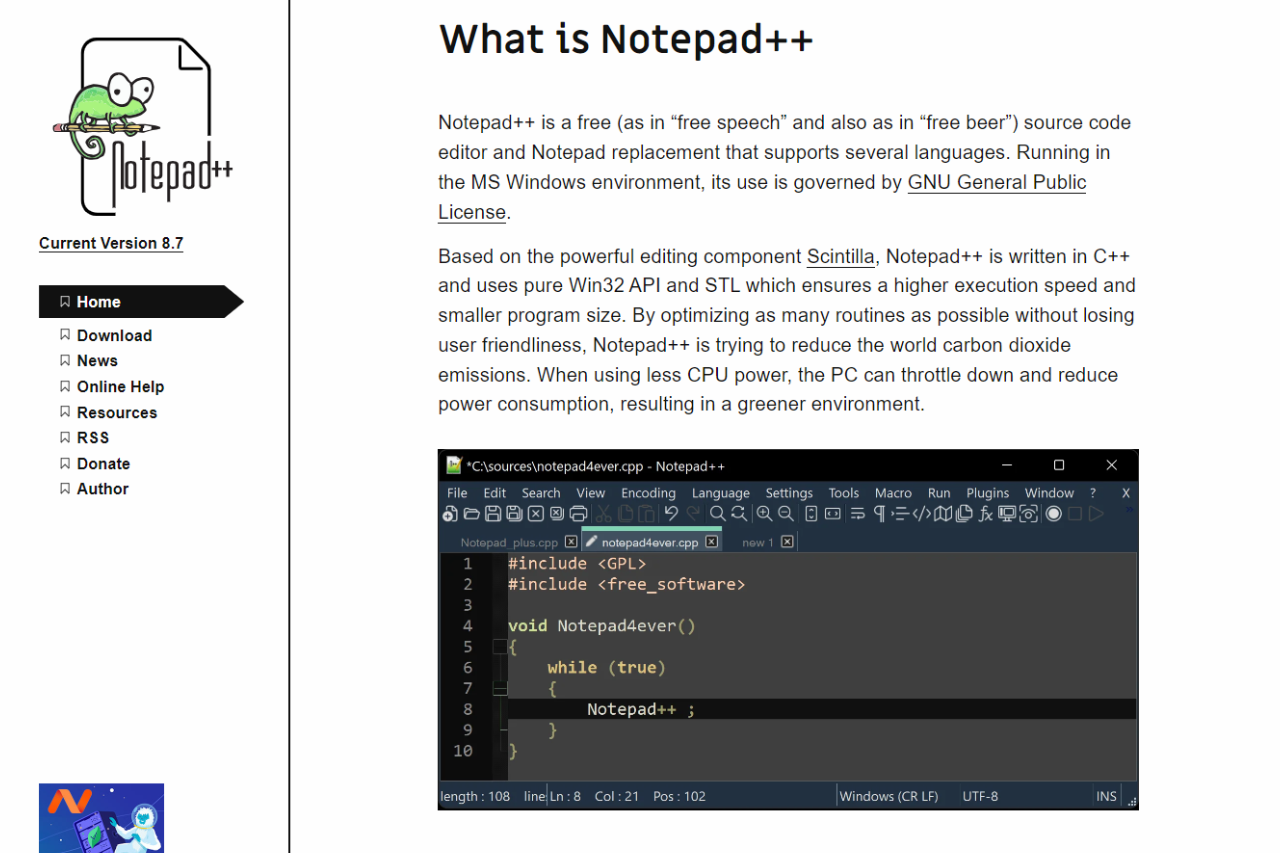
Notepad++ is an open-source text editor designed for Windows. It supports multiple programming languages and offers features like syntax highlighting, customizable themes, and a range of plugins to enhance productivity. With its lightweight design, Notepad++ is ideal for quick edits, coding, and managing text files.

πŸ—“οΈ How It Works

  1. Installation: Notepad++ is easily downloadable from its official website and can be installed in minutes.
  2. Text Editing: Users can create and edit text files or code with syntax highlighting that adapts to the chosen programming language.
  3. Plugin Management: The built-in plugin manager allows users to add functionalities as needed, enhancing the editor’s capabilities.
  4. Customization: Users can tailor their experience through themes, layout options, and customizable shortcuts.

πŸ’² Pricing Overview

Notepad++ is completely free to use, making it an accessible choice for anyone looking to edit text or code without the need for expensive software.

πŸ₯Š Competition

FeatureNotepad++Visual Studio Code
Lightweight and FastYesNo
User-Friendly InterfaceYesYes
Plugin SupportExtensiveExtensive
Integrated Git SupportNoYes
Cross-Platform AvailabilityWindows OnlyYes (Windows, macOS, Linux)
Advanced IDE FeaturesLimitedExtensive

πŸ“Œ Conclusion

Notepad++ remains a solid choice for users seeking a reliable, lightweight text and code editor. While it may lack some advanced features found in competitors like Visual Studio Code, its simplicity, speed, and extensive plugin support make it an invaluable tool for many.

Notepad++: Your Essential Editor for Efficient Text and Code Management!