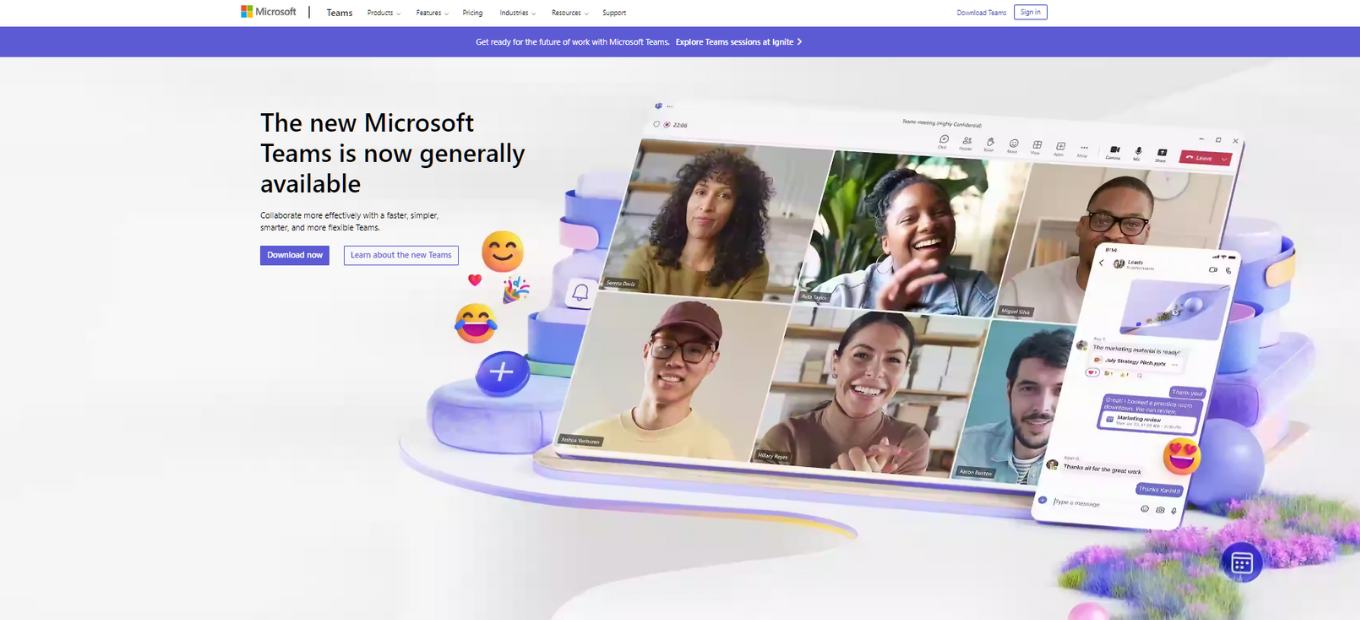
Microsoft Teams is a comprehensive collaboration tool that combines chat, video conferencing, file sharing, and more into a seamless interface. It is especially effective for businesses and organizations seeking a unified communication platform.
👍 Pros
Integrated Communication: Combines chat, video calls, and file sharing in one platform.
Seamless Integration with Microsoft 365: Works perfectly with other Microsoft applications like Word, Excel, PowerPoint.
High-Quality Video Conferencing: Supports large meetings with excellent video and audio quality.
Robust Security Features: Offers strong security and compliance capabilities, essential for businesses.
Extensive Customization and Automation: Teams can customize their workspace with various apps and bots.
👎 Cons
Complexity for New Users: Can be overwhelming for first-time users due to its myriad features.
Occasional Performance Issues: Users may experience performance issues during high usage.
Limited Free Version: The free version has notable limitations compared to the paid versions.
📜 About Microsoft Teams
Developed by Microsoft, Teams is designed as a hub for teamwork in Office 365, aiming to streamline collaboration in businesses and organizations. It has continually evolved, adding more features and integrations to enhance productivity and communication.
✨ What’s In It For You?
Comprehensive Collaboration: Allows for chat, calls, meetings, and collaboration on Office documents within the app.
Customizable Workspaces: Teams and channels can be organized according to projects or departments.
Advanced Security and Compliance: Meets various compliance standards, providing peace of mind for sensitive data.
Choose Your Plan: Click on “Sign up for free” or select a suitable plan.
Create a Microsoft Account: If you don’t have one, create a Microsoft account by providing your email address and creating a password. Follow the on-screen instructions.
Verify Your Email: Check your email and click on the verification link sent by Microsoft.
Complete the Setup: Fill in the required information like name and organization details.
Download and Install the App: For a better experience, download and install the Microsoft Teams app.
Sign In and Start Using Teams: Sign in with your Microsoft account credentials and start using Microsoft Teams.
Note: Additional steps might be required for organizational setups.
Start Collaborating: Chat, share files, and hold meetings within your team.
Integrate With Tools: Add your favorite apps and services to customize your workflow.
💲 Pricing Plans & Support
Microsoft Teams Essentials
Pricing: $4.00 per user/month (Annual subscription—auto renews).
Features include unlimited group meetings up to 30 hours, 300 participants per meeting, 10 GB of cloud storage per user, phone and web support, unlimited chat, file sharing, tasks, polling, data encryption, live captions in English, Microsoft Whiteboard, collaborative apps, and meeting recordings with transcripts.
Standard security measures are included.
Microsoft 365 Business Basic
Pricing: $6.00 per user/month (Annual subscription—auto renews).
Includes everything in Microsoft Teams Essentials plus live captions in meetings in over 30 languages, expanded cloud storage of 1 TB per user, email hosting with custom domain and business email, and web/mobile versions of Microsoft 365 apps.
Access to Microsoft 365 apps and services like Exchange, SharePoint, and more.
Microsoft 365 Business Standard
Pricing: $12.50 per user/month (Annual subscription—auto renews).
Includes everything in Microsoft 365 Business Basic plus desktop versions of Microsoft 365 apps with premium features, webinar hosting, attendee registration and reporting tools, and customer appointment management.
Additional Microsoft 365 apps and services such as Word, Excel, PowerPoint, Publisher (PC only), and Access (PC only) are included.
🏆 The Competition
Zoom (https://zoom.us/) is a major competitor, primarily known for its video conferencing capabilities, but it also offers chat and collaboration features.
📈 Bottom Line
Microsoft Teams is a powerful tool for businesses seeking a comprehensive collaboration platform, though it may present a steep learning curve for new users.
Dropbox is a leading cloud storage service that provides a secure space for individuals and businesses to store, share, and access files from anywhere. It’s known for its intuitive interface, robust syncing capabilities, and strong collaborative features. Dropbox is a great choice for anyone in need of a reliable cloud storage solution, catering to both personal and business needs.
Pros and Cons 👍 Intuitive Interface: Dropbox’s user-friendly interface makes it easy for individuals to navigate and manage their files. 👍 Robust Syncing: Files are synced across all devices seamlessly, ensuring you have access to your latest files anytime, anywhere. 👍 Collaborative Features: Dropbox offers strong collaborative features like shared folders and document commenting, facilitating teamwork. 👍 Generous Free Plan: With a substantial amount of storage offered in its free plan, Dropbox is a great option for individuals on a budget. 👎 Storage Limit on Free Plan: The storage limit on the free plan may be quickly reached with heavier use. 👎 Pricing: Some users might find the pricing for the paid plans to be on the higher side compared to other cloud storage solutions.
🌟 About Dropbox
Dropbox was created with the vision to simplify the way people work together. They offer a smart workspace where teams, tools, and content come together. Over the years, Dropbox has continued to evolve, introducing new features like Dropbox Paper, a collaborative workspace, and extending its integration with third-party apps, making work smoother and more organized.
🎁 What’s In It For You?
Dropbox simplifies the way you keep your files in sync, share with others, and work on collaborative projects. With Dropbox, you can:
Access your files from anywhere, on any device.
Easily share large files with anyone.
Collaborate on files with your team with comments and edits.
Secure your files with powerful encryption and clear permissions settings.
🖥️ How Does It Work?
Sign up and create an account: Visit the Dropbox website or download the Dropbox mobile app and create a new account using your email address or other preferred sign-up methods.
Upload Your Files: Once logged in, you can start uploading your files, documents, photos, and videos to Dropbox.
Organize Your Files: Create folders to organize your files, and share folders or individual files with others as needed.
Collaborate: Invite others to view, comment, and edit your files or folders. You can also use Dropbox Paper for more collaborative and creative team working.
Access Anytime, Anywhere: Access your Dropbox files from any device, be it your computer, tablet, or smartphone.
💲 Pricing Plans & Support
Dropbox offers a variety of plans catering to different user needs, from personal use to professional and enterprise requirements. Below is a summary of the available plans as per the page you provided:
Personal Use:
Plus Plan at $9.99 per month offering:
1 user
2 TB of storage
Large file delivery up to 2 GB
30 days to restore deleted files
Professional Use:
Essentials Plan at $18 per month offering:
1 user
3 TB of storage
Large file delivery up to 100 GB
180 days to restore deleted files
Track file engagement
Unlimited signature requests
PDF editing
Record, review, and edit video
Business Plus Plan at $9.99 per month (The features for this plan are not clearly listed under the professional use section, seems like a duplication from the personal use section)
Teams:
Business Plan at $20 per user per month offering:
3+ users
Starts at 9 TB for the team
Large file delivery up to 100 GB
180 days to restore deleted files
Track file engagement
Unlimited signature requests
PDF editing
Record, review, and edit video
Set up admins
Know what content is shared
Companies:
Business Plus Plan at $26 per user per month offering:
3+ users
Starts at 15 TB for the team
Large file delivery up to 250 GB
1 year to restore deleted files
Track file engagement
Unlimited signature requests
PDF editing
Record, review, and edit video
Set up tiered admin roles
Suspicious activity alerts
Compliance tracking
Basic Free Plan:
2 GB to store and share your files
Enterprise Plan:
Custom pricing
Enterprise-grade security
Integrations with best-in-class security solutions
These plans provide a range of storage, sharing, and collaborative features catering to different levels of professional needs, from individual users to large companies.
📍 The Competition
Google Drive – https://drive.google.com/ 👍 Pros👎 Cons 👍 Generous Free Storage: Google Drive offers 15GB of free storage, which is more than Dropbox’s free plan. 👍 Integration with Google Workspace: Seamless integration with Google’s suite of apps. 👎 Less Intuitive File Organization: Some users find the file organization in Google Drive to be less intuitive compared to Dropbox.
Todoist is a web-based task management and organization tool that aids individuals and teams in organizing and tracking their tasks and projects. It offers a clean and intuitive interface, making task management simple and efficient. Todoist is renowned for its simplicity, making it a favorite for both personal and professional use.
👍 Pros
Simplicity and Efficiency: Todoist’s clean interface makes it easy to add, organize, and prioritize tasks.
Flexibility: Users can customize their task lists, set priorities, and add due dates.
Collaboration: Todoist allows team members to collaborate on tasks and projects seamlessly.
Integrations: Todoist supports integrations with numerous third-party apps and services.
Cross-Platform Accessibility: Available on iOS, Android, and web, ensuring users can manage their tasks anytime, anywhere.
👎 Cons
Limited Advanced Features: Todoist is straightforward, which might be limiting for users needing advanced project management tools.
Premium Features: Some essential features are only available in the premium version.
Task Visualization: Lack of visual project tracking like Kanban boards, which are available in competitors like Trello.
🌟 About Todoist
Todoist was born out of the need for a simple yet effective task management tool. It focuses on helping users organize their tasks and priorities in a clean, accessible manner. With features like natural language input and priority setting, Todoist has become a go-to for millions seeking a straightforward task management solution.
🎁 What’s In It For You?
Todoist offers a streamlined approach to task management. Users can quickly input tasks, set priorities, and due dates, and even assign tasks to others. The tool’s simplicity and cross-platform accessibility make it a favorite for personal task tracking and team collaboration alike.
Click on the “Start for free” button on the homepage. You don’t need to provide payment details for starting with the free plan.
3. Create an Account
You can sign up using your Google account, Apple ID, or email address. Follow the prompts to complete the registration process.
4. Add Tasks
Once your account is set up, you can start adding tasks. Type your tasks into the task field. Todoist’s natural language recognition will help you quickly fill your to-do list.
5. Organize Your Tasks
Your tasks will be automatically sorted into “Today”, “Upcoming”, and custom Filter views to help you prioritize your work.
6. Create Workspaces
You can create different workspaces for personal, work, and team tasks. All these can be managed under the same roof.
7. Install Todoist App (Optional)
For easy access and to manage your tasks on the go, you can download the Todoist app on your mobile device from Google Play or the App Store.
8. Explore Features
Explore all the features Todoist has to offer, including the template gallery, productivity quiz, extension gallery, and inspiration hub to enhance your task management experience.
9. Upgrade (Optional)
If you need more advanced features, consider upgrading to one of Todoist’s premium plans.
10. Get Support
If you have any questions or need assistance, visit the Help Center to find answers and tips for getting the most out of Todoist.
💰 Pricing Plans & Support
Todoist offers various pricing plans to cater to different user needs:
1. Beginner Plan (Free)
Price: $0
Features:
5 active projects
5 MB file uploads
3 filter views
1-week activity history
2. Pro Plan
Price: $4 per month (billed yearly)
Features:
300 active projects
100 MB file uploads
150 filter views
Unlimited activity history
Task reminders
Task duration (currently in beta)
3. Starter Workspace (Free for Teams)
Price: $0
Features:
A team workspace with 5 active projects
Unlimited collaborators
4. Business Workspace
Price: $6 per member/month (billed yearly)
Features:
500 active projects
Admin and member roles
Unlimited collaborators
Every member gets the Pro plan for free
Features Comparison
File Uploads: 5 MB for the free plans and 100 MB for the Pro and Business plans.
Activity History: 1 week for the free plans and unlimited for the Pro and Business plans.
Filter Views: Limited for the free plan, extensive for the Pro plan, and per your plan for the team workspaces.
Collaborators per Project: Limited for the free and Pro plans and extensive for the team workspaces.
You can start for free and then upgrade as you grow. The plans are designed to be flexible to accommodate both individual users and teams. For more detailed information, you can visit their pricing page.
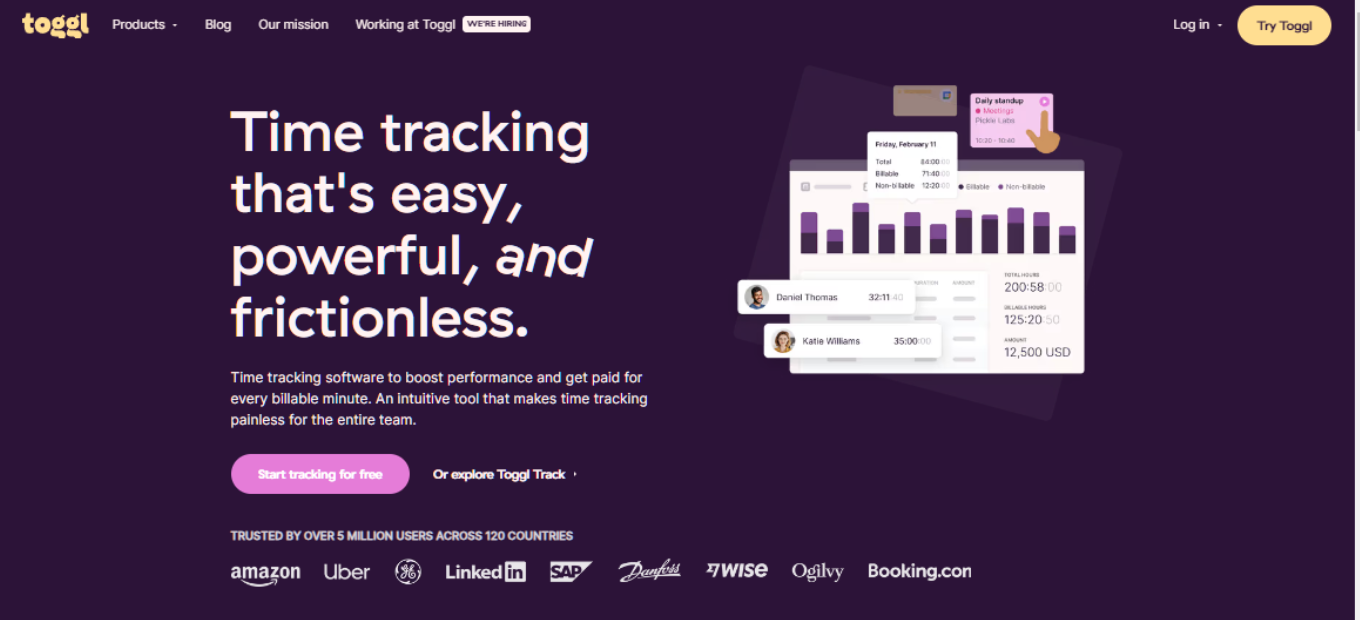
Toggl is a robust time tracking and productivity tool that caters to individuals, teams, and businesses aiming to optimize their time management and enhance productivity. With its intuitive interface, detailed reporting, and a variety of features, Toggl stands as a comprehensive solution for tracking time, managing tasks, and analyzing productivity data.
👍 Pros
User-Friendly Interface: Toggl’s clean and intuitive design ensures a seamless user experience.
Detailed Reporting: Offers in-depth insights into time spent on tasks and projects.
Versatility: Suitable for freelancers, teams, and businesses.
Integration: Seamlessly integrates with various third-party apps and tools.
Cross-Platform Accessibility: Available on web, desktop, and mobile platforms.
👎 Cons
Limited Features in Free Plan: Advanced features are reserved for paid plans.
Learning Curve: Might take some time to explore and utilize all features effectively.
Customization: Could offer more options for personalization.
🌟 About Toggl
Toggl was conceived with the vision of offering a simplified yet powerful time tracking solution. It has evolved to provide not just time tracking, but also detailed reporting and insights to help users optimize their time and productivity. With features like one-click timers, detailed reports, and team management tools, Toggl has become a favorite among freelancers, teams, and businesses alike.
🎁 What’s In It For You?
Toggl’s intuitive interface and detailed reporting tools offer users insights into their productivity patterns, helping them make informed decisions to optimize their time and output. With features tailored to various needs, Toggl is a versatile tool that adapts to different working styles and requirements.
🛠️ How Does It Work?
Step 1: Visit the Toggl Website
Open your web browser and go to the Toggl website by entering the URL: https://toggl.com/.
Step 2: Sign Up for an Account
On the Toggl homepage, you will find a “Sign Up for Free” button. Click on it to begin the registration process.
Step 3: Create Your Toggl Account
You will be asked to provide some basic information to create your Toggl account. This typically includes your name, email address, and password. Fill out the required fields.
Step 4: Verify Your Email
After completing the registration form, Toggl may send a verification email to the address you provided. Check your email inbox and follow the instructions to verify your email address.
Step 5: Log In to Your Toggl Account
Once your email is verified, return to the Toggl website and click on the “Log In” button. Enter your email and password to access your Toggl account.
Step 6: Set Up Your Workspace
When you first log in, you’ll be prompted to set up your workspace. This involves creating your first workspace, which is like a project or company name. You can name it something relevant to your work.
Step 7: Start Tracking Time
With your workspace set up, you can start tracking time on tasks and projects. Here’s how:
Click the “+ New” button to create a new task or project.
Enter a name for the task or project.
Click the “Start” button to begin tracking time.
When you’re done, click “Stop” to stop the timer.
You can add descriptions and tags to your time entries for better organization.
Step 8: Explore Toggl Features
Take some time to explore Toggl’s features, including:
Reports: Toggl provides detailed reports on how you’re spending your time.
Projects: Organize your tasks and time entries into projects.
Teams: If you’re working with others, you can invite team members to collaborate.
Integrations: Toggl integrates with various tools like calendars and project management apps for seamless workflow.
Step 9: Install Toggl Desktop or Mobile App (Optional)
If you want to track time on your desktop or mobile device, you can download and install the Toggl desktop app or mobile app for iOS and Android. These apps provide a convenient way to track time on the go.
Step 10: Upgrade Your Plan (Optional)
Depending on your needs, you can consider upgrading to a paid plan like Toggl Premium or Toggl Enterprise to access advanced features and capabilities.
Step 11: Explore Toggl Resources
Toggl offers resources like tutorials, guides, and a knowledge base to help you make the most of the tool. You can access these resources on their website.
That’s it! You’ve successfully started using Toggl to track your time and manage your tasks. Remember to regularly track your time entries to gain insights into your productivity and manage your projects efficiently.
💰 Pricing Plans & Support
Pricing Plans
1. Team Plan ($8 per user per month, billed annually or $9 per user per month, billed monthly):
Plan and track team projects
Team timelines
Project timelines and boards
Timeline sharing
Recurring tasks
Multi-assign tasks
Task attachments (100MB per file)
In-app and email notifications
Public holidays
Time tracking with Toggl Track integration
Project progress overview
2. Business Plan ($13.35 per user per month, billed annually or $15 per user per month, billed monthly):
All features in the Team plan
Availability overview
Time off
Workspace guests
Data exports
Timeline compact view
Project board compact view
Single Sign-On (SSO)
Priority support
Features
Team Timelines: A clear overview of everyone’s work to stay on top of the team’s workload.
Project Timelines and Boards: Plan and track projects with simple, drag-and-drop interfaces.
Timeline Sharing: Share plans with external stakeholders through a publicly shareable, read-only link.
Recurring Tasks: Create repeating tasks that occur daily, weekly, monthly, or annually.
Multi-assign Tasks: Add multiple assignees to a task for collaborative work.
Task Attachments: Share large files with a generous upload limit of 100MB per file.
Public Holidays: Automatically add public holidays to your timelines.
Toggl Track Integration: Sync Clients and Projects to reduce double work and track time spent on tasks.
Trial Offer
A free 14-day trial is available, with no credit card required. Users get access to all the Team plan features during the trial period.
For more detailed information, you can visit their pricing page.
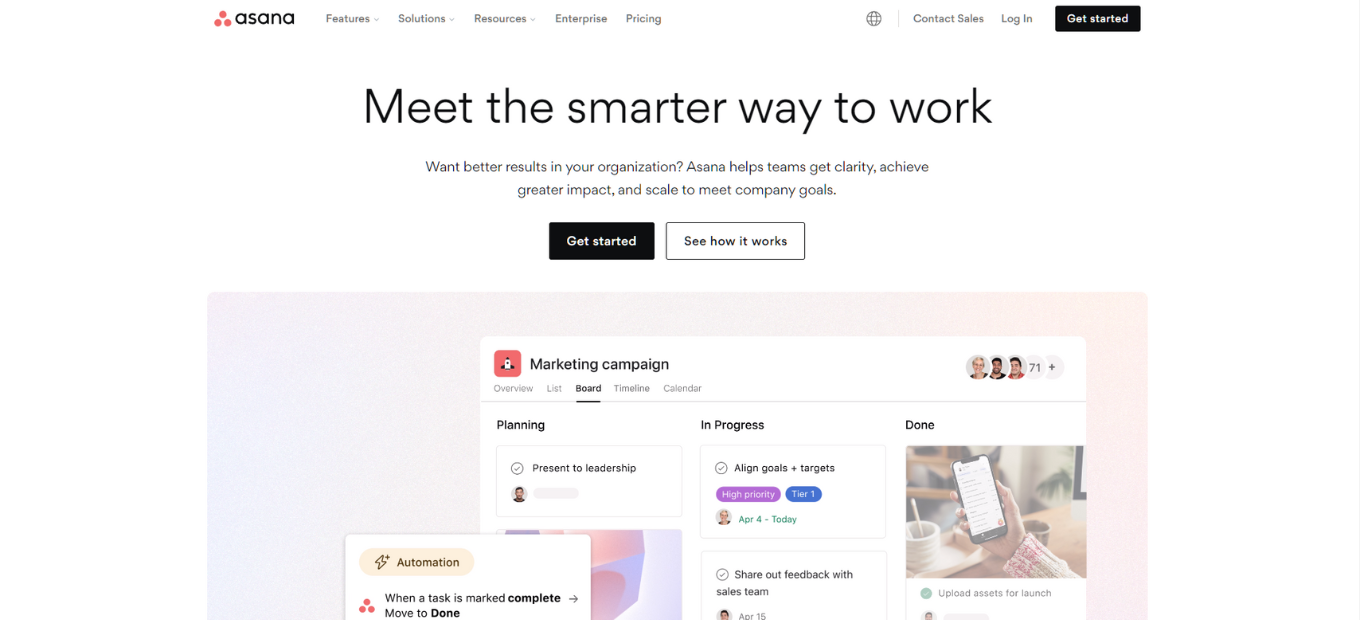
Asana is a comprehensive project management tool designed to help teams orchestrate their work, from daily tasks to strategic initiatives. With Asana, you can connect all your work in one place and bring teams together, anywhere. From lists to boards, to calendars and gantt charts, organize work your way.
👍 Pros
Comprehensive Features: Offers detailed project planning and tracking features.
Customization: Allows for personalized project views and workflows.
Integration: Seamlessly integrates with a variety of third-party applications.
Collaboration: Facilitates real-time collaboration and communication among team members.
👎 Cons
Complexity: Can be overwhelming for new users due to its range of features.
Pricing: The free version is limited, and premium features come at a cost.
🌟 About Asana
Asana was born out of the need to improve team collaboration and productivity. It provides teams with a clear, visual, and accessible platform to manage projects, tasks, and deadlines. With a focus on simplicity and efficiency, Asana has become a favorite for teams looking to streamline their workflows and achieve more.
🎁 What’s In It For You?
Visual Project Management: Easily organize and prioritize tasks and projects.
Real-Time Collaboration: Work together effortlessly, no matter where your team is located.
Integrations: Connect with popular apps to automate and enhance your workflows.
🔍 How Does It Work?
To start using Asana, follow these step-by-step instructions:
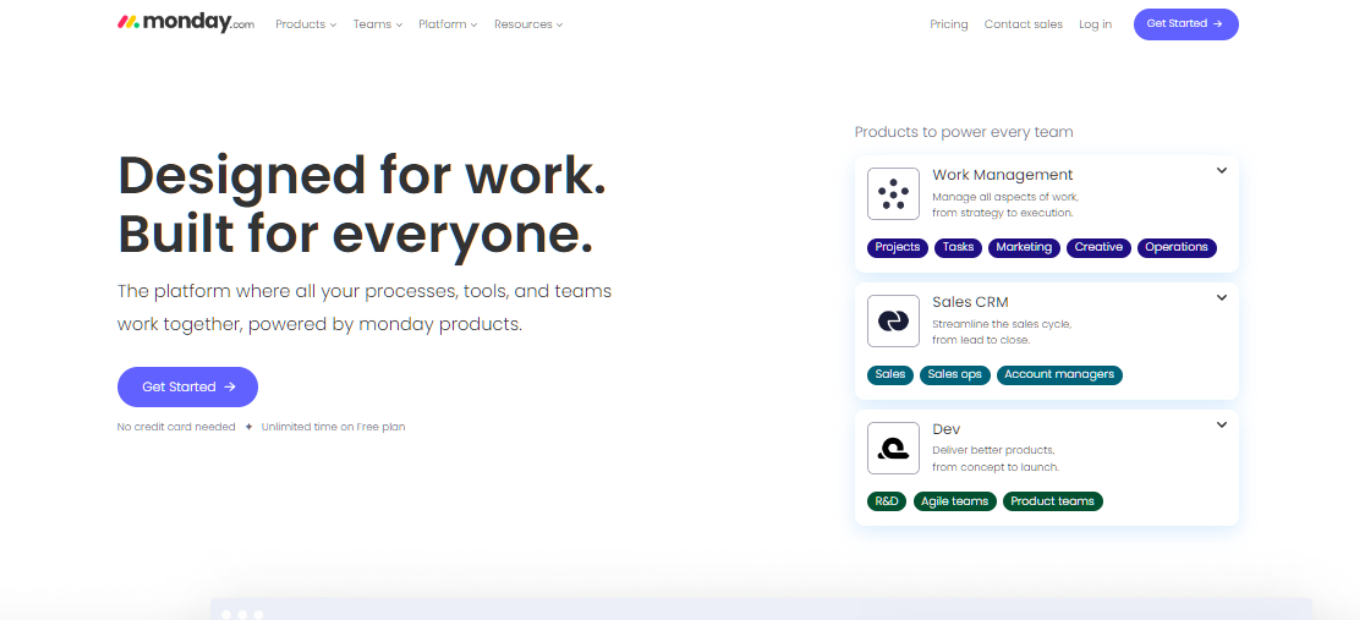
monday.com is a comprehensive work operating system that empowers teams to run projects and workflows with confidence. It’s a simple yet intuitive tool that enables teams to manage work, meet deadlines, and build a culture of transparency. The versatility of monday.com makes it a popular choice for diverse teams, offering a multitude of templates and integrations.
👍 Pros
Versatile Templates: monday.com offers a variety of templates to cater to different industries and use cases.
Intuitive Interface: The platform is user-friendly, making it easy for teams to adopt.
Automation and Integrations: Enhance productivity with built-in automation and numerous integrations.
Customizable Workflows: Adapt and customize workflows to fit your team’s specific needs.
Real-Time Collaboration: Enables teams to collaborate in real-time, ensuring everyone is on the same page.
👎 Cons
Pricing: Can be expensive for smaller teams or startups.
Complexity: With a range of features, it can be overwhelming for new users.
Learning Curve: Requires time to explore and understand all features and capabilities.
🌟 About monday.com
monday.com originated with the aim to create a universal solution to foster team collaboration and boost productivity. It’s not just a project management tool but a comprehensive work OS where teams can create their workflows from scratch or choose from a variety of templates. With a focus on transparency and collaboration, monday.com is trusted by over 100,000 organizations worldwide.
🎁 What’s In It For You?
Visual Project Management: Easily visualize your team’s work, track progress and manage projects.
Collaboration: Collaborate in real-time, with instant updates and notifications.
Integrations: Connect with popular tools like Slack, Google Drive, and Zoom.
Security: Top-tier security protocols to protect your data.
Register: Click on “Get Started” and enter your email address or sign up with Google, Slack, or Apple ID.
2. Verification
Email Verification: Check your email for a verification message and click on the link to verify your email address.
3. Set Up Your Account
Company Information: Enter your company’s name and your role.
Team Members: Invite team members by entering their email addresses.
4. Choose a Template or Create a Board
Templates: monday.com offers a variety of templates. Choose one that suits your needs or start from scratch.
5. Customize Your Board
Add Items: Click on ‘New Item’ to add tasks or projects.
Columns: Customize columns to include due dates, statuses, assignees, and more.
6. Invite Team Members to Your Board
Invite: Click on ‘Invite to Board’ on the top right and enter the email addresses of team members you want to add.
7. Explore Integrations and Automations
Integrations: Click on ‘Integrate’ to connect with other apps like Slack, Google Drive, etc.
Automations: Set up automations to automate repetitive tasks.
8. Update and Track Progress
Status Updates: Click on the status column to update the progress of tasks.
Timeline View: Switch to timeline or calendar view to visualize deadlines and timelines.
9. Explore Additional Features
Dashboards: Create dashboards to get an overview of your projects and tasks.
Docs: Use monday.com Docs for collaborative documentation.
10. Seek Assistance
Help Center: Visit the help center for tutorials, guides, and support.
11. Mobile App
Download: Get the monday.com mobile app for iOS or Android to manage your tasks on the go.
12. Explore Advanced Features (Optional)
Upgrade: Consider upgrading to a paid plan for additional features, integrations, and support.
Sign up, choose a template or create your workflow from scratch, invite your team, and start collaborating. The platform’s flexibility allows it to cater to any work, from simple tasks to complex projects.
💰 Pricing Plans & Support
Plans
Free Plan ($0 forever)
Up to 2 seats
Up to 3 boards
Unlimited docs
200+ templates
8 column types
iOS and Android apps
Basic Plan ($8/seat/month, billed annually)
Includes everything in Free, plus:
Unlimited free viewers
Unlimited items
5 GB file storage
Prioritized customer support
Dashboard based on 1 board
Standard Plan ($10/seat/month, billed annually)
Includes everything in Basic, plus:
Timeline & Gantt views
Calendar view
Guest access
Automations (250 actions per month)
Integrations (250 actions per month)
Dashboard that combines up to 5 boards
Pro Plan ($19/seat/month, billed annually)
Includes everything in Standard, plus:
Private boards and docs
Chart view
Time tracking
Formula column
Dependency column
Automations (25,000 actions per month)
Integrations (25,000 actions per month)
Dashboard that combines up to 10 boards
Enterprise Plan (Contact for pricing)
Includes everything in Pro, plus:
Enterprise-scale Automations & Integrations
Enterprise-grade security & governance
Advanced reporting & analytics
Multi-level permissions
Tailored onboarding
Premium support
Dashboard that combines up to 50 boards
Features
Free Plan: Ideal for individuals with basic needs, including up to 3 boards, unlimited docs, and mobile app access.
Basic Plan: Suitable for team management with additional features like unlimited items and viewers, and increased file storage.
Standard Plan: Offers enhanced collaboration tools, including timeline and calendar views, guest access, and limited automations and integrations.
Pro Plan: Designed for complex workflows, offering private boards, advanced views, increased automations and integrations, and additional column types.
Enterprise Plan: Tailored for large organizations, offering advanced security, reporting, and support features, along with extensive automations and integrations.
Additional Information
Discounts: An 18% discount is offered for annual billing.
Free Trial: A 14-day free trial is available for the Pro plan.
Refunds: Partial refunds are available for yearly subscriptions cancelled within 30 days.
monday.com offers a free trial, and various pricing plans tailored to fit the size and needs of any team, from startups to enterprises.
📍 The Competition
Trello
Compared to Trello, monday.com offers more advanced features, including time tracking, automation, and a broader range of integrations. However, Trello is known for its simplicity and ease of use.
Google Workspace is a comprehensive suite of cloud-based productivity and collaboration tools, including Gmail, Docs, Drive, and Calendar. It empowers teams to collaborate in real-time, streamline communication, and enhance productivity with a range of intuitive tools and features.
👍 Pros
Seamless Integration: All tools are interconnected, ensuring smooth navigation and workflow.
Real-Time Collaboration: Multiple users can work on the same document simultaneously.
Security: Enhanced security features ensure data protection and privacy.
Accessibility: Access your work from any device, anywhere, anytime.
👎 Cons
Pricing: Can be expensive for small businesses.
Complexity: A wide range of features that can be overwhelming for new users.
🌟 About Google Workspace
Google Workspace was designed to bring together the best of Google’s cloud-based tools to transform how teams work. It offers a seamless, integrated experience that enables real-time collaboration, efficient communication, and enhanced productivity, all secured with best-in-class infrastructure and built-in security features.
🎁 What’s In It For You?
Integrated Experience: Enjoy the synergy of Gmail, Docs, Drive, Calendar, and more.
Smart AI: Leverage Google’s AI to work faster and smarter.
Flexible Plans: Choose a plan that fits your business size and needs.
🛠️ How Does It Work?
Sign Up: Create a Google Workspace account.
Collaborate: Use Docs, Sheets, and Slides to collaborate in real-time.
Communicate: Connect with your team via Gmail, Meet, and Chat.
Store: Safely store your files in Drive.
💸 Pricing Plans & Support
Google Workspace offers a 14-day free trial and various pricing plans tailored to meet the needs of individuals, small businesses, and enterprises. Every plan includes applications like Gmail, Drive, Meet, Calendar, Chat, Jamboard, Docs, Sheets, Slides, Keep, Sites, and Forms.
1. Business Starter ($6/user/month)
Custom and secure business email
100 participant video meetings
30 GB pooled storage per user
Security and management controls
Standard Support
2. Business Standard ($12/user/month)
Custom and secure business email
150 participant video meetings + recording
2 TB pooled storage per user
Security and management controls
Standard Support (paid upgrade to Enhanced Support)
3. Business Plus ($18/user/month)
Custom and secure business email + eDiscovery, retention
500 participant video meetings + recording, attendance tracking
5 TB pooled storage per user
Enhanced security and management controls, including Vault and advanced endpoint management
Standard Support (paid upgrade to Enhanced Support)
4. Enterprise (Contact sales for pricing)
Custom and secure business email + eDiscovery, retention, S/MIME encryption
1000 participant video meetings + recording, attendance tracking, noise cancellation, in-domain live streaming
5 TB pooled storage per user, with the ability to request more
Advanced security, management, and compliance controls, including Vault, DLP, data regions, and enterprise endpoint management
Enhanced Support (paid upgrade to Premium Support)
Business Starter, Business Standard, and Business Plus plans can be purchased for a maximum of 300 users. There is no minimum or maximum user limit for Enterprise plans.
Additional Information
Google Workspace provides flexible pooled storage per user that is shared across the organization. Users can learn more about obtaining additional storage for their organization via the Help Center.
Zoom is a leading video conferencing tool that caters to both individual and organizational communication needs. It offers a seamless, reliable, and high-quality video calling experience, making it a favorite for professionals, educators, and casual users alike.
👍 Pros
High-Quality Video and Audio: Zoom is renowned for its crystal-clear video and audio quality, ensuring effective communication.
Ease of Use: Its intuitive interface ensures that users of all tech levels can easily navigate and use the platform.
Integration: Zoom integrates with a plethora of third-party applications, enhancing its functionality and user experience.
Security: With end-to-end encryption and advanced security protocols, Zoom ensures that your communications remain private and secure.
Customizability: Users can personalize their virtual backgrounds, layouts, and other settings to fit their preferences.
👎 Cons
Privacy Concerns: There have been concerns about privacy, but Zoom has made significant improvements to address these issues.
Limited Free Plan: The free plan has a 40-minute limit on group meetings, prompting users to upgrade for longer meetings.
Occasional Technical Glitches: Like any tech, Zoom sometimes experiences glitches, but their support is prompt in resolving issues.
🌌 About Zoom
Zoom has revolutionized the way we connect remotely. Born out of the need for a reliable, user-friendly video conferencing solution, Zoom has become a household name. Its versatility makes it suitable for virtual meetings, webinars, online classes, and casual virtual hangouts.
🎁 What’s In It For You?
Zoom’s user-friendly design, coupled with its reliability, makes it a top choice for remote communication. The platform supports virtual meetings, webinars, and a suite of other features tailored to offer a seamless communication experience.
🛠️ How Does It Work?
Sign Up: Create a Zoom account.
Schedule or Join Meetings: Easily schedule or join meetings with a link.
Customize: Personalize your settings for a tailored meeting experience.
Collaborate: Share screens, annotate, and collaborate in real-time.
💰 Pricing Plans & Support
Zoom offers a free plan and various paid plans, each designed to cater to different user needs, from individual users to large corporations.
📍 The Competition
Microsoft Teams vs Zoom
Microsoft Teams Pros:
Integration with Microsoft 365: Seamless integration with other Microsoft applications like Word, Excel, and PowerPoint.
Advanced Features: Offers features like file sharing, collaborative editing, and threaded conversations.
Security: Known for robust security and compliance features.
Microsoft Teams Cons:
Complexity: Can be complex and overwhelming for new users.
Performance Issues: Sometimes faces performance issues, especially with large teams.
Zoom Pros:
User-Friendly: Known for its easy-to-use interface.
Quality: Offers high-quality video and audio.
Features: Provides a variety of features like breakout rooms, reactions, and customized backgrounds.
Zoom Cons:
Security: Had security issues in the past, although many have been addressed.
Time Limit on Free Plan: Group meetings on the free plan have a 40-minute limit.
Comparing Zoom to , Cisco Webex, and Google Meet, Zoom stands out for its user-friendly interface, reliability, and quality of video and audio.
Slack is a cloud-based team collaboration tool that brings all your communication together in one place. It offers real-time messaging, archiving, and search for modern teams. With a user-friendly interface and robust integration capabilities, Slack is designed to facilitate quick and easy communication and collaboration for teams of any size.
👍 Pros
Real-Time Messaging: Slack provides instant messaging with support for groups and direct messages to enhance team communication.
Integration Ecosystem: Slack offers extensive integrations with popular third-party applications and services.
Customization: Users can customize channels, notifications, and interface to fit their specific needs.
Security: Slack prioritizes security with features like two-factor authentication and data encryption.
👎 Cons
Pricing: The free version has limitations, and the paid plans might be expensive for smaller teams.
Learning Curve: New users might take some time to get accustomed to the plethora of features and options.
Notification Overload: Managing notifications can be challenging, especially for very active teams.
🌟 About Slack
Slack was created to bring teams together and make work simpler, more pleasant, and more productive. It provides channels where teams can communicate and share files easily. Slack has evolved to become a comprehensive collaboration hub for businesses, integrating with a multitude of apps and services and offering features like video calling and file sharing.
🎁 What’s In It For You?
Enhanced Communication: Slack’s channels, direct messages, and group messages ensure that you can communicate with your team effectively.
Integration with Tools: Connect Slack with tools you use every day and pull in data or take actions without leaving Slack.
Customizable: Tailor Slack to fit your team’s needs with custom channels, notifications, and bots.
🛠️ How Does It Work?
Sign Up: Create an account using your email address.
Create a Workspace: Organize your team’s conversations in channels—by project, topic, team, or whatever makes sense for you.
Invite Your Team: Bring your team on board to collaborate.
Start Communicating: Use channels, direct messages, and groups to communicate with your team.
💰 Pricing Plans & Support
Free: Suitable for small teams offering basic features.
Standard: For medium-sized businesses, offering additional features and integrations.
Plus: Designed for larger businesses with advanced administrative and security features.
📍 The Competition
Microsoft Teams
Pros:
Comprehensive integration with Microsoft 365.
Advanced security and compliance features.
Cons:
Can be complex to set up and manage.
The user interface is not as intuitive as Slack’s.
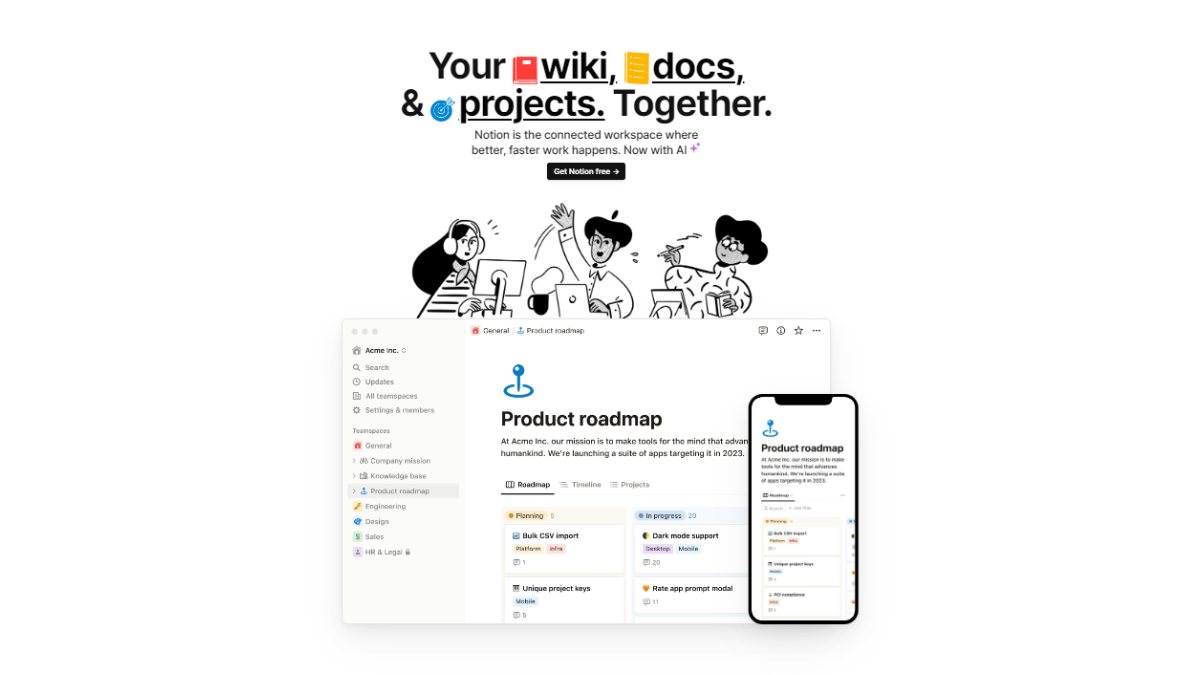
Notion is a versatile all-in-one tool that redefines the way you organize, collaborate, and share information. As a powerful productivity application, Notion combines the functionalities of note-taking apps, task managers, wikis, and project management tools into a unified platform. Its intuitive and user-friendly interface allows individuals and teams to create, customize, and manage a wide range of content seamlessly.
At its core, Notion is a digital workspace where users can create and organize documents known as “pages.” These pages can contain a variety of content types, including text, images, checklists, tables, calendars, files, and more. Users have the freedom to structure these pages as they see fit, enabling them to design workflows, plan projects, and manage tasks in a way that suits their unique needs.
👍 Pros
👎 Cons
👍 Cross-Platform Availability: Notion is accessible on various devices and platforms, including desktop (Windows and macOS), mobile (iOS and Android), and web browsers.
👍 Intuitive Interface: The user-friendly interface makes it easy to create, organize, and edit content.
👍 Powerful Database Functionality: Notion’s database feature allows users to create structured content and turn the platform into a dynamic data management tool.
👍Third-Party Integrations: Notion supports integrations with other popular tools and services like Google Drive, Slack, Trello, and more, enhancing its capabilities and extending its usefulness.
👍 Versatility and Customization: Notion’s flexibility allows users to adapt the platform to their specific needs.
👍 All-In-One Solution: With Notion, you can consolidate multiple tools into a single platform.
👍 Real-Time Collaboration: Notion excels in team collaboration. Multiple users can work on the same page simultaneously, enabling seamless real-time editing, commenting, and task assignment.
👎 Steeper Learning Curve: Despite its user-friendly interface, Notion’s extensive functionality can be overwhelming for new users.
👎 Limited Formatting Options: Notion offers a decent set of formatting tools, but it may not be as feature-rich as some specialized word processing apps.
👎 Syncing and Performance Issues: While Notion provides offline access, some users have experienced occasional syncing problems between devices.
👎 Pricing Tiers: Notion’s free plan has certain limitations on the number of blocks (content elements) that can be created.
👎 Mobile App Limitations: While the mobile apps are functional, they may not offer the same level of usability and features as the desktop version, leading to a less optimal experience for some users.
👎 Privacy and Data Ownership Concerns: Notion stores user data on its servers, which may raise privacy and data ownership concerns for organizations and individuals handling sensitive information.
🌟 About Notion
Notion was founded by Ivan Zhao, a former designer at Inkling, in 2013. The idea for Notion came about as Zhao sought to create a tool that seamlessly combined note-taking, task management, and knowledge organization into a unified platform. He wanted to design a flexible workspace that could cater to various needs and be customizable by its users.
In 2013, Notion started as a side project for Zhao, but it gained traction and positive feedback from early users. The platform officially launched in March 2016 as a private beta. Notion’s early focus was on individual users, offering a clean and intuitive interface for note-taking and content organization.
Over time, Notion steadily expanded its features, introducing the ability to create databases, boards, and a range of templates to suit different use cases. This shift allowed it to become more than just a note-taking app and transformed it into an all-in-one workspace.
🎁 What’s In It For You?
Notion helps users in several ways, offering a wide range of features and functionalities to enhance productivity, organization, and collaboration. Here are some key ways Notion assists its users:
All-In-One Workspace: Notion combines note-taking, task management, project planning, and knowledge organization into a single platform. This eliminates the need to switch between multiple apps, streamlining the user’s digital workspace and reducing clutter.
Note-Taking and Content Organization: Notion allows users to create rich and structured notes with various content elements like text, images, checklists, tables, and more. Users can organize these notes into hierarchies, making it easy to manage and retrieve information effectively.
Task and Project Management: Users can create task lists, to-do items, and kanban-style boards to manage individual tasks or entire projects. With due dates, reminders, and status tracking, Notion empowers users to stay on top of their tasks and collaborate with teammates effectively.
Customization and Templates: Notion offers a high degree of customization, allowing users to create their templates or modify existing ones to suit their specific needs. This flexibility makes Notion adaptable for various use cases, from personal organization to team collaboration.
Real-Time Collaboration: Notion’s real-time collaboration features enable seamless teamwork. Multiple users can collaborate on the same page simultaneously, making it easy to brainstorm, edit, and discuss ideas together.
Knowledge Base Creation: With its powerful database functionality, Notion can be used to create and manage comprehensive knowledge bases. This feature is particularly useful for documenting processes, procedures, and company information for easy reference and onboarding.
Cross-Platform Accessibility: Notion is accessible across devices and platforms, including desktop computers, mobile devices, and web browsers. Users can access their data from anywhere, and offline access ensures productivity even without an internet connection.
Third-Party Integrations: Notion supports integrations with various tools and services, including Google Drive, Dropbox, Slack, and more. This enhances its capabilities and allows users to connect their existing workflows with Notion seamlessly.
Personal Organization and Goal Setting: Notion can be used for personal productivity and goal tracking, helping users stay organized, set targets, and monitor progress.
Team Collaboration and Communication: Notion facilitates team collaboration by providing a centralized platform where team members can communicate, share ideas, and work together on projects.
Overall, Notion’s versatility, user-friendly interface, and robust features make it a valuable tool for individuals, teams, and businesses, empowering users to boost productivity, streamline workflows, and effectively manage information and projects.
🖥️ How Does It Work?
To use Notion effectively, follow these general steps:
Click on “Sign Up” to create a new account. You can use your email address or sign up with your Google account.
Once signed up, log in with your credentials.
Step 2: Create a Workspace
After logging in, you’ll be prompted to create a workspace. You can create a personal workspace or join an existing team workspace.
Step 3: Create Your First Page
Inside your workspace, click the “+ New” button to create a new page.
Choose the type of page you want to create (e.g., notes, to-do list, database).
Give your page a title and start adding content by typing or using the formatting tools.
Step 4: Organize Content with Blocks
Notion’s content is organized into blocks, which are individual units of information. Blocks can be text, images, headings, to-do lists, tables, and more.
To create a new block, press “/” or click on the “+” icon, then select the block type you want to add.
Step 5: Customize Your Workspace
You can customize your workspace’s appearance by changing the cover image, colors, and icons.
Click on the “…” icon next to the workspace name and select “Workspace settings” to access customization options.
Step 6: Create a Database (Optional)
To create a structured database, click on “+ New” and choose “Database.”
Define the properties or columns for your database (e.g., Name, Status, Due Date).
Start adding entries to the database by filling in the information for each item.
Step 7: Collaborate with Others
To collaborate with team members or invite others to your workspace, click on “Share” at the top-right corner of the page.
Enter the email addresses of the people you want to invite, and choose the appropriate permission level (edit or view-only).
Step 8: Use Templates (Optional)
Notion offers a variety of templates for different use cases. To access templates, click on “+ New” and choose “From Template.”
Browse the templates and select the one that suits your needs. Notion provides templates for meeting notes, project management, personal journals, and more.
Step 9: Sync Across Devices
Download the Notion app on your mobile device (iOS or Android) or use the desktop app (Windows or macOS).
Log in to your account to sync your data across devices.
Step 10: Explore and Experiment
Notion is a versatile tool, so take the time to explore its features and experiment with different page structures and workflows.
If you encounter any questions or need help, Notion’s support and community forums can provide valuable resources.
💲 Pricing Plans & Support
Notion offered a tiered pricing model with free and paid subscription plans.
💎 Free
The free plan of Notion is suitable for individual users or small teams who want to explore the basic features of the platform.
With the free plan, you can create unlimited pages and add up to 5 guests to collaborate with you on your workspace.
Note that some advanced features, like version history, offline access, and priority customer support, are not available in the free plan.
💎 Personal Plan:
Notion’s Personal plan is a paid subscription designed for individual users who want access to additional features and customization options.
The Personal plan is typically billed on a monthly or annual basis.
Pricing may vary depending on your location and currency.
💎 Team Plan:
The Team plan is designed for small to medium-sized teams or businesses looking for more robust collaboration features and administrative controls.
The Team plan allows you to add more members to your workspace and collaborate with your team seamlessly.
Pricing is usually per member per month or billed annually.
💎 Enterprise Plan:
Notion’s Enterprise plan is intended for larger organizations and provides additional security, administrative controls, and custom solutions tailored to the organization’s needs.
For the Enterprise plan, you typically need to contact Notion’s sales team to get a customized quote based on your organization’s requirements.
It’s important to note that Notion’s pricing may change over time, and they may introduce new plans or modify existing ones. To get the most accurate and up-to-date pricing information, I recommend visiting the official Notion website or contacting their support team directly.
📍 The Competition
👍 Pros
👎 Cons
👍 Versatility: Notion is more versatile than Evernote, offering a broader range of features and functionalities.
👍 Customization: Notion provides a high level of customization, allowing users to design their workspace and pages according to their specific needs.
👍 Database Functionality: Notion’s powerful database feature enables users to create structured databases with relational properties, making it suitable for creating complex data-driven systems and knowledge bases.
👍 Collaboration: While both Notion and Evernote offer collaboration features, Notion’s real-time collaboration capabilities are more robust.
👍 Integrations: Notion supports integrations with various tools and services, enhancing its functionality and allowing users to connect their existing workflows with ease.
👎 Learning Curve: Notion’s extensive functionality may result in a steeper learning curve for new users compared to Evernote, which focuses primarily on note-taking.
👎 Syncing and Performance: Notion’s syncing and performance can be occasionally slower or less reliable, especially when dealing with large databases or complex pages.
👎 Pricing: Notion’s pricing can be a disadvantage for some users.
👎 Note-Taking Focus: Evernote’s primary focus on note-taking and organization might be more appealing to users who want a dedicated, straightforward solution without the need for advanced features found in Notion.
Local-first alternative: Notion keeps everything in the cloud. If you would rather hold your notes as Markdown files on your own disk and work offline, Boostnote is the developer-focused option.
Related read: Notion bundles docs, databases and a wiki into one cloud workspace. If you just want a lighter notebook that keeps plain Markdown on your own machine and highlights code blocks, Boostnote is the developer-first take.
This website uses cookies to ensure you get the best experience on our website. Surfing the website you are authorizing the use of cookies.
Privacy & Cookies Policy
Privacy Overview
This website uses cookies to improve your experience while you navigate through the website. Out of these cookies, the cookies that are categorized as necessary are stored on your browser as they are essential for the working of basic functionalities of the website. We also use third-party cookies that help us analyze and understand how you use this website. These cookies will be stored in your browser only with your consent. You also have the option to opt-out of these cookies. But opting out of some of these cookies may have an effect on your browsing experience.
Necessary cookies are absolutely essential for the website to function properly. This category only includes cookies that ensures basic functionalities and security features of the website. These cookies do not store any personal information.
Any cookies that may not be particularly necessary for the website to function and is used specifically to collect user personal data via analytics, ads, other embedded contents are termed as non-necessary cookies. It is mandatory to procure user consent prior to running these cookies on your website.