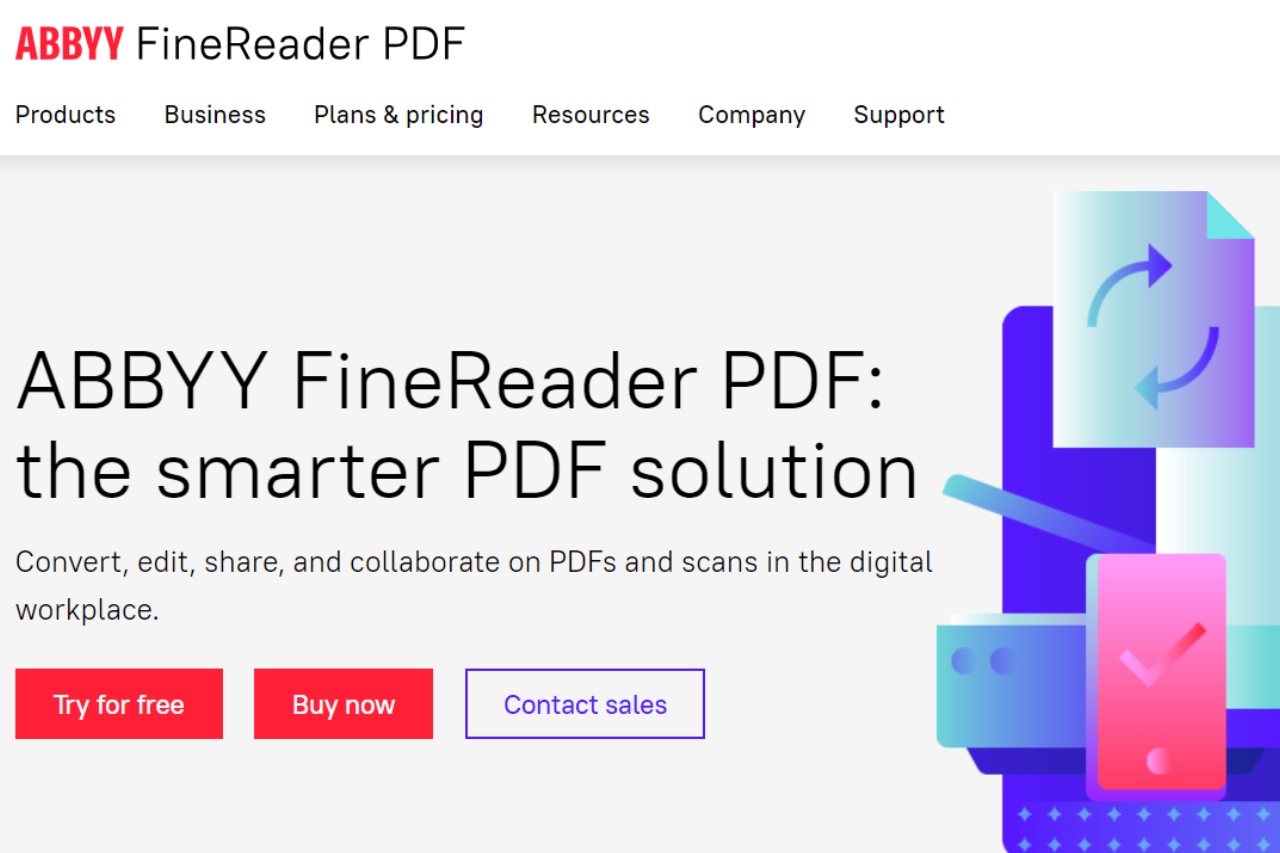
ABBYY FineReader PDF excels as a dynamic document management tool, offering a powerful blend of OCR and PDF editing capabilities. It stands out for its precision in text recognition and ease of integration with office workflows, making it ideal for professionals and businesses needing advanced document handling.
✅ Pros & ❌ Cons
Pros:
🔍 Superior OCR Technology: ABBYY FineReader PDF is renowned for its advanced optical character recognition technology, which ensures accurate conversion of paper documents and images into editable formats.
📁 Versatile Document Handling: Supports multiple formats and allows for easy editing, commenting, and security of PDF files.
🔄 Seamless Integration: Works well with popular office software, enhancing productivity and data accessibility.
Cons:
💲 Cost: It’s generally more expensive than some of its competitors, making it less accessible for casual users.
🖥️ Resource Intensive: May require a robust system for optimal performance, particularly with large files.
📚 Learning Curve: Some features may require a learning period for new users to become proficient.
📖 About ABBYY FineReader PDF
ABBYY FineReader PDF provides a robust solution for working with scanned documents and PDFs. It offers powerful OCR technology that helps users digitize, retrieve, edit, protect, share, and collaborate on all kinds of documents in the same workflow.
🗓️ How It Works
Sign Up: Visit the ABBYY FineReader PDF website and choose a suitable version.
Download and Install: Follow the instructions to install the software on your system.
Activate: Enter your license key to activate the product.
Start Using: Begin converting, editing, and organizing your PDFs and scanned documents with ease.
💲 Pricing Overview
ABBYY FineReader PDF offers different pricing tiers to cater to various user needs, including:
FineReader PDF Standard for Windows: Single PC license, includes AI-based OCR, and basic PDF viewing and editing.
FineReader PDF Corporate for Windows: Includes advanced features like document comparison and automated conversion for large volumes.
FineReader PDF for Mac: Offers OCR and basic PDF editing functionalities for macOS users.
For detailed pricing and to explore the full list of features available in each version, visit ABBYY FineReader PDF Pricing.
🥊 Competition
ABBYY FineReader PDF vs Adobe Acrobat Pro
Feature
ABBYY FineReader PDF
Adobe Acrobat Pro
OCR Accuracy
High
High
File Conversion
Extensive
Extensive
Editing Tools
Advanced
Very Advanced
Price
Generally Lower
Higher
User Interface
User-friendly
Highly Intuitive
Integration
Good
Excellent
📌 Conclusion
ABBYY FineReader PDF is a comprehensive tool that meets the rigorous demands of professional document management. It blends advanced OCR technology with a full suite of PDF capabilities, providing a reliable alternative to Adobe Acrobat Pro for businesses that need top-tier document processing functionalities.
ABBYY FineReader PDF: Your Smart Document Processing Solution
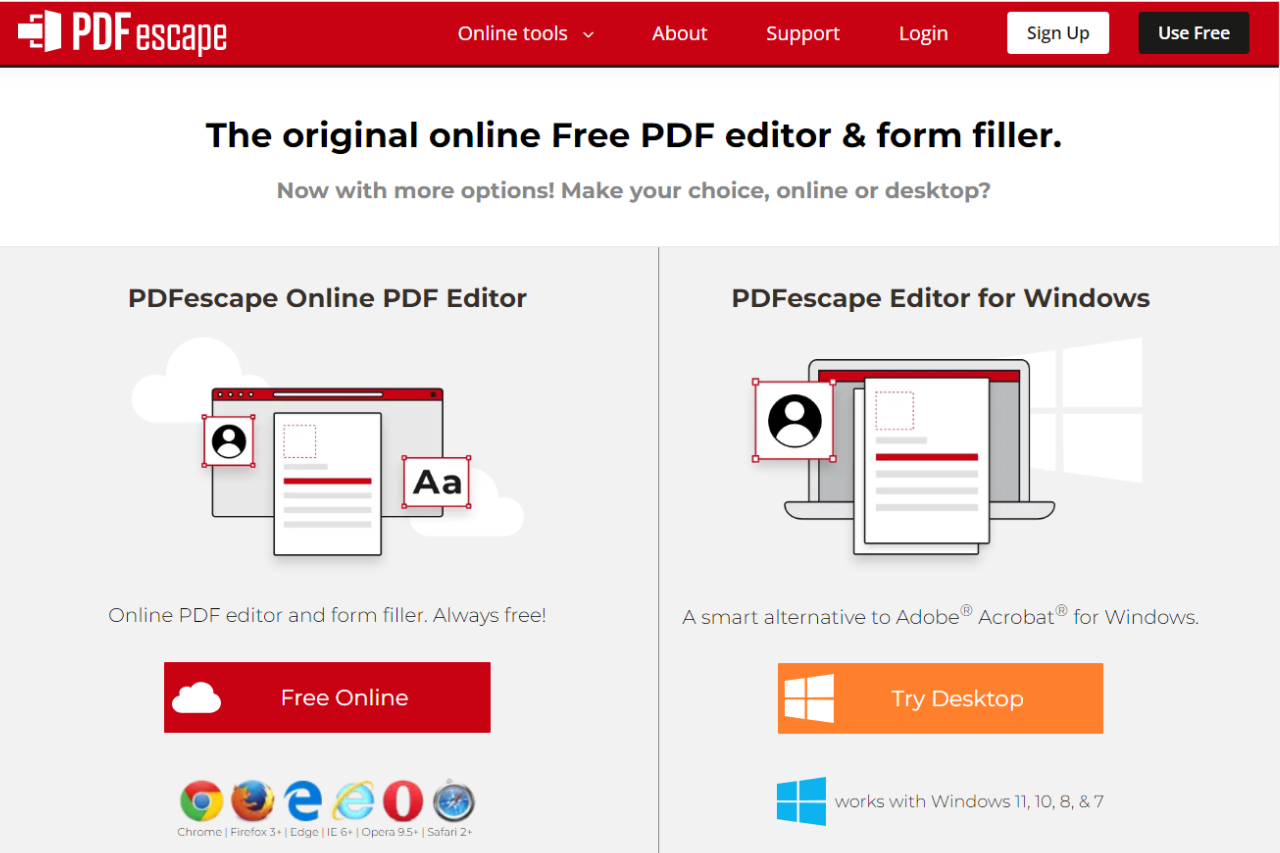
PDFescape emerges as a dynamic and accessible PDF editing tool that offers a robust alternative for users looking to manage PDF documents online. It provides essential PDF functionalities accessible directly through your web browser without the need for extensive software downloads.
✅ Pros & ❌ Cons
Pros:
🌐 Web-Based Convenience: PDFescape offers a fully operational online version that requires no downloads, enabling quick edits and updates.
🛠️ Essential Editing Tools: Includes capabilities such as adding text, images, form fields, and annotations to PDFs.
🔗 Integration: Provides basic integration with other web services for streamlined operations.
🆓 Cost-Effective: Offers a free version for basic PDF editing tasks, which is great for casual users.
Cons:
🖥️ Limited Features in Free Version: The free version has significant limitations compared to the full version, which might require an upgrade for advanced tasks.
💼 Less Robust Than Competitors: Compared to Adobe Acrobat Pro, it lacks some advanced features like sophisticated multimedia integration, extensive editing, and document comparison tools.
📞 Support Options: Limited customer support options compared to more comprehensive software solutions like Adobe Acrobat Pro.
📖 About PDFescape
PDFescape is a free, online PDF reader, editor, form filler, and form designer offering solutions to enhance your PDF handling capabilities without installing complex software. Since its inception, it has provided users with an easy escape from the typical software requirements for PDF management.
🗓️ How It Works
Access Online and Sign Up: Navigate to PDFescape’s website.
Upload PDF: Simply drag and drop your PDF into the web interface.
Edit & Save: Utilize the tools provided to edit your PDF, then save or download the edited file directly to your computer.
Optional Account: For access to more features, create an account or purchase the premium version.
💲 Pricing Overview
PDFescape offers the following subscription plans:
Free Plan:
Basic online PDF editing and form filling.
Limited feature access.
Premium Plan:
Monthly: $5.99
Yearly: $2.99/month
Advanced online and desktop PDF editing features.
Additional features such as PDF conversion, annotation, and advanced form filling.
Ultimate Plan:
Monthly: $8.99
Yearly: $5.99/month
All Premium features plus desktop power PDF editing tools.
Enhanced security features and unlimited document storage.
All plans come with a 15-day money-back guarantee. More details can be found on their pricing page.
🥊 Competition
PDFescape vs. Adobe Acrobat Pro
Features
PDFescape
Adobe Acrobat Pro
Accessibility
Web-based, accessible without installation
Desktop software with more extensive tools
Functionality
Good for basic editing and annotations
Advanced features for professional use
User Interface
Simple and easy to navigate
Comprehensive and tailored for professionals
Pricing
Free version available, cheaper premium
More expensive, but offers extensive tools
📌 Conclusion
Discover the ease of managing PDFs directly from your browser with PDFescape. Ideal for both personal and professional use, it provides essential tools without the complexity or cost of traditional PDF software.
Unlock your PDF potential with PDFescape, where simplicity meets functionality!
Is PDFescape free? Yes. The online editor is free to use in a browser for basic editing, annotation, and PDF form filling. Paid Premium and Ultimate tiers remove the free-tier limits and unlock a Windows desktop app, but you can do a lot without paying anything.
What are the limits on the free online version? The free online tier is meant for everyday documents rather than large files. It typically caps uploads at around 10 MB or 100 pages per document. If you regularly work past that, the Premium tiers or a desktop tool fit better.
Is PDFescape safe to use? The free version runs in the browser, so your file uploads to PDFescape’s servers to be edited. That is fine for routine paperwork. For confidential contracts or anything you would rather not upload, the desktop app on the paid plan keeps the file on your own machine.
Is there a desktop or offline version? Yes. PDFescape Desktop ships with the paid Premium and Ultimate plans on Windows, so you can edit without uploading. The free experience stays online-only.
What is the best PDFescape alternative? It depends on the job. Smallpdf is good for quick browser tasks like merging or compressing. Adobe Acrobat covers full professional editing with OCR and redaction. PDFelement is the cheaper desktop suite if you want Acrobat-style features without the subscription.
PDFescape vs the alternatives: which to pick
PDFescape is not the only way to edit a PDF without buying Acrobat. Here is how it lines up against three common alternatives on the things that usually decide the choice: what you get for free, whether it works offline, and the job it suits best.
Tool
Free tier
Works offline
Best for
PDFescape
Yes, editing, annotation and form filling in the browser
Pick PDFescape when you want to fill or mark up a PDF in the browser without paying or installing anything. Move to Smallpdf for one-off conversions, to Adobe Acrobat when you need professional editing and OCR, and to PDFelement if you want a desktop editor that costs less than Acrobat.
Fixing the four things that usually go wrong
Most PDFescape complaints come down to a limit that is not stated in the editor itself. Here is what each one is and what to do about it.
The file will not upload
The free browser edition caps uploads at 10 MB. Paid plans raise that to 40 MB. PDFescape also applies separate ceilings on image upload sizes, page sizes, print page counts and usage rate, so a document under 10 MB can still be refused if it carries very large images. Compress the images or split the document and the upload goes through.
The file you saved yesterday is gone
Free accounts hold up to 10 files and keep recent file history for 7 days. Paid plans hold 100 files for 30 days or longer. Treat the account as a workspace rather than storage: download the finished PDF as soon as you are done and keep the copy that matters on your own drive.
The print comes out with a URL and a date on it
That text is added by the browser, not by PDFescape. PDFescape’s own help pages recommend printing from Firefox, where you can set Headers and Footers to blank and leave the margins at 0.5. Chrome offers no way to switch that header and footer text off, so either print from Firefox or download the file first and print it from a PDF reader.
The whiteout tool is not redaction
This one matters if you handle anything sensitive. Drawing a white box over a name in the online editor hides it visually, but the text underneath is still in the file and still selectable. Redaction that actually erases the content, along with password protection and 256 bit encryption, sits in the paid Desktop application for Windows. If a document is going to a third party, redact it there or use a tool that does true redaction in the browser.
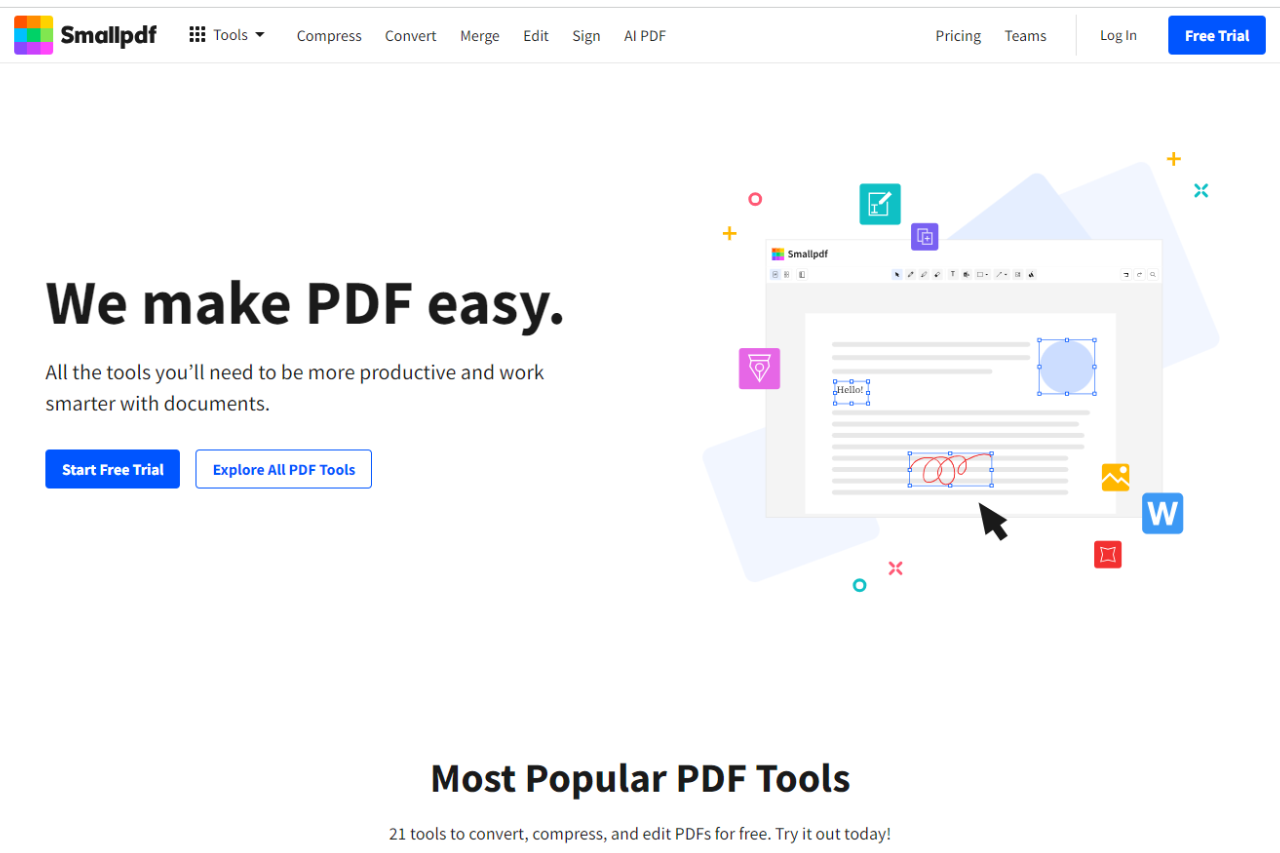
Smallpdf stands out as a highly efficient and user-friendly PDF tool that caters to both individual and business needs with its streamlined interface and broad feature set. It excels in providing a simplified approach to PDF conversion, editing, and management, making it a popular choice for users seeking an intuitive and powerful solution.
✅ Pros & ❌ Cons
Pros:
📝 Ease of Use: Smallpdf is celebrated for its clean, straightforward interface that makes PDF management accessible to everyone.
🌐 Online Accessibility: Operates entirely online, which ensures accessibility and convenience without the need for software installation.
🔄 Comprehensive Tools: Offers a wide range of tools, including PDF conversion, merging, splitting, and compression.
🔒 Secure Handling: Emphasizes security with strong encryption for file transfers and data handling.
Cons:
🌐 Internet Dependency: Requires an internet connection to access all features, which can be a limitation for users without consistent access.
📊 Limited Advanced Features: While excellent for basic tasks, it lacks some of the more advanced capabilities found in robust desktop applications.
💲 Subscription Model: Some users might find the subscription model limiting if they prefer a one-time purchase software.
📖 About Smallpdf
Founded in 2013, Smallpdf has grown rapidly to become one of the most popular online PDF software tools globally. It offers a comprehensive suite of 21 tools to simplify digital document management, from PDF conversions to electronic signatures, catering to over 25 million monthly users.
🗓️ How It Works
Visit and Sign Up the Website: Go to Smallpdf online.
Select a Tool: Choose from various tools such as Convert, Compress, or Edit PDF.
Upload Files: Drag and drop your PDF files into the tool.
Process Files: Customize your settings and process the files as needed.
Download or Share: Download the processed files or share them directly via email or link.
💲 Pricing Overview
Smallpdf offers the following subscription plans:
Free Plan:
Access to 21 tools on the website and mobile app.
Pro Plan (Monthly or Yearly Billing):
Includes all Free features plus strong compression, conversion of scanned PDFs, digital seal on signatures, unlimited downloads, desktop applications, file storage, ad-free experience, and customer support.
Team Plan (2-100 users):
All Pro features plus flexible billing management, volume discount, and priority customer support.
Business Plan (100+ users):
Custom pricing with all Team features plus personalized onboarding, flexible payment options, and a dedicated customer success manager.
Experience simplicity and efficiency with Smallpdf, the online tool that transforms how you handle PDFs. Whether you’re compressing, converting, or editing, Smallpdf has the tools you need to get the job done swiftly and securely.
Related read: Smallpdf is built around quick one-off conversions and compression. If you also need to fill forms and annotate PDFs in the browser for free, PDFescape covers that side and adds a Windows desktop app on its paid plan.
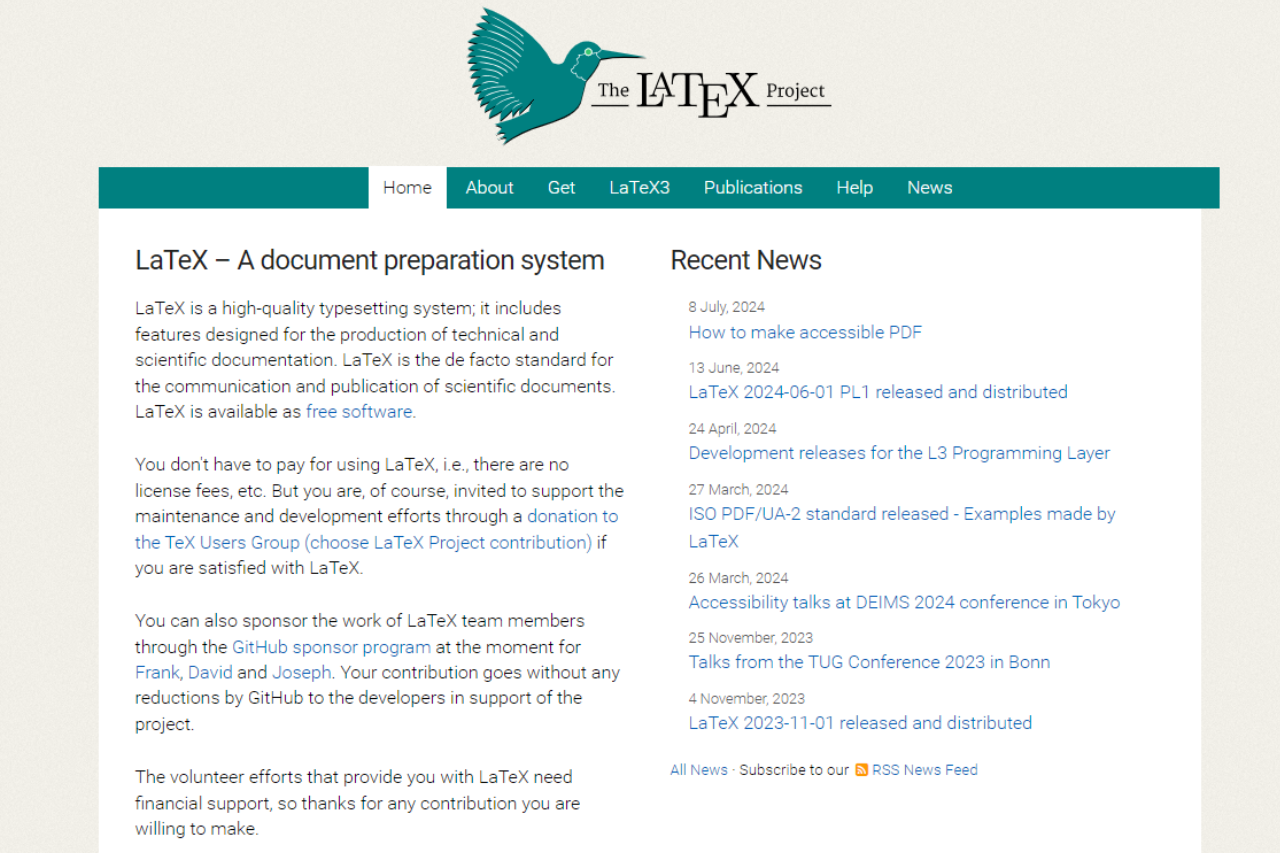
LaTeX stands out as a powerful document preparation system, particularly suited for producing high-quality technical and scientific documents. Its extensive customization and precise control over document formatting make it a top choice for academic and research professionals.
✅ Pros & ❌ Cons
Pros:
📄 High-Quality Typesetting: LaTeX excels in producing professionally formatted documents, especially for complex mathematical content and academic papers.
🛠️ Customization: Offers extensive customization options through a variety of packages and settings, allowing users to tailor documents to their specific needs.
🔬 Precision: Provides precise control over document layout and formatting, essential for scientific and technical documents.
📚 Strong Community Support: A robust community provides extensive documentation and support, helping users troubleshoot issues and enhance their LaTeX experience.
Cons:
🕒 Steep Learning Curve: New users may find LaTeX’s syntax and setup complex and time-consuming to learn compared to more user-friendly text editors.
🔄 Limited WYSIWYG Editing: Unlike modern word processors, LaTeX does not offer a What You See Is What You Get (WYSIWYG) interface, which can be challenging for users accustomed to visual editing.
📉 Limited Collaboration Features: Collaboration can be less intuitive compared to platforms that offer real-time editing and comments.
📖 About LaTeX
LaTeX is a high-quality typesetting system that is widely used for technical and scientific documentation. Developed by Leslie Lamport, it builds on the TeX typesetting system created by Donald Knuth. LaTeX is renowned for its precision and ability to handle complex formatting tasks, making it a staple in academic and research communities.
🗓️ How It Works
Installation: Download and install LaTeX from a distribution package like TeX Live or MiKTeX.
Document Creation: Write your document in LaTeX using a plain text editor, incorporating LaTeX commands for formatting.
Compiling: Compile the document using a LaTeX processor (e.g., pdflatex) to generate a PDF or other output formats.
Editing: Make adjustments to your LaTeX code as needed, recompile, and review the output.
Finalizing: Once satisfied with the formatting and content, finalize the document for publication or sharing.
💲 Pricing Overview
LaTeX itself is open-source and free to use. Costs may arise from associated software or additional packages, but the core system remains accessible at no cost.
🥊 Competition
Feature
LaTeX
Overleaf
Pros
High-Quality Typesetting
User-Friendly Interface
Customization
Real-Time Collaboration
Precision
Built-in Templates
Strong Community Support
Easy Sharing and Version Control
Cons
Steep Learning Curve
Limited Customization
Limited WYSIWYG Editing
Dependent on Internet Connection
Limited Collaboration Features
Potential Cost for Premium Features
📌 Conclusion
LaTeX remains a premier choice for those requiring high-quality typesetting and precise document control, especially in academic and technical fields. Its robust features and extensive customization make it ideal for detailed and complex documents.
LaTeX: Precision and Quality in Document Preparation
Related read: the precise control over layout that makes LaTeX worth learning also means you spend real time in an editor and a compile loop. On Windows, WinEdt is the long-standing front end for that loop, with MiKTeX and TeX Live integration and forward and inverse search into the PDF.
Related read: the precise control over layout that makes LaTeX worth learning is also why you spend your day in an editor and a compile loop rather than in a word processor. Texmaker is the free, cross-platform front end for that loop: structure pane, symbol panels, and a PDF viewer that jumps to the line you are editing.
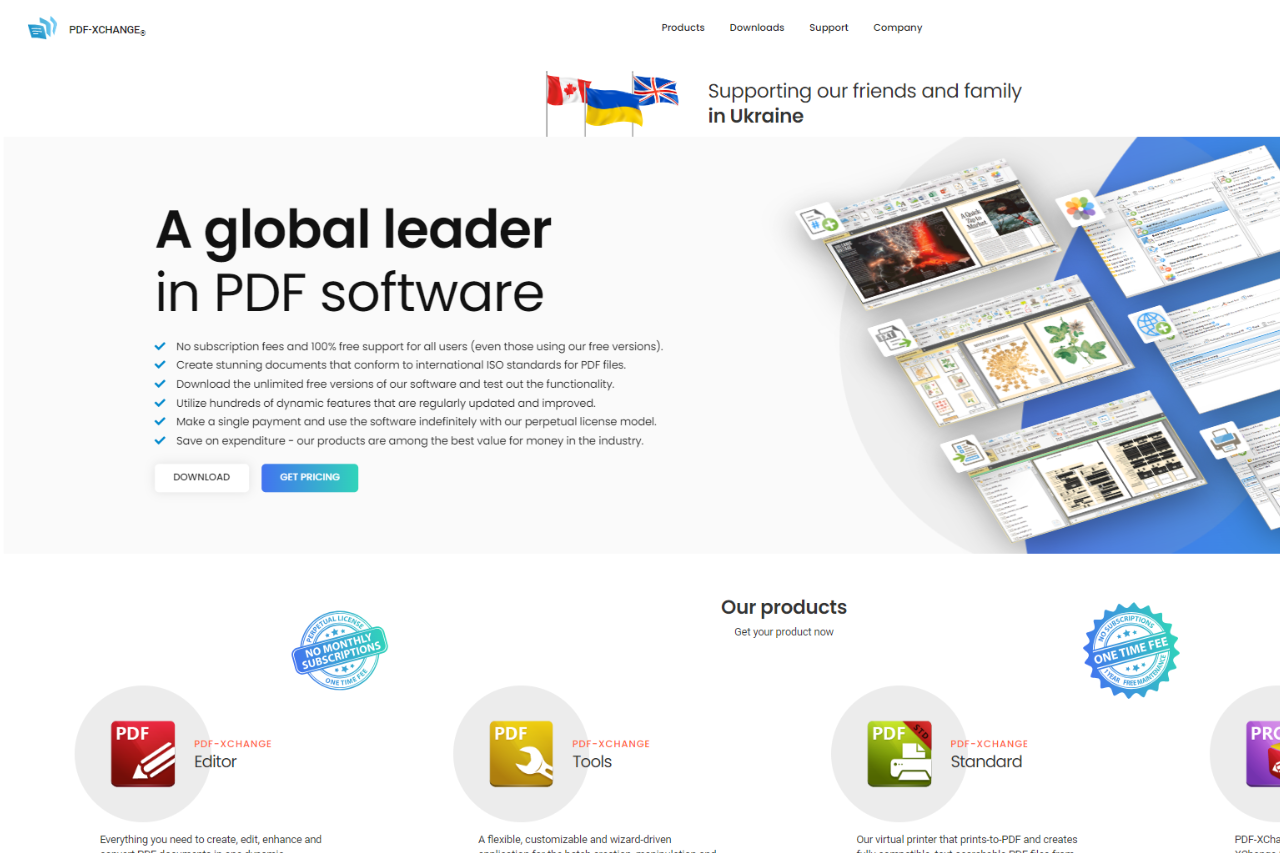
PDF-XChange Editor stands out as a powerful and feature-rich PDF editor, offering a comprehensive suite of tools designed for both casual users and professionals. Its robust functionality combined with a competitive pricing structure makes it a noteworthy alternative to other high-end PDF solutions.
✅ Pros & ❌ Cons
Pros:
🖊️ Rich Editing Tools: PDF-XChange Editor provides a wide range of editing options, including text modification, annotation, and form filling, making it versatile for various PDF tasks.
🔍 High Performance: The editor is known for its speed and efficiency, handling large and complex PDF files with ease.
💸 Cost-Effective: Offers a range of pricing options that are generally more affordable compared to some premium competitors, without compromising on features.
🔒 Security Features: Includes various security options such as encryption and digital signatures to ensure document safety.
Cons:
🛠️ Complex Interface: The interface can be overwhelming for new users due to its extensive feature set and numerous options.
📈 Limited Cloud Integration: Unlike some competitors, PDF-XChange Editor may have fewer integration options with cloud storage services.
🌐 Support: The customer support may not be as robust or responsive as some premium PDF editors.
📖 About PDF-XChange Editor
PDF-XChange Editor, developed by Tracker Software, is a versatile PDF editing tool known for its rich feature set and user-friendly interface. It caters to users seeking powerful editing capabilities at a more affordable price point, providing tools for editing, annotating, and securing PDF documents.
🗓️ How It Works
Download & Install: Visit the PDF-XChange Editor website and download the software.
Choose a License: Select the appropriate license based on your needs (Free or Paid).
Open Your Document: Launch PDF-XChange Editor and open the PDF file you wish to edit.
Edit & Annotate: Use the various editing tools to modify text, add annotations, or make other changes to your PDF.
Secure Your Document: Apply security measures such as encryption and digital signatures if needed.
Save & Export: Save your changes and export the edited PDF in your desired format.
💲 Pricing Overview
PDF-XChange Editor offers a flexible pricing structure to accommodate different needs:
PDF-XChange offers a variety of licensing options tailored to different user needs, including single user licenses and packs for multiple users (3, 5, 10, 25, 50, 100, 250, 500, and 1000 users). They also provide corporate licenses with options that vary by the scale of deployment, such as site, country, and global licenses. For more detailed information on the types of licenses and features included, you can visit their pricing page.
🥊 Competition
Feature
PDF-XChange Editor
Adobe Acrobat
Pros
Pros
Pros
Rich Editing Tools
Comprehensive PDF features
Industry-leading PDF tools
High Performance
Fast and efficient
Advanced feature set
Cost-Effective
More affordable pricing
High-level functionalities
Security Features
Strong security options
Extensive security features
Cons
Cons
Cons
Complex Interface
Overwhelming for new users
Higher cost for full functionality
Limited Cloud Integration
Fewer cloud integration options
Can be resource-intensive
Support Limitations
Less robust support
Complexity for some users
📌 Conclusion
PDF-XChange Editor proves to be a strong contender in the PDF editing space, offering a comprehensive set of tools at a competitive price. Its robust functionality, combined with high performance, makes it a solid choice for users seeking a cost-effective yet powerful PDF solution.
PDF-XChange Editor: Your Cost-Effective PDF Editing Solution
PDFelement stands out as a powerful and user-friendly PDF solution, offering a comprehensive range of features that cater to both individual users and businesses. Its robust functionality, combined with an intuitive interface, makes it a strong contender in the PDF management space.
✅ Pros & ❌ Cons
Pros:
📄 Versatile PDF Tools: PDFelement provides an extensive set of tools for editing, annotating, converting, and managing PDFs, making it suitable for a wide range of tasks.
🎨 User-Friendly Interface: The platform boasts an intuitive and easy-to-navigate interface, allowing users to quickly access and use its various features.
🔒 Advanced Security Features: PDFelement includes robust security options such as password protection, redaction, and encryption to keep sensitive documents safe.
💼 Cost-Effective: Offers a range of pricing plans, making it a more affordable option compared to some of its competitors without sacrificing functionality.
Cons:
💰 Feature Limitations in Basic Plan: Some advanced features are only available in higher-tier plans, which may not be ideal for users needing full functionality at a lower cost.
📉 Performance Issues: Occasionally, users may experience slower performance or lag when working with large or complex PDF files.
🔧 Support Limitations: Customer support can be less responsive compared to some premium competitors, which might affect users needing prompt assistance.
📖 About PDFelement
PDFelement, developed by Wondershare, is a leading PDF editor known for its powerful yet accessible tools. It caters to users seeking an all-in-one solution for creating, editing, converting, and managing PDFs, with a focus on providing a smooth and efficient user experience.
🗓️ How It Works
Sign Up: Visit the PDFelement website and sign up for an account or download the software.
Choose a Plan: Explore the available pricing plans and select the one that fits your needs.
Install & Set Up: Install the software and complete the initial setup.
Edit Your PDFs: Use PDFelement’s tools to edit text, images, and pages within your PDF files.
Convert Documents: Convert PDFs to various formats such as Word, Excel, and PowerPoint, and vice versa.
Secure Your Files: Apply security measures to protect your documents, including password protection and redaction.
Save & Share: Save your edited PDFs and share them as needed.
💲 Pricing Overview
Wondershare PDFelement offers a variety of plans tailored to different user needs:
Individuals:
Designed for personal use with features that cater to typical PDF editing needs.
Pricing varies based on the specific capabilities included, such as OCR, file conversion, and advanced editing tools.
Team & Business:
This plan is suited for teams and includes functionalities that support collaboration, such as multi-user management and advanced administrative controls.
Options are available for different team sizes and can be customized based on the number of users.
Education:
Special discounts are available for educational users, including students and educators. This plan supports academic activities like reading, annotating, and creating PDFs.
It is structured to be cost-effective to facilitate accessibility for educational institutions and individual educators.
Bundles:
Bundles offer a comprehensive set of tools for users needing multiple functionalities across different devices.
They provide a cost-effective solution for users who work across Windows, Mac, iOS, and Android platforms, including access to cloud services.
Each of these plans includes tailored features to suit the specific needs of individuals, teams, educational users, and those looking for bundled services across multiple platforms. For more detailed information about each plan, including pricing and specific features, you can visit Wondershare PDFelement’s pricing page.
🥊 Competition
Feature
PDFelement
Adobe Acrobat
Pros
Pros
Pros
Versatile PDF Tools
Comprehensive PDF features
Industry-leading PDF tools
User-Friendly Interface
Easy-to-use interface
Robust feature set
Advanced Security
Strong security features
Advanced security options
Cost-Effective
More affordable pricing
Higher price point
Cons
Cons
Cons
Feature Limitations
Limited advanced features in basic plan
Higher cost for full functionality
Performance Issues
Slower performance with large files
Can be resource-intensive
Support Limitations
Less responsive support
Complex interface for some users
📌 Conclusion
PDFelement emerges as a top choice for users seeking a versatile and cost-effective PDF management solution. With its robust feature set and intuitive interface, it provides a reliable alternative to more expensive competitors like Adobe Acrobat.
Free starting point: PDFelement is an affordable desktop alternative to Acrobat. To test how far you can get without paying or installing, PDFescape lets you edit and fill forms online first.
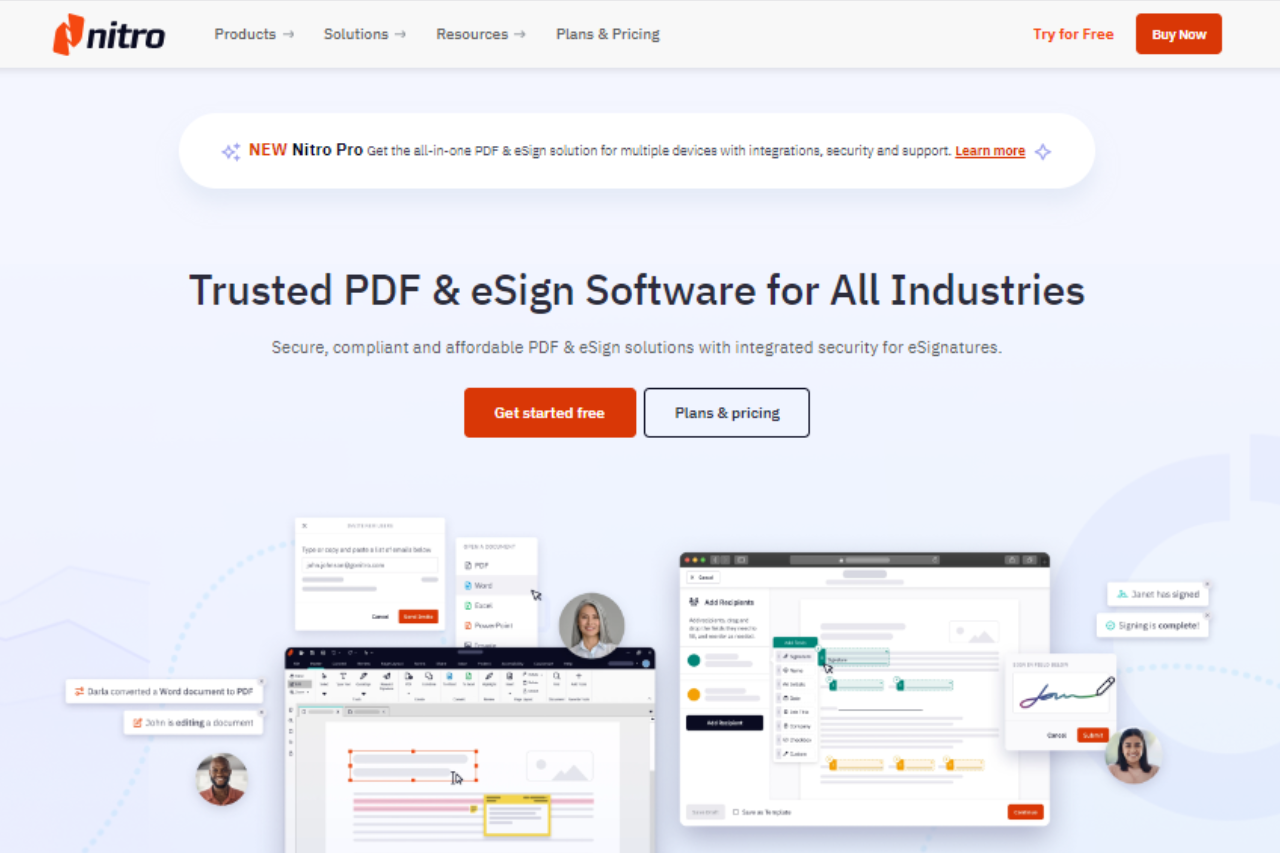
Nitro Pro stands out as a comprehensive PDF solution designed for businesses and professionals looking for powerful document management tools. Its range of features, combined with a user-friendly interface, makes it a competitive choice in the PDF software market.
✅ Pros & ❌ Cons
Pros:
📄 Comprehensive PDF Tools: Nitro Pro provides extensive tools for PDF creation, editing, conversion, and collaboration, catering to various business needs.
🎨 User-Friendly Interface: The interface is designed for ease of use, allowing users to navigate and utilize features efficiently without a steep learning curve.
🔒 Advanced Security Features: Nitro Pro offers robust security options, including password protection and digital signatures, to ensure document confidentiality and integrity.
📈 Integration Capabilities: It integrates seamlessly with popular cloud storage solutions and Microsoft Office, enhancing workflow efficiency.
Cons:
💲 Pricing: Nitro Pro’s pricing may be higher compared to some other PDF solutions, which could be a consideration for budget-conscious users.
🔧 Limited Mobile Features: The mobile version of Nitro Pro may lack some features available in the desktop version, potentially limiting its usability on the go.
📖 About Nitro Pro
Nitro Pro is a leading PDF software that offers a range of features aimed at enhancing productivity and document management. It is designed to cater to both individual users and organizations, providing tools for efficient PDF handling and collaboration.
🗓️ How It Works
Sign Up: Visit the Nitro Pro website and sign up for a trial or purchase the software.
Download and Install: Download the Nitro Pro installer and follow the on-screen instructions to install it on your computer.
Set Up Your Workspace: Customize your workspace by setting preferences and integrating with other tools as needed.
Create and Edit PDFs: Use Nitro Pro’s tools to create new PDFs, edit existing documents, and apply annotations or digital signatures.
Convert and Collaborate: Convert PDFs to various formats and share documents for collaboration with built-in features.
Secure Your Documents: Apply security measures such as password protection and encryption to safeguard sensitive information.
💲 Pricing Overview
Nitro offers different plans suitable for individuals, teams, and businesses:
Individual & Team Plans:
Nitro Pro: Subscription-based with features for PDF editing, eSigning, and sharing across devices.
Nitro Sign Essentials: Provides eSigning with essential features.
Business Plans:
Nitro Pro for Business: Includes all Nitro Pro features plus advanced tools and integrations for larger teams.
Nitro Sign Premium: Offers high-compliance eSignatures suitable for regulated industries.
All plans include 24/7 customer support and a central admin portal. Pricing details and further specifications can be accessed through their pricing page here.
🥊 Competition
Nitro Pro
Adobe Acrobat
Pros
Pros
– Comprehensive PDF tools
– Extensive feature set
– User-friendly interface
– Industry-standard software
– Advanced security features
– Powerful editing and collaboration tools
– Integration capabilities
– Cloud-based storage options
Cons
Cons
– Pricing may be higher
– Higher cost compared to competitors
– Limited mobile features
– Can be complex for new users
📌 Conclusion
Nitro Pro emerges as a strong contender in the PDF software market, offering a comprehensive suite of features tailored to business and professional needs. With its user-friendly interface, advanced security options, and integration capabilities, Nitro Pro provides a robust solution for efficient document management.
Related read: Nitro Pro is a paid desktop suite aimed at heavy PDF work. If you only need to fill a form or mark up a document once in a while, PDFescape does that free in the browser, no install required.
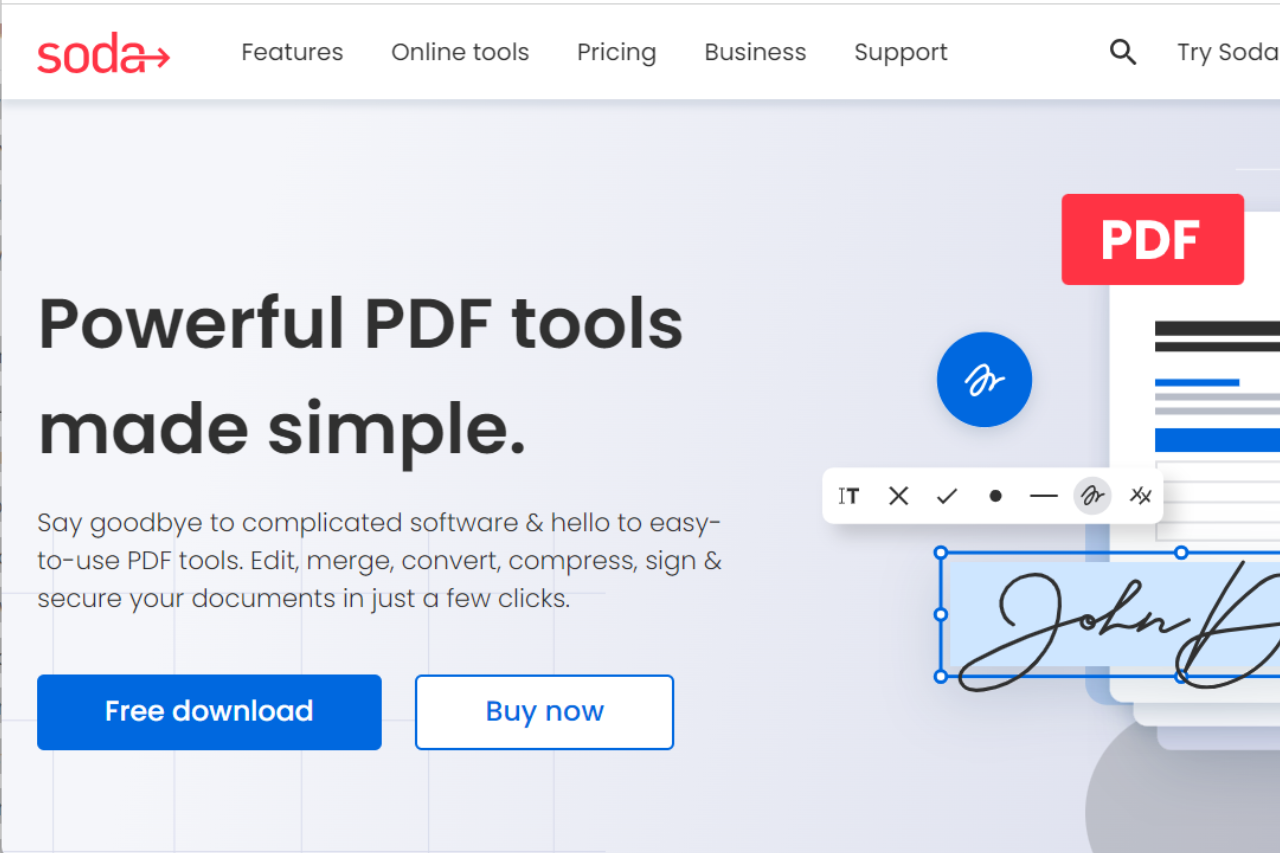
Soda PDF stands out as a versatile and user-friendly PDF management tool, catering to both individuals and businesses with its wide range of features for creating, editing, and securing PDF documents.
✅ Pros & ❌ Cons
Pros:
📑 Comprehensive PDF Tools: Soda PDF offers a robust set of features for creating, editing, converting, and securing PDF documents.
🎨 User-Friendly Interface: The platform provides an intuitive and easy-to-navigate interface, making it accessible for users of all experience levels.
🔒 Advanced Security Options: Includes features like password protection, encryption, and digital signatures to safeguard sensitive information.
🔄 Cloud Integration: Seamlessly integrates with popular cloud storage services, allowing easy access and management of documents from anywhere.
Cons:
💲 Pricing Structure: The cost may be higher for users seeking advanced features compared to other PDF tools.
🤯 Occasional Performance Issues: Some users report performance issues with larger files or complex PDF documents.
🔧 Limited Advanced Features: While comprehensive, it may lack some advanced features found in higher-end PDF software.
📖 About Soda PDF
Soda PDF provides a complete suite of tools for managing PDF documents, from creation and editing to conversion and security. It is designed to cater to both personal and professional needs, offering a streamlined approach to handling PDFs.
🗓️ How It Works
Sign Up: Visit the Soda PDF website and create an account or download the software.
Choose a Plan: Review the available pricing plans and select the one that best fits your needs.
Set Up Your Account: Configure your settings and preferences for an optimal experience.
Manage Your PDFs: Utilize Soda PDF’s tools to create, edit, and convert PDF documents.
Secure Your Files: Apply security features to protect your sensitive information.
Access from Anywhere: Use Soda PDF’s cloud integration to manage your documents from any device.
💲 Pricing Overview
Here’s a summary of the Soda PDF plans:
Soda PDF Standard:
Price: $7.00/month, billed yearly
Includes: Viewing, creating, converting, editing, securing, batch processing, commenting, form handling, e-signatures, and OCR features.
Includes: All Standard features plus enhanced capabilities.
Soda PDF Business:
Price: $16.50/month, billed yearly
Includes: All PRO tools plus self-serve plan management, deployment across all platforms, and expert phone support.
All plans come with a 30-day money-back guarantee, free customer support, and secure transactions. For more details, you can visit Soda PDF Pricing.
🥊 Competition
Feature
Soda PDF
Adobe Acrobat
Pros
Pros
Pros
PDF Tools
Comprehensive PDF Tools
Advanced PDF Editing Features
Interface
User-Friendly Interface
Robust and Reliable
Security
Advanced Security Options
Industry-Leading Security
Cloud Integration
Cloud Integration
Strong Cloud Integration
Cons
Cons
Cons
Pricing
Higher pricing for advanced features
Higher pricing for full features
Performance
Occasional performance issues
Can be resource-intensive
Features
Limited advanced features
Complex for casual users
📌 Conclusion
Soda PDF offers a comprehensive and user-friendly solution for PDF management. With its robust tools, ease of use, and security features, it is a strong choice for individuals and businesses looking to simplify their PDF workflows.
Soda PDF: Your Solution for Efficient PDF Management
Free browser option: Soda PDF spreads its features across desktop and online plans. For simple edits and form filling at no cost, PDFescape handles the common tasks straight from the browser.
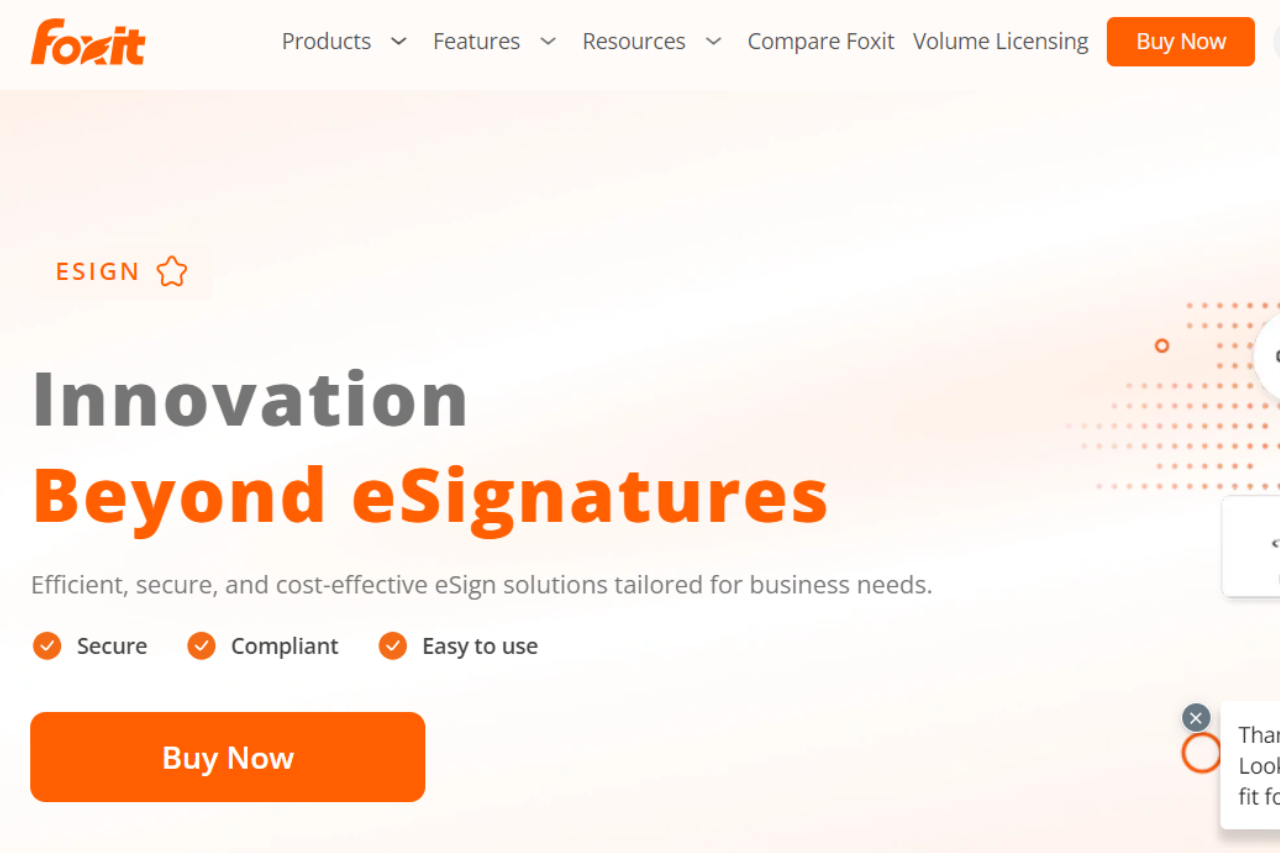
Foxit stands out as a powerful PDF management tool, offering robust features and a user-friendly experience. It’s well-suited for both individual users and businesses needing comprehensive PDF solutions.
✅ Pros & ❌ Cons
Pros:
📄 Comprehensive PDF Tools: Foxit provides a wide range of PDF tools, including editing, annotation, and form-filling capabilities.
🎨 User-Friendly Interface: The platform is designed with an intuitive interface, making it easy to navigate and use its features effectively.
🔒 Security Features: Foxit offers advanced security options, including encryption and digital signatures, to protect sensitive information.
💻 Integration: The software integrates seamlessly with various cloud services and third-party applications, enhancing workflow efficiency.
Cons:
💲 Pricing: Some users may find Foxit’s pricing plans on the higher side compared to other PDF tools, especially for advanced features.
🤯 Complexity for Beginners: New users might face a learning curve due to the extensive range of features and options.
🔧 Occasional Performance Issues: Users have reported occasional performance issues, particularly with large PDF files.
📖 About Foxit
Foxit is a leading provider of PDF solutions, known for its powerful, feature-rich software designed to meet the needs of both individuals and businesses. It offers tools for creating, editing, and securing PDF documents, ensuring comprehensive management of digital paperwork.
🗓️ How It Works
Download and Install: Visit the Foxit website and download the appropriate version for your operating system.
Choose a Plan: Explore the pricing plans and select the one that best fits your needs.
Set Up Your Account: Complete the setup process by entering necessary information and configuring settings.
Create and Edit PDFs: Use Foxit’s tools to create, edit, and annotate PDFs according to your requirements.
Secure Your Documents: Apply security features such as encryption and digital signatures to protect your documents.
Integrate and Share: Integrate with cloud services and share your PDFs as needed.
💲 Pricing Overview
Foxit offers different plans for their PDF Editor, available both monthly and annually:
PDF Editor:
Monthly: $16.99 per user/month
Annually: $159 per user/year
PDF Editor Pro:
Monthly: $19.99 per user/month
Annually: $179 per user/year
Each plan provides various features like document creation, editing, conversion, and advanced security options. For more detailed information on features and pricing, you can visit their pricing page.
🥊 Competition
Feature
Foxit
Adobe Acrobat
Pros
Pros
Pros
Comprehensive tools
Comprehensive PDF tools
Extensive feature set
User-friendly
User-friendly interface
High level of integration with Adobe products
Security features
Advanced security options
Robust security and compliance features
Integration
Integrates with cloud services
Seamless integration with Adobe ecosystem
Cons
Cons
Cons
Pricing
Higher pricing for advanced features
Generally more expensive
Complexity for beginners
Learning curve for extensive features
Complex interface for new users
Performance issues
Occasional performance issues
Can be resource-intensive
📌 Conclusion
Foxit excels as a versatile and powerful PDF management solution, offering a range of features and integrations that cater to diverse needs. While its pricing and complexity might be challenging for some users, its robust toolset and user-friendly interface make it a top choice for efficient PDF handling.
Browser-first option: Foxit is a fast desktop PDF editor. If you would rather not install anything and just need to mark up or fill a PDF online, PDFescape runs entirely in the browser on its free tier.
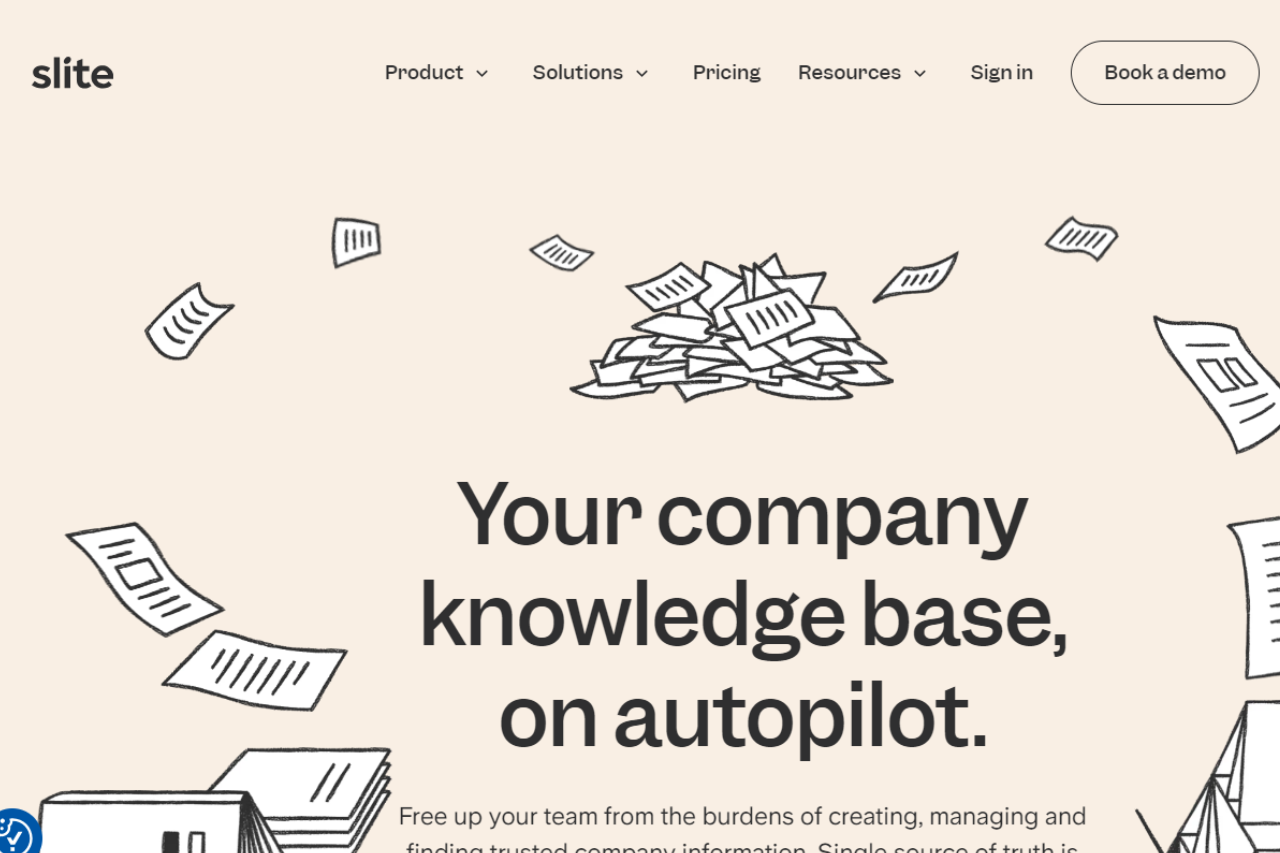
Slite stands out as a powerful collaboration tool designed for teams seeking to enhance their internal communication and document management. With its intuitive interface and effective features, Slite simplifies the way teams work together.
✅ Pros & ❌ Cons
Pros:
📝 Easy Collaboration: Slite provides a seamless environment for team collaboration with real-time editing and shared documents.
🌟 User-Friendly Interface: The platform is designed with simplicity in mind, making it easy for users to navigate and utilize its features.
🔍 Organized Workspace: Offers structured organization with workspaces, channels, and documents, ensuring that information is easily accessible.
🔗 Integration Capabilities: Integrates smoothly with various tools such as Slack, Google Drive, and Trello, enhancing workflow efficiency.
Cons:
💲 Pricing: Some users may find Slite’s pricing plans relatively high compared to other collaboration tools, especially for smaller teams.
🚀 Limited Features: While Slite excels in document collaboration, it may lack some advanced features found in more comprehensive project management tools.
🔧 Customization: Limited customization options for workspace layouts and document templates might not meet the needs of all users.
📖 About Slite
Slite is dedicated to improving team collaboration through a streamlined platform that emphasizes ease of use and efficient document management. It is well-suited for teams looking for a simple, yet effective way to collaborate and organize their work.
🗓️ How It Works
Sign Up: Visit the Slite website and create an account to get started.
Set Up Your Workspace: Create and organize workspaces according to your team’s needs.
Invite Team Members: Add your team to the workspace and set permissions as needed.
Create Documents: Start creating and editing documents with real-time collaboration features.
Integrate Tools: Connect Slite with other tools your team uses for enhanced productivity.
Organize Content: Use channels and tags to keep documents organized and easily searchable.
💲 Pricing Overview
Slite offers various pricing plans designed to cater to different team sizes and needs. From basic plans for small teams to more comprehensive options for larger organizations, there is a plan to fit most requirements.
Standard Plan:
Monthly: $10 per member/month
Annually: $8 per member/month (billed annually)
Premium Plan:
Monthly: $15 per member/month
Annually: $12.5 per member/month (billed annually)
Each plan includes features such as unlimited documents, AI-powered instant answers, integrations with tools like Google Drive and Slack, and more. The Premium Plan offers additional security features and unlimited external connections. For large organizations, Slite also provides a custom Enterprise plan with advanced features and support.
For more details, you can visit their pricing page directly here.
Relatively high pricing, limited features, limited customization options
Steeper learning curve, complex for new users, can be overwhelming for simple tasks
📌 Conclusion
Slite is an excellent choice for teams seeking a straightforward, effective collaboration tool. Its ease of use, organizational features, and integration capabilities make it a valuable asset for enhancing team productivity. For teams looking to streamline their work and improve collaboration, Slite offers a solid and reliable solution.
This website uses cookies to ensure you get the best experience on our website. Surfing the website you are authorizing the use of cookies.
Privacy & Cookies Policy
Privacy Overview
This website uses cookies to improve your experience while you navigate through the website. Out of these cookies, the cookies that are categorized as necessary are stored on your browser as they are essential for the working of basic functionalities of the website. We also use third-party cookies that help us analyze and understand how you use this website. These cookies will be stored in your browser only with your consent. You also have the option to opt-out of these cookies. But opting out of some of these cookies may have an effect on your browsing experience.
Necessary cookies are absolutely essential for the website to function properly. This category only includes cookies that ensures basic functionalities and security features of the website. These cookies do not store any personal information.
Any cookies that may not be particularly necessary for the website to function and is used specifically to collect user personal data via analytics, ads, other embedded contents are termed as non-necessary cookies. It is mandatory to procure user consent prior to running these cookies on your website.