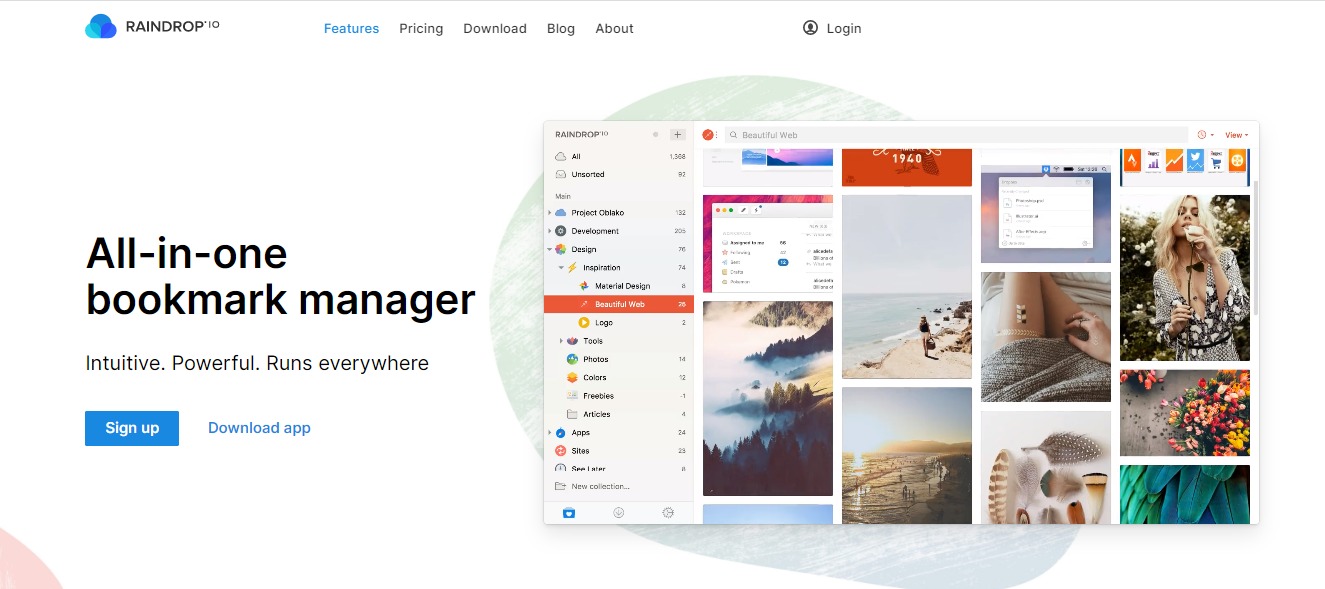
Raindrop All-in-One Book Manager

⚖️ Our Verdict

Browsing the web can get messy really fast! This is what bookmarks are for. But sometimes, bookmarks can get messy and unorganized, too. Keep your bookmarks organized for faster and hassle-free browsing with Raindrop! 

Raindrop is an all-in-one book manager that can help you organize your bookmarks on your computer browser, tablets, and smartphones! It’s an easy way to keep everything neat. The best part is that Raindrop keeps a backup of your bookmarks so you can get to it anywhere, anytime.

👍 Pros👎 Cons
👍 User-Friendly Interface
👍 Multiple Views
👍 Instant Previews
👍 Full-text Search
👍 Great for Teamwork
👍 No Limits
👍 Safe & Secure
👎 Integrations can get a little buggy sometimes

🌟 About Raindrop

Raindrop was created to keep all of your bookmarks saved in an organized pile. Rustem Mussabekov created this incredible app back in late 2013 to improve how everyone deals with bookmarks.

Best of all, Raindrop doesn’t sell your data to anyone. It’s made for everyone to feel safe and secured when saving bookmarks on the internet. Your data will be secured and considered highly confidential.

🎁 What’s In It For You?

This incredible app is the best place to keep all your favorite articles, books, songs and everything you bookmark on the internet. It’s a modern bookmark manager made to keep up with modern times. 

You can keep your bookmarks organized with collections, tags and filters to classify items, and search efficiently. Best of all, Raindrop keeps your data clean. It helps you find duplicates and pages that are no longer accessible.

With Raindrop, you can view bookmarks whatever way you look. The app features Grid, Headlines, Masonry or List View modes. It also features an instant preview where you can read articles, view videos, and browse the web without leaving your library, how cool is that?

🖥️ How Does It Work?

  1. If you want to try how Raindrop works, you can do so for Free. Simply visit https://raindrop.io/.

2. Click on Download App and it will redirect you to another webpage where you can choose the browser you often use.

3. For this example, we chose Chrome. Click on “Ädd to Chrome”

4. Make sure to click on “Add extension” to your browser.

5.  It will lead you to this webpage, choose the appearance you prefer.

6. Sign up to create an account. 

7. This is what the interface looks like. Here, you can organize your bookmarks.

💲 Pricing Plans & Support

Raindrop offers a Free plan, but you can also choose the Pro Plan for a fee. Check out the difference below.

💎 Free

〰️Unlimited bookmarks

〰️Unlimited collections

〰️Unlimited devices

〰️More than 2,600 integrations 

〰️Apps for Mac, iOS, Android, Chrome, Safari, Firefox and Edge

〰️Share and collaborate 

〰️Upload 60 Mb of files per month

〰️All essential features 

💎 Pro – $3 per month or $28 per year

〰️Everything on the Free plan, plus

〰️Full-text search 

〰️Permanent library 

〰️Nested collections 

〰️Autosuggested tags

〰️Duplicate and broken links finder 

〰️Cloud backup 

〰️Upload 10 Gb of files per month 

〰️Priority support by email

〰️Enabled in all platforms

📍 The Competition

👍 Pros👎 Cons
👍 Good customer service
👍 Website management
👍 Ease of use
👎 No version control
👎 No document indexing
👍 Pros👎 Cons
👍 Save content from anywhere
👍 Organize saved items with tags
👍 Easily share links on social media
👎 High premium price

Manage your bookmarks better with Raindrop.

Fluent: Learn a New Language by Browsing the Web

⚖️ Our Verdict

Learning a new language can be tough. This is especially true as we age. Fortunately, there are tools such as Fluent that can help everyone learn new languages easily. Fluent is an incredible Chrome browser extension that can help you learn a new language as you browse the web. It’s an amazing way to increase your knowledge without the pressure.

ProsCons
👍Learn a new language easily
👍 Free for everyone
👍 Tracks your progress
👍 You can request features
👍 Pro version available with no ads
👎 Not available in every language yet

🌟 About Fluent

Fluent was founded to help everyone learn a new language easily. It fits a whole new vocabulary into your web browser. This means no apps, no annoying notifications, and no more “finding the right time” to study. It’s all laid out in front of you. No more excuses. 

Their team is currently working on cool new features and more languages for everyone to learn. They are open to suggestions and feedbacks, too, so you know they really care about their audience. 

You can easily contact their team for feedbacks, suggestions and comments through their Twitter account @usefluent. Or, you can contact their CMO Ara Ghougassian

Fluent is a relatively new browser extension, but it holds so much promise. Their whole team has been working hard to make it the best language tool out there.  For feedbacks, you can send them through this link right here.

🎁 What’s In It For You?

As we’ve mentioned, Fluent gives you access to a whole new language easily. It allows you to learn different languages by automatically translating words on a website. This way, you can learn while you are browsing the web.

Easy enough, right? You never have to set extra time to study. You can simply learn from content that you’re already interested in. With Fluent, you can learn without forcing yourself to do things you’re not remotely interested in. Pretty cool, eh?

🖥️ How Does It Work?

You can use Fluent in just a few simple steps. We’ve provided a step-by-step instruction below. Check it out.

Visit their website here: https://www.usefluent.co/ and click “Add to Chrome.”

You will be redirected to the Chrome Web Store. Click “Add to Chrome” 

Click on “Add extension” and wait for the extension to download. 

Click on Get Started

You will be provided simple instructions:

You can choose which density you want. 

Choose which websites you want to block from Fluent so you can customize the experience.

You can also choose to connect Fluent with your Google account so you can join the community.

Read and write permissions.

Click “Allow”

Once you install Fluent, you can customize the settings as you go. 

See the newly translated words in every article you read and start learning!

💲 Pricing Plans & Support

As of the moment, Fluent is free to use for everyone. However, they are also planning on offering a Pro version which you can use without ads. 

Learn a New Language Easily with Fluent

Podcastle AI: Convert News/Articles to a Podcast Using Machine Learning

⚖️ Our Verdict

Creating your own podcasts takes some serious effort! However, it can open a lot of doors for you and your brand. This is one of the main reasons why podcasts are so popular these days. Podcastle AI allows you to create podcasts instantly! All it takes is a few seconds, and any news or article you have can be transformed into podcasts. It’s an amazing tool that saves a ton of your time, and it’s free!

ProsCons
👍 Free for everyone
👍 Clear and concise output
👍 Saves time and effort
👍 Creates podcasts instantly
👎 Only works in Chrome for now.

🌟 About Podcastle AI 

Podcastle AI was founded by ML engineer Arto Yeritsyan with one goal in mind: to help everyone convert text to podcasts easily. This incredible tool is a browser extension that you can get for free. It allows everyone to convert text to podcasts based on Machine Learning.

It’s very easy to use, too! All you have to do is install the browser extension, sign up for the service, and go to the article you want to convert into a podcast. 

🎁 What’s In It For You?

If you’re a business or a brand, you can easily turn your content into podcasts and upload it on different platforms. If you’re someone who just enjoys reading online in your free time, you can use Podcast AI to convert your reading material into podcasts so you can listen.

This awesome, one-of-a-kind tool converts text and generates podcasts that are very human-like. It considers all the emotions and even the writer’s tone of voice, so you won’t go dozing off while you listen. 

This tool serves a great purpose for everyone, especially those who are working remotely. You can use Podcast AI while you’re working, doing your house chores, making coffee, or just about anything.

You can finally say goodbye to spending countless hours staring at your screens and scrolling through endless text streams. With Podcastle AI, all your favorite news, articles and blog posts can transform into podcasts that you can listen to.

🖥️ How Does It Work?

Podcastle is very easy to use. You can start using it in just a few clicks. 

First, start by visiting their website.

Click on “Get Started.” You will be redirected to the Google Extension Store. Then Click “Add to Chrome”

Click on “Add Extension.” Wait for it to finish downloading. It will automatically be added to your browser once it’s done.

Once it’s done, click on the extension icon and click “Sign Up.”

Enter the email address you want to use then click “Continue”

Once you finish signing up, you will be given instructions on how to use the extension.

The next step is to try this tool. First, you need to visit a webpage with the article you want to try. Then, click on the icon for Podcastle on your browser, and click “Convert to Podcast.”

It only takes a few seconds to convert the article, depending on the length.

You can also adjust the volume. 

Or download the podcast you just created for later use. 

You can also share it to different platforms.

Or change the voice’s gender.

You can even change the speed

podcastle ai

💲 Pricing Plans & Support

As we have mentioned above, Podcastle is free. Everyone can use it. All you need to do is sign up and install the browser extension. Enjoy!

Convert News/Articles to a Podcast Using Podcastle