StackEdit is a versatile, web-based Markdown editor designed for writers, developers, and professionals who need a powerful, browser-friendly tool for creating and managing documents. With its seamless cloud integration, live preview feature, and support for advanced Markdown formatting, StackEdit is a must-have for those seeking a reliable and accessible Markdown editor. While it lacks offline functionality and advanced collaboration tools, its wide range of export options and intuitive interface make it a standout choice for individual users.
β Pros & β Cons
Pros
Web-Based and Lightweight: No installation required; accessible directly from your browser.
Live Markdown Preview: Instantly see formatted content alongside your code.
Cloud Integration: Sync with Google Drive, Dropbox, and GitHub for easy document management.
Export Versatility: Save files as PDF, Word, HTML, or raw Markdown.
Extensive Markdown Features: Supports tables, footnotes, and mathematical expressions.
Free to Use: No hidden fees or premium features.
Cons
No Offline Access: Requires an internet connection to function.
Limited Collaboration Tools: Does not support real-time collaborative editing.
Basic UI Design: The interface feels dated compared to modern editors.
Learning Curve: Advanced features may overwhelm beginners.
Dependency on Browser: Limited functionality on mobile browsers.
π About
StackEdit is a free, open-source Markdown editor accessible entirely from your web browser. Designed for both beginners and power users, it provides a feature-rich environment for creating and managing Markdown documents. With integrations for cloud storage and Git-based platforms, StackEdit simplifies workflows for developers, writers, and students who rely on Markdown for structured writing.
Start writing in Markdown, using the live preview panel to see formatted content in real time.
3. Organize and Sync Files
Sync your documents with Google Drive, Dropbox, or GitHub for easy access and version control.
4. Use Advanced Markdown Features
Add tables, equations, or footnotes for detailed documentation.
5. Export Your Work
Save files in various formats, including PDF, Word, and HTML.
6. Publish Online
Publish directly to platforms like WordPress or export to GitHub Pages for web-based content.
π² Pricing Overview
StackEdit is completely free to use. All features, including cloud synchronization and export options, are available without any subscription fees or hidden costs.
π₯ Competition
Feature
StackEdit
Dillinger
Cost
Free
Free
Offline Access
No
No
Cloud Integration
Supports Google Drive, Dropbox, GitHub
Supports Dropbox and GitHub
Live Markdown Preview
Yes
Yes
Collaboration
Limited
Limited
Customization
Advanced features for Markdown formatting
Basic customization
Ease of Use
Requires some learning curve
Beginner-friendly
Export Options
Extensive (PDF, Word, HTML, Markdown)
Limited to Markdown export
π Conclusion
StackEdit is a powerful and versatile Markdown editor that caters to users seeking a web-based solution for writing and managing structured documents. Its robust feature set, including live preview, cloud integration, and export options, makes it an excellent choice for developers and writers. Although it lacks offline capabilities and advanced collaboration tools, StackEdit remains a top contender for those prioritizing accessibility and efficiency.
StackEdit: Markdown Made Simple, Anywhere, Anytime
StackEdit runs in the browser and stores files in localStorage by default, so closing the tab keeps the current draft intact. Connecting Google Drive, Dropbox, or GitHub turns it into a multi-device editor without installing anything locally. The split-pane preview re-renders on each keystroke, and tables, fenced code, KaTeX math, and Mermaid diagrams all render without plugin setup.
Offline use works through the PWA install. Click the install button in the browser address bar and StackEdit launches in its own window, similar to a native desktop app. Pricing stayed free for personal use in 2026. The Pro tier at $4.99 a month removes ads and adds Couchbase sync for teams, which is the main thing missing from the free build.
Exporting and publishing from StackEdit
Writing is only half the job. StackEdit exports a finished document as Markdown, HTML, or a styled PDF, so the same draft can go to a static site, a CMS, or a client without reformatting. The HTML export keeps the rendered headings, tables, and code blocks intact, which saves a cleanup pass when you paste into a page builder.
StackEdit also publishes straight to external services. You can connect WordPress, Blogger, Zendesk, or a GitHub Gist and push the current file to it, then update the same target later instead of copying text by hand. For teams that draft in Markdown but ship to a hosted blog, that publish step is what makes a browser editor practical rather than a scratchpad. Files stay in your linked Google Drive or Dropbox folder, so the source of truth is a plain .md file you own.
Related read: StackEdit runs in the browser for quick Markdown editing. If you want a Markdown notebook that keeps notes on your own machine and works offline, Boostnote covers similar ground for developers.
Boostnote is a powerful, open-source note-taking tool specifically designed for developers. Its focus on markdown-based notes, code snippet management, and seamless organization makes it a go-to choice for programmers and technical users. While it lacks the advanced multimedia features and integrations of competitors like Evernote, Boostnote excels in providing a lightweight, customizable solution for coding and technical documentation.
β Pros & β Cons
Pros
Developer-Focused: Designed for managing code snippets and markdown notes.
Open-Source: Fully open-source with community-driven development.
Cross-Platform: Available on Windows, macOS, and Linux.
Offline-First: Fully functional without an internet connection.
Markdown Support: Advanced markdown editor with syntax highlighting.
Free to Use: No subscription fees or premium tiers.
Cons
Limited Integrations: Lacks integration with major productivity tools like Google Drive or Slack.
No Real-Time Collaboration: Not suitable for team-based note-taking or collaboration.
Basic UI Design: Minimalistic interface may feel outdated to some users.
Multimedia Limitations: Lacks robust support for images, audio, or video notes.
Learning Curve: Advanced features may overwhelm non-technical users.
π About
Boostnote is an open-source note-taking application tailored for developers and technical professionals. Originally designed to manage code snippets, Boostnote has expanded to support markdown-based documentation and task management. Its offline-first design and focus on coding make it a preferred choice for developers who want a lightweight yet powerful note-taking solution.
ποΈ How It Works
1. Create an Account, Download and Install
Boostnote is available for free on https://boostnote.io/ for Windows, macOS, and Linux.
2. Create Notes
Capture ideas using markdown or save reusable code snippets in structured folders.
3. Organize Content
Use tags and folders to categorize notes for easy retrieval.
4. Customize Your Workflow
Choose from various themes and editor configurations to match your preferences.
5. Sync Across Devices
Manually synchronize notes using third-party storage solutions like Dropbox or Google Drive.
6. Collaborate via Git
Leverage Git integration for version control and team collaboration.
π² Pricing Overview
Boost Note offers three pricing plans to cater to different user needs:
Free Plan
Cost: $0 per member/month
Features:
14-day free trial
No credit card required
Standard Plan
Cost:
$6 per member/month (monthly billing)
$5 per member/month (yearly billing, save up to 20%)
Features:
Unlimited documents
Unlimited dashboards
7-day version history
PDF exporting
1 GB storage per member
200 MB per upload
Support from the Boost Note team
Pro Plan
Cost:
$10 per member/month (monthly billing)
$8 per member/month (yearly billing, save up to 20%)
Features:
All Standard Plan features
Unlimited version history
Private folders
10 GB storage per member
Advanced public sharing
Priority support
Additional Information:
Members: Can create and edit items.
Viewers: Free; can view and comment on documents.
Billing: Both monthly and yearly options are available, with yearly billing offering up to a 20% discount.
Payment Processing: Handled securely through Stripe.
Trial Period: After the 14-day free trial, users can read existing documents but cannot add or edit documents without upgrading to a paid plan.
Boostnote is an excellent choice for developers and technical users seeking a lightweight, markdown-based note-taking tool. While it may not have the advanced integrations and multimedia capabilities of competitors like Evernote, its developer-focused features and open-source nature make it a standout solution for managing code snippets and technical documentation.
Boostnote: The Ultimate Note-Taking Tool for Developers
Boost Note vs Obsidian: which fits a developer in 2026?
Obsidian gets most of the attention in the markdown-notes category, but Boost Note is built for a different audience. Obsidian is a graph-first knowledge tool that rewards heavy linking and a stable vault. Boost Note is a code-first scratchpad: syntax highlighting on every block and a built-in markdown preview that handles Mermaid and PlantUML diagrams without a plugin install.
The developer workflow Boost Note is good at
Two workflows where Boost Note pulls ahead. Capturing shell snippets while you debug a service: the code-block editor behaves like an IDE, not a word processor, and the snippet notes give one-off scripts somewhere to live. Keeping a personal runbook on a locked-down work laptop: cloud sync is optional, so a machine with restricted network egress still runs offline-first.
When to pick something else
Boost Note is the wrong tool if your notes are mostly prose or if you live inside a team wiki. Reach for StackEdit when you want browser-based markdown with Google Drive sync, or MarkdownPad 2 on Windows for a desktop editor with live HTML preview. Boost Note keeps its edge for engineers who want an editor that thinks in code blocks first and prose second.
Boostnote FAQ
Is Boostnote discontinued? The original Boostnote desktop app is no longer actively developed. The team moved work to Boost Note (boostnote.io), sometimes called Boost Note Next, which is the version that still gets updates. If you are downloading it fresh in 2026, use the boostnote.io build rather than the archived original.
Is Boostnote free and open source? Yes. The app is free to download and its source is public. There is a paid cloud tier for hosted sync and shared team spaces, but the editor itself costs nothing and runs fine as a local-only notebook.
What is the best Boostnote alternative? It depends on what you want back. Obsidian if you care about linked notes and a large plugin ecosystem. Joplin if you want end-to-end encryption. Zettlr if you write research-heavy Markdown. All three are Markdown-first and work offline, so notes stay in plain files you control.
Does Boostnote work offline and across platforms? The desktop app keeps notes locally and runs on macOS, Windows, and Linux. Code blocks get proper syntax highlighting, which is the main reason developers reach for it over a general note app. Cross-device sync is the part the hosted cloud tier handles.
Moving on from Boostnote: alternatives and how to migrate
If your notes still live in the original Boostnote app, the data is not trapped. Boostnote stored notes as plain Markdown files in a local folder you chose at setup, so the simplest migration is to copy that folder into any Markdown native app and keep working.
For a like for like developer experience, Boost Note (the maintained successor at boostnote.io) imports the same Markdown and keeps the code block focus. If you want a larger ecosystem, Obsidian reads a folder of Markdown files directly, so you can point it at your old Boostnote directory and the notes show up with no export step. Joplin is the closest open source match for anyone who wants built in sync and end to end encryption without paying for a hosted tier.
Whatever you pick, export first. Open Boostnote, confirm your storage folder path in settings, and back that folder up before you change anything. Because the format is plain Markdown, you are never locked in, which is the main reason developers liked Boostnote in the first place.
Boostnote vs the alternatives: a quick comparison
If you are weighing Boostnote against the other Markdown notebooks developers reach for, here is how the main options line up in 2026.
App
Still maintained
Price
Works offline
Best for
Boostnote (original)
No, archived
Free
Yes
Existing users on an older install
Boost Note (boostnote.io)
Yes
Free, paid cloud sync
Yes
The current Boostnote line, with team spaces
Obsidian
Yes
Free, paid sync and publish
Yes
Linked notes and a large plugin library
Joplin
Yes
Free, open source
Yes
End-to-end encrypted notes
Zettlr
Yes
Free, open source
Yes
Citations and long-form research writing
Which one should you pick? If you already run the original Boostnote and just want it to keep working, stay put. Your notes are plain Markdown files, so nothing is locked in. If you want the maintained version of the same idea, move to Boost Note at boostnote.io. Starting fresh and care about connecting notes to each other? Obsidian has the deepest ecosystem. Pick Joplin when encryption is the priority, and Zettlr when most of your writing is research with references.
How to export your Boostnote notes and move to a maintained app
Boostnote’s original app is archived, so the sensible thing is to pull your notes out as plain files you control, then bring them into something that still gets updates. Here is what works for most installs.
1. Find your storage folder
Open Boostnote and check Preferences for the storage path. Older desktop builds save each note as a .cson or .md file in a folder you chose at setup. If you never changed it, look for a “Boostnote” folder under Documents.
2. Convert .cson notes to Markdown
Anything already saved as .md is portable as is. For .cson notes, open each one and use File then Export to save it as Markdown or PDF. If you have a big library, the community “boostnote-to-markdown” scripts on GitHub can convert a whole folder at once.
3. Back up before you migrate
Copy the exported Markdown folder somewhere else, like a cloud drive or an external disk, before you import anything. That copy is your safety net if an import goes sideways.
4. Import into your next app
Most maintained alternatives read Markdown straight away. In Boost Note, Obsidian, or Joplin, point the importer at your exported folder and the notes arrive with their headings and code blocks intact. Obsidian can skip the import entirely and open the folder as a vault.
Once the notes open cleanly and the formatting looks right, you can retire the old install. Hold on to the backup folder for a few weeks until you are sure nothing went missing.
Is Boostnote still safe to use in 2026?
Because the original Boostnote app is archived, a fair question before you rely on it is whether it is still safe to keep on your machine. The short answer: your notes are fine, but treat the old desktop build as frozen software.
Your notes stay yours
Boostnote saves notes as plain Markdown files on your own disk, not in a company cloud that could be switched off. Even with the app archived, those files open in any text editor, so nothing is locked away or at risk of vanishing.
What archived actually changes
An archived app stops getting updates, which means no new security patches. For a local, offline notebook that does not log into anything, that risk is low, but it is real over time. If you store sensitive material, that is the reason to plan a move rather than stay forever.
The safer long-term path
The maintained successor, Boost Note, and other Markdown-first apps read the same files, so you can keep working today and migrate when it suits you. Keep a backup of your Markdown folder either way.
What developers reached for Boostnote to do
Boostnote was never trying to be a second brain or a team wiki. It was a place to keep the notes that pile up while you are actually building something, and a few habits made it stick for developer users.
A searchable snippet drawer
The most common use was a personal library of code snippets. A regex you know you will need again, a working docker-compose block, the curl command that finally hit the right endpoint. Each one went into its own note inside a fenced code block, so the syntax highlighting held and a quick search pulled it back weeks later.
Tags instead of folders
Rather than nesting folders, most people leaned on tags. A single note could be tagged “bash”, “deploy” and “work-laptop” at once, which matches how this kind of reference material actually gets recalled. You search by the thing you remember, not by where you filed it.
Markdown you could take anywhere
Because every note was plain Markdown saved to a local folder, nothing was locked in. You could grep the files from a terminal, sync them with whatever you already used, and read them offline on a train. That same portability is why moving to a maintained app later is painless.
The original desktop app is now archived and active work continues on the boostnote.io fork, but these are the workflows worth recreating in whatever you pick next.
Last updated 27 April 2026. Typora moved out of beta to a paid model in November 2021; this review covers the current $14.99 one-time license.
π Our Verdict
Typora is a minimalist yet powerful Markdown editor designed for users who value distraction-free writing and real-time previewing. With its clean interface, live rendering of Markdown syntax, and extensive export options, Typora is ideal for writers, developers, and researchers. While it may lack advanced IDE-like features found in competitors like Notepad++, Typora excels in creating a seamless writing environment with robust Markdown support and cross-platform availability.
β Pros & β Cons
Pros
Real-Time Markdown Rendering: No split view, just write and see the final format instantly.
Minimalist Interface: A clean, distraction-free environment for focused writing.
Extensive Export Options: Supports exporting to PDF, Word, HTML, and more.
Cross-Platform: Available on Windows, macOS, and Linux.
Customizable Themes: Personalize the editor to match your style.
Table of Contents: Automatically generates a ToC for structured documents.
Affordable Pricing: One-time payment ensures lifetime access without subscription fees.
Cons
No Plugin System: Lacks extensibility compared to Notepad++ or other advanced editors.
Limited Code Editing Features: Not suitable for complex programming tasks.
No Collaboration Tools: Lacks real-time collaboration features.
No Mobile Version: Not available for Android or iOS.
π About
Typora is a lightweight, WYSIWYG Markdown editor that combines simplicity with powerful functionality. Its real-time rendering eliminates the need for separate preview windows, allowing users to focus entirely on their content. Typora caters to writers, developers, and students who require a versatile tool for creating Markdown documents without the distractions of more feature-heavy platforms.
ποΈ How It Works
1. Download and Install
Typora is available for download on https://typora.io/ for Windows, macOS, and Linux.
2. Write in Markdown
Start writing in Markdown with syntax rendered instantly in real-time.
3. Organize Content
Use the document outline or Table of Contents to navigate long files easily.
4. Customize Appearance
Choose from built-in themes or create your own for a personalized experience.
5. Export Documents
Save your files in various formats like PDF, HTML, or Word.
6. Sync Across Devices
Store your .md files in a folder synced by iCloud Drive, Dropbox, or OneDrive. Because Typora reads and writes plain Markdown rather than a proprietary format, file paths stay portable across machines. A common macOS workflow: keep notes in ~/Library/Mobile Documents/com~apple~CloudDocs/Notes/ and open them in Typora on any signed-in Mac. On Windows or Linux, point Dropbox or OneDrive at the same folder. There is no built-in cloud sync, account, or sharing layer; Typora is local-first.
π² Pricing Overview
Typora is a paid Markdown editor with a simple pricing structure:
One-Time License Fee: $14.99 USD per user.
This fee includes lifetime access, updates, and support for all supported platforms.
No subscription is required, making Typora a cost-effective solution for individuals seeking a reliable Markdown editor.
π₯ Competition
Feature
Typora
Notepad++
Cost
$14.99 (one-time payment)
Free and open-source
Real-Time Rendering
Yes
No (split-view Markdown preview)
Customization
Themes available
Plugins and themes supported
Programming Features
Basic Markdown editing only
Advanced features like syntax highlighting
Cross-Platform
Windows, macOS, Linux
Windows only
Ease of Use
Beginner-friendly
May overwhelm new users with its feature set
Export Options
Extensive (PDF, HTML, Word, etc.)
Limited compared to Typora
Collaboration Tools
No
No
Related Markdown and writing tools
If Typora isn’t quite the right fit, three alternatives covered on Startup Stack are worth a look: iA Writer for typography-focused writers, MarkdownPad for Windows users who want a free option, and FocusWriter for full-screen writing without Markdown formatting.
β Frequently asked questions about Typora
Is Typora free in 2026?
No. Typora moved out of beta into a paid model in November 2021 at $14.99 USD for a single license covering up to three devices. The earlier free beta versions are still downloadable from the official archive but no longer receive security updates.
Typora vs Obsidian: which one should I pick?
Pick Typora if you want a single, distraction-free editor that renders Markdown live and exports to PDF, Word, or HTML. Pick Obsidian if you want a knowledge graph, backlinks between notes, and a plugin ecosystem. Typora handles single documents better; Obsidian handles a vault of interlinked notes better.
Does Typora support Linux?
Yes. Typora ships a Linux build alongside the macOS and Windows builds, all from a single $14.99 license. The Linux version is a .deb or .rpm package; Snap and Flatpak builds are unofficial. All three platforms share the same Markdown rendering engine and theme system.
How do I export Typora notes to PDF?
Use File → Export → PDF. Typora renders the document with the active CSS theme, so the exported PDF inherits the same fonts and spacing you see while writing. For commercial-quality output, switch to a paginated theme under Settings → Appearance → Themes before exporting.
π Conclusion
Typora is a standout Markdown editor for users who value simplicity and functionality. Its real-time rendering, minimalist design, and robust export options make it an excellent choice for writers, developers, and researchers. Although it lacks advanced programming features and collaboration tools, Typoraβs affordability and focus on writing provide exceptional value for individuals looking for a dedicated Markdown solution.
If you would rather keep your Markdown in the browser and skip the install step, our StackEdit review covers a web-based editor with the same live preview model and cloud sync built in.
Typora in 2026: features, pricing, and alternatives
Typora is a live-preview Markdown editor that hides raw syntax as soon as you finish typing each line. The result reads like a clean word processor while the file on disk stays plain Markdown. Version 1.x added native diagram rendering for Mermaid, flowchart, and sequence; inline math via MathJax; and customizable CSS themes. Tables, footnotes, and inline images all render the moment they parse.
Typora left beta in 2021 and is now a paid app at $14.99 for a license that covers three machines. There is no subscription. Free updates ship for one year after purchase, and the app keeps working indefinitely beyond that window. Builds exist for macOS, Windows, and Linux.
Common alternatives include StackEdit for browser-only use, MarkdownPad for Windows users who prefer split-pane preview, and Obsidian if you want a full knowledge graph on top of Markdown files.
Related read: Typora gives you a clean, live-preview Markdown surface. For a developer-focused notebook with code-block syntax highlighting and offline local storage, Boostnote covers the same Markdown-first ground.
Troubleshooting Typora: four problems and what actually fixes them
Four things go wrong often enough to be worth writing down. Every fix below comes from Typora’s own documentation, so none of it needs a plugin.
Images vanish when you move or share the file
Markdown cannot hold image data. Your file holds a path, so the path breaks the moment the file and the image stop sitting where they sat when you dropped it in. Open Preferences, then Image, and switch on “Copy image files to target folder when inserting local image” together with “Use Relative Path” and its “./” prefix option. New images land in a folder beside the document and travel with it. For a file that is already broken, “Move All Images” and “Copy All Images” in the same menu collect the scattered ones into that folder for you.
Mermaid diagrams and flowcharts render as plain text
Diagrams are off until you turn them on, under Preferences, then Markdown. Once they render they carry through an export to HTML, PDF, epub or docx. They do not survive an export into another Markdown format, and they are not part of standard Markdown, CommonMark or GFM, so a diagram that looks right in Typora can still arrive as a code block on GitHub or in a static site generator. If the document has to render somewhere other than your own machine, export the diagram as an image and reference that instead.
Math shows the LaTeX instead of the equation
Typora renders math through MathJax. A display equation needs $$ on its own line, then a line break, then the expression. Missing that line break is the usual cause, because Typora reads the whole thing as ordinary text without it. Inline math has a compatible mode in preferences for when your dollar signs get picked up in places you did not intend, which happens fast in a document that also talks about money. When an expression is correct but stale on screen, force a refresh rather than retyping it.
Typora crashed and the work was not saved
There is a recovery path and it differs by platform. On macOS, Typora hands off to the system version browser: File, then Revert To, then Browse All Versions. Drafts you never named sit in ~/Library/Autosave Information. Windows and Linux get no version history, but Typora still saves drafts while you write. Open Preferences, then File, then “Recover Unsaved Drafts”, where backups are named {date}-{filename}.md. Look in there once now, while nothing is on fire, so you know what it holds when something is.
Obsidian is a powerful note-taking app designed for individuals who want to create interconnected, flexible, and secure knowledge bases. With features like bidirectional linking, Markdown support, and an extensive plugin ecosystem, Obsidian is perfect for users who value customization and deep organization. While its steep learning curve may deter beginners, its ability to scale to complex workflows makes it a standout choice for power users.
β Pros & β Cons
Pros
Bidirectional Linking: Create a network of interconnected notes effortlessly.
Offline Access: Full functionality without an internet connection.
Markdown Support: Write and format notes easily using Markdown.
Highly Customizable: Supports plugins and themes for tailored workflows.
Free for Personal Use: Core features are completely free.
Graph View: Visualize connections between notes to uncover new insights.
Cons
Steep Learning Curve: Advanced features may overwhelm new users.
No Real-Time Collaboration: Lacks native tools for collaborative editing.
Limited Cloud Sync: Requires third-party services or Obsidian Sync (paid) for synchronization.
Not Mobile-First: The mobile app is functional but lacks the polish of desktop versions.
Complex Setup: Customizing workflows and plugins can take time.
π About
Obsidian, developed by Obsidian Labs, is a next-generation note-taking application aimed at knowledge workers, students, and researchers. It transforms how you capture and organize your thoughts by emphasizing connected thinking through bidirectional links and graph views. Designed to work offline and with a focus on data privacy, Obsidian is highly customizable, enabling users to create workflows tailored to their needs.
ποΈ How It Works
1. Create an Account, Download and Install
Obsidian is available for free on its official website (https://obsidian.md/) for Windows, macOS, Linux, Android, and iOS.
2. Set Up Your Vault
Create a “vault” as your central repository for notes, stored locally on your device.
3. Write in Markdown
Capture thoughts in plain-text Markdown files with formatting options.
4. Link Notes
Use bidirectional links to connect ideas and create a network of related notes.
5. Visualize with Graph View
Explore connections between notes with an interactive graph.
6. Customize Your Experience
Enhance functionality with plugins, themes, and community-made extensions.
π² Pricing Overview
Obsidian offers a range of plans and add-ons to cater to different user needs:
Personal Use
Free: Access all app features without any cost.
Commercial Use
$50 USD per user, per year: Required for revenue-generating or work-related activities within for-profit organizations with two or more employees. Obsidian
Add-Ons
Obsidian Sync: Synchronize your notes across devices with end-to-end encryption.
$4 USD per user, per month: Billed annually.
$5 USD per user, per month: Billed monthly.
Obsidian Publish: Publish your notes to the web effortlessly.
$8 USD per site, per month: Billed annually.
$10 USD per site, per month: Billed monthly.
Early Access
Catalyst: Support development and gain early access to beta versions.
Obsidian is the ultimate tool for users who want to build an interconnected knowledge base. Its bidirectional linking, Graph View, and plugin ecosystem enable advanced workflows and deep organization. While its steep learning curve and lack of collaborative features may limit its appeal for casual users, it shines for professionals and students who want to master their note-taking.
Obsidian: Connect Your Ideas, Build Your Knowledge
Related read: Obsidian reads a folder of Markdown files directly. Boostnote grew from the same plain Markdown idea with a stronger focus on code snippets, so the two appeal to overlapping audiences.
Related read: Obsidian is built around linked notes and a large plugin library. For a lighter, code-first take on Markdown notes, Boostnote is worth comparing before you commit.
Zoho Notebook offers a visually appealing and feature-rich note-taking experience, perfect for personal and professional use. With its customizable note cards, seamless synchronization, and no-cost structure, it is an excellent option for users seeking a reliable yet aesthetically pleasing platform. While it may not match the advanced organizational tools of competitors like Evernote, Zoho Notebook excels in simplicity, accessibility, and design.
β Pros & β Cons
Pros
Free Forever: No hidden charges or premium subscriptions required.
Beautiful Design: Aesthetic note cards make organizing visually pleasing.
Cross-Platform Support: Available on Android, iOS, Mac, Windows, and Web.
Seamless Syncing: Effortless synchronization across devices via Zohoβs secure cloud.
Diverse Note Types: Create text, checklist, audio, sketch, and photo notes.
No Ads: Enjoy an ad-free, distraction-free experience.
Offline Access: Allows offline editing with automatic sync when online.
Customizable Covers: Personalize notebooks with stylish covers.
Cons
Limited Advanced Features: Lacks advanced search, tagging, and formatting options.
No Integration with Other Services: Unlike competitors, limited integration with third-party tools.
Collaboration Restrictions: Does not support real-time collaboration on notes.
Basic Organization: No hierarchical tagging or folder system for extensive note management.
Export Limitations: Exporting notes to other platforms can be cumbersome.
π About
Zoho Notebook, developed by Zoho Corporation, is a visually stunning note-taking app designed for individuals who appreciate simplicity and elegance. Its innovative use of “note cards” allows users to capture information in various formats, such as text, audio, or sketches. With no cost to access its full feature set, Zoho Notebook stands out as a reliable and user-friendly alternative in the competitive note-taking space.
Choose from different note card types like text, checklist, audio, photo, or sketch cards to suit your needs.
3. Organize Notes
Group your notes into notebooks and customize covers for a unique, organized workspace.
4. Sync Across Devices
Sign in with your Zoho account to enable secure, automatic synchronization across devices.
5. Secure Your Notes
Add passcodes or fingerprint authentication for added security.
6. Access Offline
Edit notes offline with automatic syncing when you reconnect to the internet.
π² Pricing Overview
Zoho Notebook is entirely free, with no premium tiers or in-app purchases. Users can enjoy all features, including synchronization and customization, at no cost.
π₯ Competition
Feature
Zoho Notebook
Evernote
Cost
Free
Free tier, Premium starts at $7.99/month
Design
Beautiful, customizable note cards
Functional, less visually focused
Collaboration
No real-time collaboration
Supports shared and collaborative notebooks
Organization
Basic with notebooks and tags
Advanced with notebooks, tags, and stacks
Cross-Platform
Comprehensive
Comprehensive
Multimedia Support
Audio, sketches, and photos
Supports audio, photos, PDFs, and more
Integration
Limited
Integrates with tools like Google Drive and Slack
Search Functionality
Basic
Advanced, includes handwriting recognition
π Conclusion
Zoho Notebook is an excellent choice for users who prioritize aesthetics, ease of use, and affordability in a note-taking solution. Its focus on diverse note formats, offline functionality, and seamless device synchronization makes it ideal for personal and light professional use. Although it lacks the advanced tools offered by competitors like Evernote, Zoho Notebook remains a top contender for its simplicity and visual appeal.
Joplin is an open-source note-taking and to-do app designed for users who value privacy, flexibility, and robust organizational tools. Its Markdown support, end-to-end encryption, and cross-platform availability make it an excellent choice for individuals seeking control over their data. While it lacks some advanced visual features of its competitors, Joplin stands out for its commitment to user privacy and offline-first functionality.
β Pros & β Cons
Pros
Open-Source and Free: Fully open-source, with no hidden costs for core features.
Privacy-Focused: Offers end-to-end encryption for secure note-taking.
Markdown Support: Enables efficient formatting and compatibility with text editors.
Cross-Platform: Available on Windows, macOS, Linux, Android, and iOS.
Offline-First Design: Works seamlessly without requiring constant internet access.
Synchronization Options: Supports syncing via cloud services like Dropbox and OneDrive.
Cons
Steeper Learning Curve: Markdown reliance may intimidate non-technical users.
Basic User Interface: Minimalistic design lacks the polish of competitors like Obsidian.
No Real-Time Collaboration: Unlike some competitors, Joplin doesn’t support live collaboration.
Fewer Plugins: While customizable, the plugin ecosystem is smaller than Obsidianβs.
Limited Multimedia Support: Less robust for multimedia notes compared to alternatives.
π About
Joplin is an open-source note-taking application launched in 2017. It emphasizes privacy, allowing users to encrypt their notes and control their data. With Markdown support and task management capabilities, Joplin caters to both casual users and professionals looking for an efficient organizational tool. Its synchronization capabilities let users keep notes accessible across devices without compromising security.
ποΈ How It Works
1. Download and Install
Joplin is available for free on its official website (https://joplinapp.org/) and app stores.
2. Set Up Synchronization
Choose your preferred cloud service (e.g., Dropbox, OneDrive) or local storage for synchronization.
3. Create Notes
Start capturing ideas in Markdown format for enhanced formatting and organization.
4. Organize Notes
Use tags, notebooks, and search functionality to keep notes structured and accessible.
5. Enable Encryption
Activate end-to-end encryption to secure your notes and tasks.
6. Extend Functionality
Install plugins for features like Kanban boards or advanced search capabilities.
π² Pricing Overview
Joplin Cloud offers three subscription plans to cater to various user needs: Basic, Pro, and Teams. Below is a detailed breakdown of each plan’s features:
Basic Plan (β¬2.99/month or β¬2.40/month billed annually at β¬28.69/year):
Maximum Note or Attachment Size: 10 MB
Storage Space: 2 GB
Publish Notes to the Internet: Yes
Device Synchronization: Unlimited
Web Clipper: Yes
Collaborate on a Notebook with Others: Yes
Share a Notebook with Others: No
Email to Note: No
Customize Note Publishing Banner: No
Manage Multiple Users: No
Consolidated Billing: No
Share Permissions: No
Priority Support: No
Pro Plan (β¬5.99/month or β¬4.79/month billed annually at β¬57.48/year):
Maximum Note or Attachment Size: 200 MB
Storage Space: 30 GB
Publish Notes to the Internet: Yes
Device Synchronization: Unlimited
Web Clipper: Yes
Collaborate on a Notebook with Others: Yes
Share a Notebook with Others: Yes
Email to Note: Yes
Customize Note Publishing Banner: Yes
Manage Multiple Users: No
Consolidated Billing: No
Share Permissions: No
Priority Support: No
Teams Plan (β¬7.99/month per user or β¬6.69/month per user billed annually at β¬80.28/year per user; minimum of 2 users):
Maximum Note or Attachment Size: 200 MB
Storage Space: 50 GB
Publish Notes to the Internet: Yes
Device Synchronization: Unlimited
Web Clipper: Yes
Collaborate on a Notebook with Others: Yes
Share a Notebook with Others: Yes
Email to Note: Yes
Customize Note Publishing Banner: Yes
Manage Multiple Users: Yes
Consolidated Billing: Yes
Share Permissions: Yes
Priority Support: Yes
For more information or to subscribe, visit the Joplin Cloud Plans page.
π₯ Competition
Feature
Joplin
Obsidian
Open Source
Yes
Partially (core app is free, some features paid)
Offline Access
Fully functional offline
End-to-End Encryption
Yes
No
Plugins
Fewer but growing
Extensive plugin ecosystem
Collaboration
No
Limited via community plugins
User Interface
Minimalistic and functional
Polished and visually appealing
Markdown Support
Native Markdown editor
Extensive Markdown with advanced features
Cost
Free with optional paid cloud plans
Free with optional paid features ($10/month for Sync & Publish)
π Conclusion
Joplin is an excellent choice for users prioritizing privacy, open-source tools, and cross-platform compatibility. With its Markdown support and offline-first design, itβs ideal for those seeking a secure, no-frills note-taking solution. While it may not have the visual polish or advanced plugins of competitors like Obsidian, its robust core features and encryption make it a standout in its category.
Joplin: Your Secure Partner in Note-Taking and Task Management
Related read: if your daily notes are mostly code snippets and engineering runbooks rather than long-form prose, see Boost Note for the developer-first take on the same offline-first idea.
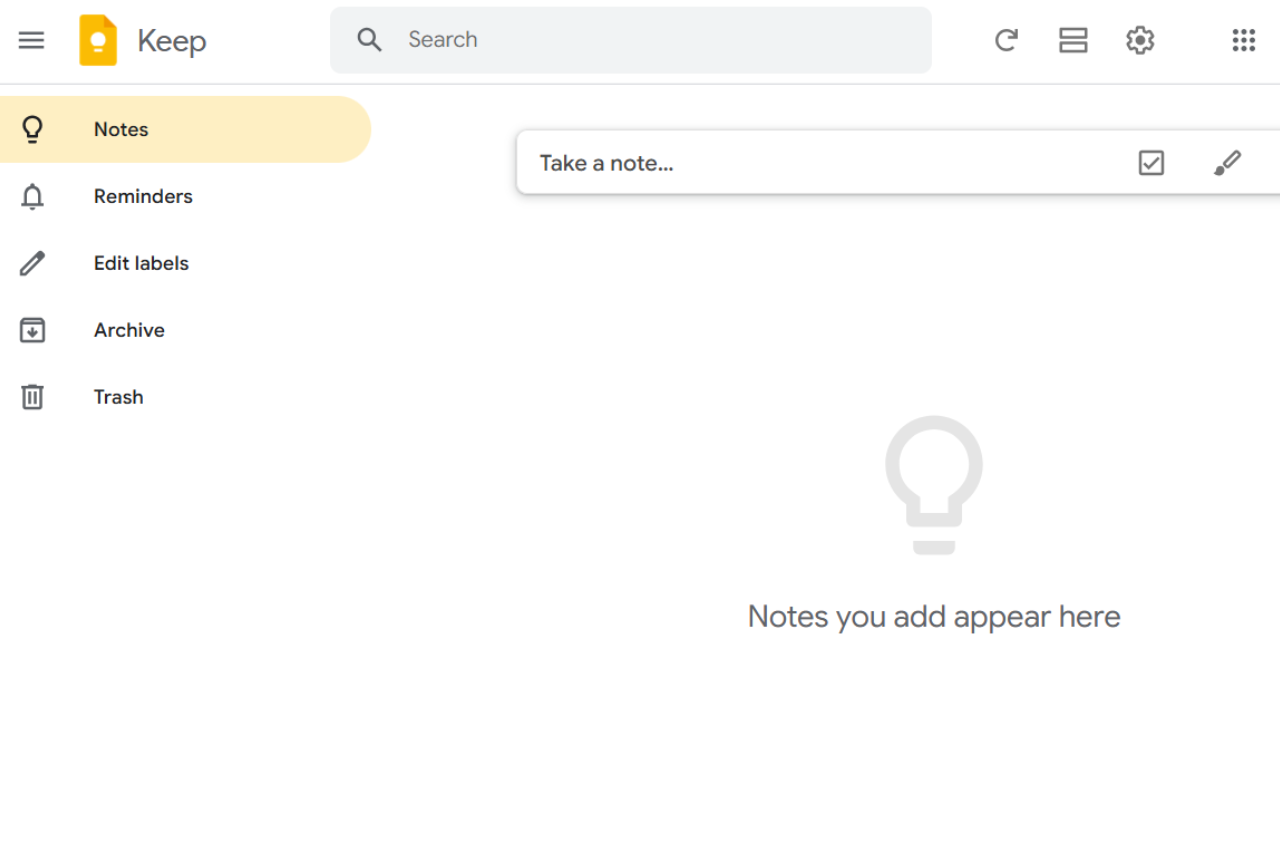
Google Keep is a user-friendly and versatile note-taking app designed for individuals and teams who value simplicity and accessibility. With its intuitive interface, seamless integration with Google Workspace, and robust sharing features, Google Keep empowers users to stay organized and productive. While its limited advanced features may not appeal to power users, its lightweight design and cross-platform availability make it a top choice for quick, straightforward note-taking.
β Pros & β Cons
Pros
Seamless Google Integration: Works flawlessly with Google Workspace for improved productivity.
Easy Collaboration: Share and collaborate on notes in real time.
Cross-Platform Support: Accessible on Android, iOS, and desktop via web.
Voice and Image Notes: Easily create notes using voice recordings and image uploads.
Simple and Intuitive UI: Minimalistic design for quick and hassle-free usage.
Free to Use: Available at no cost for all users.
Cons
Limited Advanced Features: Lacks rich text editing, tags, and in-depth organizational tools.
No Offline Desktop App: Desktop users must rely on a web interface.
Basic Formatting Options: No support for advanced formatting or multimedia integration.
Limited Export Options: Difficult to migrate notes to other platforms.
No Notebook Organization: All notes are grouped without a notebook hierarchy.
π About
Google Keep is a lightweight note-taking application developed by Google. It allows users to quickly jot down ideas, create to-do lists, and collaborate with others. Designed with simplicity in mind, Keep integrates with Google Workspace, making it easy to sync notes across devices and share them with team members. While it lacks some advanced features, Google Keep focuses on accessibility, ensuring that users can capture and retrieve their thoughts effortlessly.
ποΈ How It Works
1. Download and Install
Google Keep is available as a mobile app for Android and iOS or as a web app accessible through https://keep.google.com/.
2. Create Notes
Start capturing ideas, to-do lists, or reminders using text, voice, or image uploads.
3. Organize Notes
Label, color-code, and pin important notes for easy retrieval.
4. Collaborate
Share notes with others to collaborate in real time.
5. Set Reminders
Add time-based or location-based reminders to never miss a task.
6. Sync Across Devices
Enjoy seamless syncing across all devices via your Google account.
π² Pricing Overview
Google Keep is completely free to use for all users. It does not require a subscription, making it an ideal option for budget-conscious individuals or small teams.
π₯ Competition
Feature
Google Keep
Evernote
Ease of Use
Minimalistic and simple interface
Feature-rich but with a steeper learning curve
Collaboration
Real-time sharing and collaboration
Supports collaboration but with restrictions
Organization
Labels and colors for basic categorization
Advanced notebook and tag hierarchy
Multimedia Support
Voice and image note integration
Supports voice, images, PDFs, and more
Offline Access
Only via mobile apps
Offline access available on all platforms
Pricing
Free
Free tier, Premium starts at $7.99/month
π Conclusion
Google Keep is a powerful yet straightforward tool for quick note-taking and task management. Its user-friendly interface, Google Workspace integration, and cross-platform availability make it a top choice for individuals and small teams looking for an intuitive organizational tool. While it may not cater to power users seeking advanced features, its simplicity and accessibility ensure it stands out as a versatile option for everyday productivity.
Xcode, developed by Apple, is the official IDE for macOS, iOS, watchOS, and tvOS app development. With its powerful tools, intuitive interface, and seamless integration into the Apple ecosystem, Xcode empowers developers to build, test, and deploy apps with ease. While its macOS exclusivity may limit access, it is the go-to IDE for Apple-centric projects. Advanced features like SwiftUI, Metal support, and a robust debugging suite make Xcode a strong contender for professional developers working within the Apple ecosystem.
β Pros & β Cons
Pros:
Tailored for Apple Development: Optimized for macOS, iOS, watchOS, and tvOS development.
SwiftUI Integration: Simplifies UI creation with a declarative syntax.
Robust Simulator: Test your applications across multiple Apple devices.
Seamless Ecosystem Integration: Deep integration with Apple services and devices.
Free to Use: Available at no cost with a macOS system.
Cons:
macOS Exclusive: Limited to macOS users, restricting cross-platform development.
Resource-Intensive: Requires a powerful Mac for optimal performance.
Steep Learning Curve: Some features may overwhelm beginners.
Limited Language Support: Primarily focused on Swift, Objective-C, and C++.
Large Storage Requirements: The application and its dependencies consume significant disk space.
π About
Xcode is Appleβs official IDE designed to provide developers with everything they need to build applications for Apple platforms. It includes tools for designing user interfaces, debugging code, testing across devices, and publishing apps on the App Store. With support for Swift and Objective-C, Xcode ensures that developers can harness the full potential of Appleβs ecosystem to create high-performance applications.
Free Community version, paid Professional/Enterprise plans
π Conclusion
Xcode is the ultimate IDE for developers working within the Apple ecosystem. Its specialized tools, robust testing capabilities, and seamless Apple integration make it indispensable for macOS and iOS app development. While its exclusivity to macOS and resource requirements may pose limitations, Xcode remains a top choice for professional developers creating cutting-edge Apple applications.
Xcode: Innovating App Development for the Apple Ecosystem
AWS Cloud9 is a cloud-based integrated development environment that lets you write, run, and debug code in a browser. It supports JavaScript, Python, PHP, and other languages out of the box, and shares an EC2 instance for real-time pair programming. AWS closed Cloud9 to new customers in July 2024; existing users can keep using it but should plan a migration.
π Our Verdict
AWS Cloud9 is a cloud-based Integrated Development Environment (IDE) from Amazon Web Services. It provides developers with a flexible platform for writing, running, and debugging code directly in the browser. With built-in support for popular programming languages, real-time collaboration tools, and seamless integration with AWS services, Cloud9 is ideal for teams and developers working on cloud-native and serverless applications. However, its dependency on AWS may not appeal to those seeking a more generalized IDE.
β Pros & β Cons
Pros:
Cloud-Based Convenience: No installation required; access your projects from anywhere via a browser.
AWS Integration: Built-in support for AWS services like Lambda, S3, and EC2.
Real-Time Collaboration: Multiple developers can work together simultaneously.
Customizable Environment: Configure workspaces to match your project needs.
Multi-Language Support: Supports Python, JavaScript, PHP, and more.
Cons:
AWS Dependency: Primarily designed for AWS users, limiting its appeal for general-purpose development.
Internet Connectivity Required: Cannot be used offline.
Limited Plugin Ecosystem: Fewer extensions compared to competitors like Eclipse.
Resource Allocation Costs: AWS-hosted instances may incur costs if not managed properly.
Interface Learning Curve: Some users may find the UI less intuitive than traditional IDEs.
π About
AWS Cloud9 is an IDE designed to empower developers by providing a fully managed, cloud-based development workspace. It allows you to write, test, and debug applications entirely in your browser. Developed with integration into AWS at its core, Cloud9 supports a wide range of use cases, from serverless development to collaborative coding.
ποΈ How It Works
1. Set Up Your AWS Account
Sign up or log in to your AWS account to access Cloud9.
2. Create a Cloud9 Environment
Launch a new Cloud9 environment by selecting an EC2 instance or using your local server.
3. Code in the Browser
Open your workspace in a browser, and start coding with syntax highlighting, autocompletion, and debugging tools.
4. Collaborate in Real-Time
Share your environment link with team members for live collaboration.
5. Deploy with AWS Services
Easily deploy your applications directly to AWS services like Lambda or S3.
π² Pricing Overview
AWS Cloud9 is a cloud-based integrated development environment (IDE) that allows you to write, run, and debug code directly in your browser. While there is no additional charge for using AWS Cloud9 itself, you are billed for the underlying compute and storage resources utilized during your development activities. Here’s a detailed breakdown of the associated costs:
Compute Charges:
Amazon EC2 Instances:
When you create an AWS Cloud9 environment, it typically provisions an Amazon EC2 instance to host your development environment.
You are billed for the EC2 instance based on its type and the duration it runs.
For example, a t2.micro Linux instance is priced at $0.0116 per hour.
If you use this instance for 90 hours in a month, the compute cost would be:
$0.0116/hour Γ 90 hours = $1.05
Storage Charges:
Amazon EBS Volumes:
Your AWS Cloud9 environment uses Amazon Elastic Block Store (EBS) for persistent storage.
You are charged based on the provisioned storage size.
For instance, a 10 GB EBS volume is priced at $0.10 per GB-month.
The monthly storage cost for a 10 GB volume would be:
$0.10/GB-month Γ 10 GB = $1.00
Total Monthly Estimate:
Combining the compute and storage costs from the examples above:
Compute: $1.05
Storage: $1.00
Total Monthly Cost: $2.05
Additional Considerations:
AWS Free Tier:
New AWS customers eligible for the AWS Free Tier can use AWS Cloud9 without incurring charges, provided their usage stays within the Free Tier limits.
If your usage exceeds the Free Tier, standard AWS rates apply.
Connecting to Existing Servers:
You can connect your AWS Cloud9 environment to an existing Linux server via SSH at no additional charge.
In this scenario, you are not billed for AWS compute resources but may incur costs associated with your existing server.
Other AWS Services:
If you utilize additional AWS services (e.g., AWS Lambda, Amazon S3) within your AWS Cloud9 environment, you will be billed at the standard rates for those services.
AWS Cloud9 is a robust and innovative IDE, especially for developers working on AWS-based projects or in collaborative environments. Its cloud-based nature offers flexibility, while its AWS integration ensures seamless deployment of applications. However, its reliance on internet connectivity and AWS ecosystem may limit its usability for broader development needs.
AWS stopped onboarding new Cloud9 customers on 25 July 2024. Existing customers retained access, but AWS has not issued new features since and is steering users toward alternatives such as AWS CodeCatalyst and the VS Code-based cloud IDEs. If you already use Cloud9 your environments keep working; if you don’t, you cannot sign up.
Is AWS Cloud9 free?
Cloud9 itself has no separate fee, but it runs on an EC2 instance that you pay for at standard EC2 rates. A small t2.micro inside the AWS Free Tier covers light use for a year. Idle-stop reduces cost by suspending the instance after 30 minutes of inactivity by default.
What is the best alternative to AWS Cloud9?
For AWS-native workflows, AWS CodeCatalyst is the official successor with integrated Dev Environments that run on EC2. For a general browser IDE, GitHub Codespaces runs on Azure and pairs with GitHub repos. Gitpod and Coder both offer self-hostable alternatives. For pure cost-free use, running VS Code locally with the Remote-SSH extension replicates most of the Cloud9 workflow.
Can I use AWS Cloud9 with GitHub?
Yes. Cloud9 environments ship with the git CLI and you clone GitHub repos as you would on any Linux box. For HTTPS clones, use a personal access token; for SSH, add the Cloud9 instance’s public key to your GitHub account. Cloud9 itself has no first-class GitHub UI the way Codespaces does.
What languages does AWS Cloud9 support?
Cloud9 ships preconfigured for JavaScript and Node.js, Python, PHP, Ruby, Go, and C++. Because the environment is a real Amazon Linux EC2 instance, you can install any language toolchain with standard package managers. The editor provides syntax highlighting, linting, and a step debugger for most mainstream languages.
AWS Cloud9 alternatives in 2026
AWS announced in 2024 that Cloud9 was no longer accepting new customers, and existing customers were given a migration path. If you are evaluating Cloud9 today, plan the work as a temporary bridge or pick a successor outright.
GitHub Codespaces is the closest one-for-one replacement: a hosted VS Code instance per repository, with prebuilt dev containers, port forwarding, and full Git integration. Codespaces bills by minute and gives every Pro account a free monthly quota. The trade-off is the GitHub-first model; if your code lives elsewhere, you mirror or move.
Gitpod and Replit fill the rest of the field. Gitpod targets the same workflow as Codespaces but stays repository-agnostic and runs on AWS, GCP, or self-hosted Kubernetes. Replit leans toward beginners, classroom use, and quick prototypes, with collaborative editing and one-click deploys. For an AWS-native team, Codespaces or Gitpod is the realistic upgrade; Replit fits a learning context more than a production codebase.
Case study: how a small product team planned its move off AWS Cloud9
A four-person product studio ran most of its early work inside AWS Cloud9. The browser IDE meant nobody had to configure a local toolchain, a new contractor could open a ready environment in minutes, and everyone shared the same runtime as the team’s other AWS services. For two years that trade held up.
The trigger to reconsider came in July 2024, when AWS stopped accepting new customers for Cloud9. Existing environments kept working, but the team read the signal: a tool that no longer takes sign-ups rarely gets new features or long-term support. Rather than wait for a forced deadline, they treated the move as planned work instead of an emergency.
Their approach was methodical. First they wrote down what Cloud9 actually gave them: a browser workspace, fast onboarding, and close ties to their AWS account. Then they matched each need against current options. GitHub Codespaces covered the browser workspace and onboarding for repositories already on GitHub. Gitpod suited the contractors who worked across several clients. For the parts that leaned hardest on AWS, CodeCatalyst kept the work inside the same account.
The migration ran over three sprints. They moved one service at a time and kept Cloud9 running as a fallback until each new environment was reproducible, then wrote a short setup guide so a fresh hire could still start in minutes. Nothing had to be rushed, nobody lost access, and the team came out with a browser workflow it could still count on a year later.
If you are still on Cloud9, the takeaway is simple: you are not forced out today, so plan the exit while it is calm. Pick the alternative that matches how your team already works, move service by service, and keep the old environment until the new one is proven.
AWS Cloud9 troubleshooting in 2026
AWS closed Cloud9 to new customers on 25 July 2024. Most of what goes wrong with it now follows from that one change.
The console offers no way to create an environment. If your AWS account had never opened a Cloud9 environment before that date, the create button is not there and no support request brings it back. Accounts that were already using the service kept their access. For a new account, the AWS Toolkit for VS Code or JetBrains covers the editing side, and CloudShell gives you a browser terminal against the same account.
An existing environment will not resume. An EC2-backed environment stops its instance after the idle timeout and starts it again when you reopen the IDE. That resume fails if the instance was terminated by hand, if its instance type is no longer offered in the Region, or if the EBS volume was detached. Open the EC2 console and find the instance tagged with the environment ID before assuming the IDE itself is broken.
The bill keeps growing while nobody is writing code. Cloud9 charges nothing for itself. The EC2 instance and the EBS volume behind it do charge, and a stopped instance still bills for its volume every month. Closing the browser tab stops neither. Delete the environment from the Cloud9 console when you are finished with it, then check in EC2 that the instance and the volume are actually gone.
The environment list comes back empty. Two ordinary causes come before data loss. First, Cloud9 was never offered in every Region, and an environment created in one Region is invisible from another, so check the Region selector. Second, the AWSCloud9User and AWSCloud9Administrator managed policies control who can see the list, so an IAM cleanup that removed them leaves the environments in place while your account loses the ability to list them.
When the answer is to move. AWS points existing users at the IDE Toolkits for local editing and CloudShell for a browser shell. CodeCatalyst Dev Environments come closest to the same workflow, although AWS documents that route as re-creating the environment by hand rather than migrating it, so budget time for reinstalling the toolchain and cloning the repository again.
Android Studio, developed by Google, is the official Integrated Development Environment (IDE) for Android app development. With a wide range of features tailored for Android developers, including an advanced layout editor, Gradle-based build system, and seamless integration with the Android SDK, Android Studio is a powerhouse for creating innovative mobile applications. While its complexity might challenge beginners, its deep integration with Android-specific tools makes it the go-to choice for serious Android developers.
β Pros & β Cons
Pros:
Tailored for Android Development: Provides tools specifically designed for Android, like the Layout Editor, APK Analyzer, and AVD Manager.
Built-in Emulator: A fast and feature-rich emulator that supports testing across multiple devices and configurations.
Rich Debugging Tools: Advanced debugging capabilities, including real-time logcat integration.
Gradle Build System: Flexible and customizable builds for large projects.
Active Community: Strong support from Google and an extensive online community.
Cons:
Resource-Intensive: Requires high system specifications for smooth operation.
Learning Curve: Beginners may find it overwhelming due to its vast feature set.
Limited Cross-Platform Support: While it excels in Android development, it is less versatile for non-Android projects.
Setup Complexity: Initial configuration and SDK updates can be time-consuming.
π About
Android Studio is Google’s official development tool for creating Android applications. It is built on JetBrains’ IntelliJ IDEA and integrates various Android-specific features to provide a seamless app development experience. Android Studio supports Kotlin, Java, and C++, and it simplifies the creation of Android apps with powerful tools like the Layout Editor, real-time profilers, and version control systems.
ποΈ How It Works
1. Download and Install
Visit the Android Studio website and download the appropriate version for your operating system.
2. Set Up the Development Environment
Install the required SDKs and configure the emulator for testing.
3. Create Your Project
Start a new Android project or import an existing one, and choose the desired template and configurations.
4. Develop Your Application
Utilize intelligent code completion, debugging tools, and Android-specific utilities to build and test your app.
5. Test and Deploy
Use the built-in emulator or connect physical devices for testing. Build APKs or App Bundles for deployment to the Play Store.
π² Pricing Overview
Android Studio is completely free and open-source. It is maintained by Google and offers all its features without any subscription cost, making it accessible to developers of all levels.
π₯ Competition
Feature
Android Studio
IntelliJ IDEA
Focus
Exclusively tailored for Android apps
Versatile IDE for multiple platforms
Performance
Optimized for Android development
High performance, supports large projects
Language Support
Kotlin, Java, and C++
Broad support for many languages
User Interface
Android-specific tools like Layout Editor
General-purpose UI design tools
Community
Strong Google-backed support and forums
Extensive JetBrains community
Cost
Free
Paid plans with a free community edition
π Conclusion
Android Studio is the definitive IDE for Android app development. With its extensive suite of features, seamless integration with the Android ecosystem, and robust support from Google, it stands as an essential tool for both beginners and professionals. Despite its learning curve and resource requirements, Android Studio’s specialized focus makes it an unparalleled choice for Android developers.
Android Studio: Empowering Developers to Shape the Future of Mobile Apps
If you also work outside the Android ecosystem, our AWS Cloud9 review covers a browser-based IDE that runs whatever language your next project needs.
This website uses cookies to ensure you get the best experience on our website. Surfing the website you are authorizing the use of cookies.
Privacy & Cookies Policy
Privacy Overview
This website uses cookies to improve your experience while you navigate through the website. Out of these cookies, the cookies that are categorized as necessary are stored on your browser as they are essential for the working of basic functionalities of the website. We also use third-party cookies that help us analyze and understand how you use this website. These cookies will be stored in your browser only with your consent. You also have the option to opt-out of these cookies. But opting out of some of these cookies may have an effect on your browsing experience.
Necessary cookies are absolutely essential for the website to function properly. This category only includes cookies that ensures basic functionalities and security features of the website. These cookies do not store any personal information.
Any cookies that may not be particularly necessary for the website to function and is used specifically to collect user personal data via analytics, ads, other embedded contents are termed as non-necessary cookies. It is mandatory to procure user consent prior to running these cookies on your website.