Light Table: The Innovative Code Editor for Modern Developers

πŸ† Our Verdict

Light Table is a cutting-edge open-source code editor designed to improve productivity and enhance the coding experience. With its unique features like live evaluation and inline feedback, it stands out as a powerful tool for developers. Although it competes with well-established editors like Visual Studio Code, Light Table’s innovative approach makes it a compelling choice for those seeking a modern coding environment.

βœ… Pros & ❌ Cons

Pros:

  • Live Feedback: Offers real-time evaluation of code, allowing developers to see results instantly.
  • Inline Documentation: Provides inline documentation and suggestions, enhancing the coding process.
  • Extensible Architecture: Supports a wide range of plugins, making it customizable to fit individual workflows.
  • User-Friendly Interface: Clean and intuitive design that is easy to navigate, even for beginners.

Cons:

  • Limited Community Support: Smaller community compared to larger competitors, which may impact the availability of resources and plugins.
  • Less Frequent Updates: Development has slowed down, raising concerns about long-term support and feature updates.
  • Performance Issues: Some users report performance lags, particularly with larger projects.

πŸ“– About

Light Table is an open-source code editor designed to facilitate the coding process by providing immediate feedback and a streamlined workflow. Built with web technologies, it aims to create a more interactive and engaging coding experience, especially for web developers. Its key features include a real-time coding environment, support for various programming languages, and a customizable interface.

πŸ—“οΈ How It Works

  1. Installation: Light Table can be easily downloaded and installed from its official website.
  2. Real-Time Code Evaluation: Users can write code and see results instantly within the editor, enhancing the development process.
  3. Plugin Management: The editor supports numerous plugins, allowing users to tailor their environment to their needs.
  4. Inline Feedback: Provides real-time suggestions and documentation as developers code, making it easier to learn and implement new concepts.

πŸ’² Pricing Overview

Light Table is completely free to use, offering an open-source solution for developers without the burden of licensing fees.

πŸ₯Š Competition

FeatureLight TableVisual Studio Code
Live FeedbackYesNo
Inline DocumentationYesYes
Plugin EcosystemModerateExtensive
CustomizabilityHighVery High
Integrated DebuggerNoYes
LightweightYesNo (can be resource-heavy)

πŸ“Œ Conclusion

Light Table is an excellent choice for developers looking for a modern, interactive coding experience. While it may not offer all the features of competitors like Visual Studio Code, its unique approach to real-time feedback and ease of use make it a valuable tool for those in web development.

Light Table: Revolutionizing the Way You Code!

Related read: Light Table bet on live evaluation and inline feedback, and the idea outlived the project. For a look at what happens to a code editor after its company moves on, Komodo Edit is the fuller case: still installable, still open source, and dated December 2022.

Brackets: The Modern Open-Source Code Editor

πŸ† Our Verdict

Brackets is a powerful and user-friendly open-source code editor that is particularly well-suited for web development. With its live preview feature and preprocessor support, it provides an excellent platform for developers looking to enhance their productivity. While it faces strong competition from alternatives like Visual Studio Code, Brackets remains a favorite for its simplicity and intuitive design.

βœ… Pros & ❌ Cons

Pros:

  • Live Preview: Allows developers to see changes in real-time as they edit, streamlining the development process.
  • Preprocessor Support: Offers built-in support for preprocessors like LESS and SCSS, which is beneficial for modern web development.
  • Extensive Extensions: A rich library of extensions and themes that enhance functionality and customization.
  • Lightweight: Fast performance and a clean interface make it easy to use for both beginners and experienced developers.

Cons:

  • Limited Features: May not have as many advanced features as competitors like Visual Studio Code.
  • Development Status: The development and updates have slowed down, raising concerns about long-term support.
  • Collaboration Tools: Lacks built-in collaboration features, which are available in other editors.

πŸ“– About

Brackets is an open-source code editor designed primarily for web development. Created by Adobe, it focuses on front-end development, making it easy to work with HTML, CSS, and JavaScript. Brackets is built on web technologies and aims to provide a streamlined workflow for developers with features like live preview, preprocessor support, and a flexible extension architecture.

πŸ—“οΈ How It Works

  1. Installation: Brackets can be easily downloaded from its official website and installed on various operating systems.
  2. Code Editing: Users can write and edit code with syntax highlighting and code completion features, improving efficiency.
  3. Live Preview: The live preview feature allows users to see changes instantly in the browser as they edit files.
  4. Customization: Users can enhance functionality through a wide range of extensions available in the Brackets community.

πŸ’² Pricing Overview

Brackets is completely free to use and open-source, making it an accessible choice for developers without the need for costly software licenses.

πŸ₯Š Competition

FeatureBracketsVisual Studio Code
Live PreviewYesNo
Preprocessor SupportYesYes
Plugin EcosystemExtensiveExtensive
CustomizabilityModerateHigh
Integrated DebuggerNoYes
LightweightYesNo (can be resource-heavy)

πŸ“Œ Conclusion

Brackets remains a solid choice for web developers seeking a lightweight, user-friendly code editor. While it may not match the extensive features of competitors like Visual Studio Code, its focus on web development and unique features like live preview make it a valuable tool for front-end work.

Brackets: Your Go-To Editor for Effortless Web Development!

Brackets is a desktop editor for the web stack. For server-side or polyglot work in a browser tab, see our AWS Cloud9 review on the cloud-IDE side of the same spectrum.

For Mac writers: Brackets focuses on web design with a live HTML and CSS preview. If you want a general-purpose, native macOS editor for prose, scripts, and config files instead, TextMate keeps things fast and out of the way.

Related read: the slowed development that shows up in the cons above is not unique to Brackets. Komodo Edit went further down the same road: its vendor pulled the download pages entirely, and the last build now lives on GitHub. Useful context if you are deciding how much weight to give an editor’s release cadence.

Vim: The Powerful Text Editor for Developers

πŸ† Our Verdict

Vim is a highly efficient and customizable text editor renowned for its powerful features and flexibility. It caters to both beginner and experienced users, making it a strong choice for developers and writers alike. While it may have a steeper learning curve compared to alternatives like Visual Studio Code, Vim’s unparalleled speed and versatility make it a favorite among many.

βœ… Pros & ❌ Cons

Pros:

  • Highly Efficient: Vim’s modal editing system allows for faster navigation and editing compared to traditional editors.
  • Extensive Customization: Users can configure Vim to fit their workflow through scripts and plugins.
  • Cross-Platform Availability: Works on various operating systems, including Windows, macOS, and Linux.
  • Lightweight: Minimal resource consumption makes it suitable for older hardware and quick edits.

Cons:

  • Steep Learning Curve: The unique modal interface can be challenging for new users.
  • Limited GUI Features: Primarily a command-line tool, lacking some graphical user interface features found in modern editors.
  • Initial Setup Complexity: Customizing Vim requires familiarity with its configuration files, which can be daunting for beginners.

πŸ“– About

Vim is an open-source text editor that focuses on efficiency and speed. It employs a unique modal editing system, allowing users to switch between different modes for navigation, editing, and command execution. Vim supports a wide range of programming languages and offers numerous plugins for extended functionality, making it suitable for both coding and text editing.

πŸ—“οΈ How It Works

  1. Installation: Vim can be easily installed on various platforms using package managers or from the official website.
  2. Editing Modes: Users can switch between different modes (Normal, Insert, Visual) to perform various tasks efficiently.
  3. Customization: Vim can be customized using configuration files (.vimrc) to enhance the user experience.
  4. Plugin Management: Users can install plugins to extend Vim’s capabilities and tailor it to their workflow.

πŸ’² Pricing Overview

Vim is completely free to use and distribute, providing an open-source solution for anyone looking to edit text or code without the burden of expensive software.

πŸ₯Š Competition

FeatureVimVisual Studio Code
Modal EditingYesNo
GUI SupportMinimalExtensive
CustomizationHighly customizableModerately customizable
Plugin EcosystemExtensiveExtensive
Learning CurveSteepGentle
Integrated DebuggerNoYes
Cross-PlatformYesYes

πŸ“Œ Conclusion

Vim is an exceptional choice for anyone seeking a powerful, efficient text editor. While it may not provide the intuitive GUI experience of competitors like Visual Studio Code, its unparalleled speed and extensive customization options make it a valuable tool for developers and writers alike.

Vim: Your Ultimate Tool for Fast and Efficient Text Editing!

Notepad++: The Essential Text and Code Editor for All

πŸ† Our Verdict

Notepad++ is a powerful, open-source text and code editor that stands out for its simplicity and versatility. It caters to a wide range of users, from casual writers to professional developers, thanks to its extensive features and lightweight design. While it faces stiff competition from alternatives like Visual Studio Code, Notepad++ remains a go-to choice for many due to its ease of use and robust functionality.

βœ… Pros & ❌ Cons

Pros:

  • Lightweight and Fast: Quick to install and run, making it ideal for quick edits and lightweight tasks.
  • User-Friendly Interface: Simple layout that is easy to navigate, even for beginners.
  • Extensive Plugin Support: Offers numerous plugins for added functionality, allowing customization to fit user needs.
  • Multi-Language Support: Supports multiple programming languages with syntax highlighting, making it versatile for developers.

Cons:

  • Limited Advanced Features: Lacks some advanced IDE features found in competitors like Visual Studio Code.
  • No Integrated Git Support: Does not include built-in Git version control, which may be a drawback for collaborative projects.
  • Windows-Only: Primarily designed for Windows, with limited support for other operating systems.

πŸ“– About

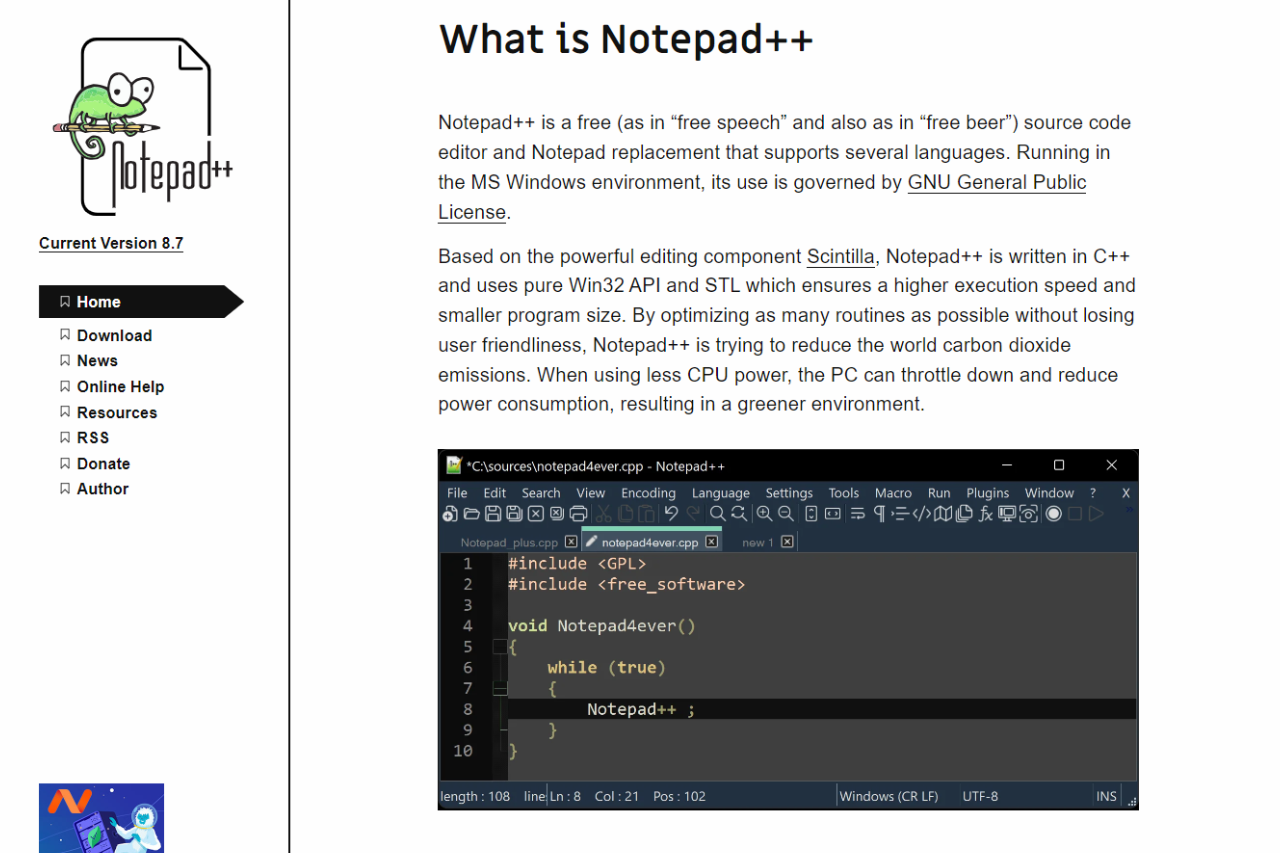
Notepad++ is an open-source text editor designed for Windows. It supports multiple programming languages and offers features like syntax highlighting, customizable themes, and a range of plugins to enhance productivity. With its lightweight design, Notepad++ is ideal for quick edits, coding, and managing text files.

πŸ—“οΈ How It Works

  1. Installation: Notepad++ is easily downloadable from its official website and can be installed in minutes.
  2. Text Editing: Users can create and edit text files or code with syntax highlighting that adapts to the chosen programming language.
  3. Plugin Management: The built-in plugin manager allows users to add functionalities as needed, enhancing the editor’s capabilities.
  4. Customization: Users can tailor their experience through themes, layout options, and customizable shortcuts.

πŸ’² Pricing Overview

Notepad++ is completely free to use, making it an accessible choice for anyone looking to edit text or code without the need for expensive software.

πŸ₯Š Competition

FeatureNotepad++Visual Studio Code
Lightweight and FastYesNo
User-Friendly InterfaceYesYes
Plugin SupportExtensiveExtensive
Integrated Git SupportNoYes
Cross-Platform AvailabilityWindows OnlyYes (Windows, macOS, Linux)
Advanced IDE FeaturesLimitedExtensive

πŸ“Œ Conclusion

Notepad++ remains a solid choice for users seeking a reliable, lightweight text and code editor. While it may lack some advanced features found in competitors like Visual Studio Code, its simplicity, speed, and extensive plugin support make it an invaluable tool for many.

Notepad++: Your Essential Editor for Efficient Text and Code Management!

OnlyOffice: A Robust Alternative for Real-Time Collaboration

πŸ† Our Verdict

OnlyOffice is a formidable competitor in the office suite market, distinguishing itself with robust compatibility and enhanced collaboration features. It directly challenges mainstream platforms like Google Workspace by offering extensive document editing tools that cater to both individual and enterprise needs.

βœ… Pros & ❌ Cons

Pros:

  • Extensive File Compatibility: Supports all popular formats, ensuring smooth transitions between different office suites.
  • Enhanced Collaboration Tools: Provides advanced collaboration features including real-time co-editing and commenting, which are comparable to Google Workspace.
  • Self-Hosted Solutions: Offers both cloud-based and self-hosted configurations, providing flexibility for businesses concerning data control and management.

Cons:

  • User Interface: While functional, the interface may feel less intuitive to users accustomed to other office suites like Google Workspace.
  • Integration with External Apps: Limited third-party app integration compared to Google Workspace’s extensive ecosystem.
  • Market Penetration: Less recognition and smaller user base, which may affect new users looking for community support and widespread use.

πŸ“– About OnlyOffice

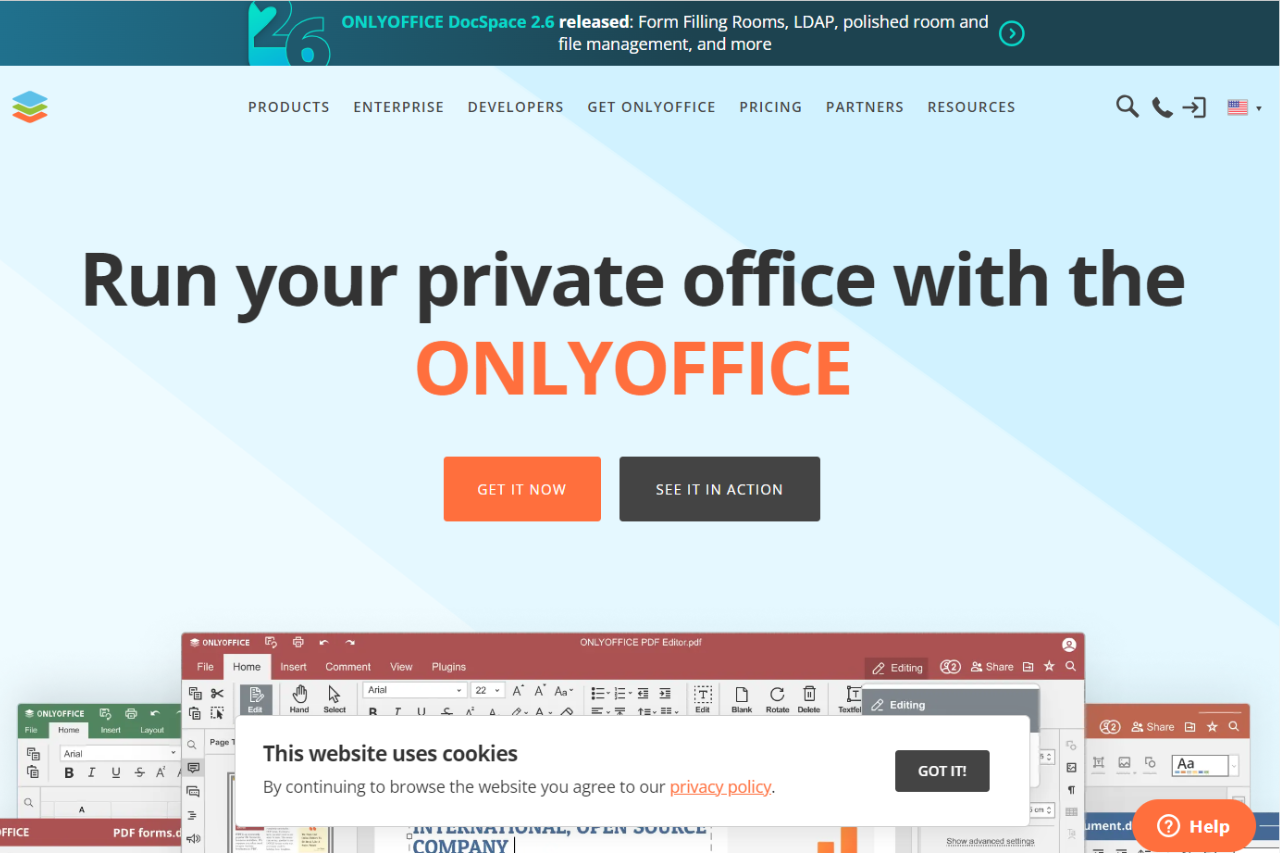
OnlyOffice is an office suite that integrates document management, project management, and CRM systems into one streamlined package. It offers unique compatibility with Microsoft Office formats and is available in both free and premium versions.

πŸ—“οΈ How It Works

  • Setup and Download: Easily accessible via the web or through a self-hosted server.
  • Document Management: Create, edit, and manage documents using a rich feature set that supports DOCX, XLSX, and PPTX files.
  • Collaboration: Collaborate in real time with team members, with changes reflected instantly.

πŸ’² Pricing Overview

Here’s a detailed breakdown of the pricing for ONLYOFFICE DocSpace:

Business Plans:

  • Startup: Free; includes a 30-day trial of the Supporters Edition.
  • Business Cloud: $20 per month per admin. This includes:
    • Unlimited projects and file storage of 250 GB per admin.
    • Unlimited rooms and users.
    • Advanced security features such as two-factor authentication and IP restriction.
    • Comprehensive document management capabilities.

Enterprise Plan:

  • On-premises: Starts at $6,550 for a lifetime license, including 2 years of free updates. This plan is suitable for larger teams needing on-premises installation with advanced customization and control.

These plans provide various levels of access and functionality tailored to different business needs, from small startups to large enterprises​

πŸ₯Š Competition

FeatureOnlyOfficeGoogle Workspace
Real-Time CollaborationStrong with detailed historyExtremely robust with wide adoption
File CompatibilityExcellent MS Office compatibilityGood with native Google formats
Pricing FlexibilityFree tier; affordable premiumsMore expensive with comprehensive plans
Third-Party IntegrationBasicExtensive
User InterfaceFunctional but steep learning curveHighly intuitive

πŸ“Œ Conclusion

OnlyOffice presents a compelling option for users and organizations looking for a cost-effective, highly compatible office suite with strong collaboration tools. While it faces stiff competition from more established platforms like Google Workspace, its unique offerings and flexible deployment options make it a standout choice.

OnlyOffice: Where Flexibility Meets Productivity

Apple iWork: The Sleek and Integrated Office Suite for Mac Users

πŸ† Our Verdict

Apple iWork, known for its seamless integration with macOS and iOS devices, offers a polished user experience that leverages the design ethos Apple is known for. It’s an excellent option for Mac and iOS users who value aesthetics and functionality in their productivity software.

βœ… Pros & ❌ Cons

Pros:

  • Seamless Integration: Perfectly integrates with macOS and iOS systems, providing a smooth user experience.
  • Design-Focused: Offers beautiful templates and design tools that enhance document presentation.
  • Free for Apple Users: Available at no additional cost to users of Apple devices.

Cons:

  • Limited Compatibility: While iWork can export to more common file formats, it’s primarily optimized for Apple devices and may not play as well with non-Apple environments.
  • Fewer Features: May not have as robust feature sets in comparison to more comprehensive suites like Google Workspace for advanced spreadsheet and presentation needs.
  • Collaboration Features: Lacks some of the real-time collaboration capabilities found in Google Workspace.

πŸ“– About Apple iWork

Apple iWork is a suite of productivity tools including Pages, Numbers, and Keynote, designed specifically for Mac and iOS environments. This software suite is highly optimized for Apple devices, making it the preferred choice for users embedded in the Apple ecosystem.

πŸ—“οΈ How It Works

  • .Create an Account
  • Download and Installation: Available for free from the Mac App Store
  • Creating Documents: Start with an array of templates or a blank page to create documents, spreadsheets, and presentations.
  • iCloud Integration: Syncs seamlessly with iCloud for easy access and collaboration across all Apple devices.

πŸ’² Pricing Overview

  • Free for Apple Users: No cost for users with an Apple ID on macOS or iOS devices.

πŸ₯Š Competition

FeatureApple iWorkGoogle Workspace
PricingFree for Apple usersVarious plans, starting free with limited features
IntegrationmacOS and iOSCross-platform
Templates and DesignHigh-quality, visually appealingFunctional but less design-focused
CollaborationBasic iCloud sharingAdvanced real-time collaboration
File CompatibilityBest within Apple ecosystemBroad compatibility with other formats

πŸ“Œ Conclusion

Apple iWork excels in providing a beautiful, streamlined workflow for Apple device users, making it ideal for those deeply integrated into the Apple ecosystem. Its lack of complexity and direct simplicity make it both a blessing and a limitation, depending on the user’s needs.

Apple iWork: Elegance in Productivity

Visual Studio Code: Revolutionizing the Coding Experience

πŸ† Our Verdict

Visual Studio Code (VS Code) is a powerhouse in the code editor market, lauded for its advanced features and adaptability across various programming languages. It integrates smoothly with a multitude of development tools, making it a top choice for developers around the globe. With its open-source nature and robust community support, VS Code stands as a compelling option for professional and hobbyist programmers alike.

βœ… Pros & ❌ Cons

Pros:

  • πŸš€ Extensive Language Support: VS Code offers built-in support for a wide range of programming languages.
  • πŸ”Œ Rich Extension Ecosystem: Enhances functionality with thousands of extensions.
  • πŸ”„ Integrated Git Control: Streamlines coding with built-in Git commands.
  • πŸ’‘ Intelligent Code Completion: Features IntelliSense for smart completions based on variable types, function definitions, and imported modules.

Cons:

  • πŸ“š Resource Intensive: Can be heavy on system resources, especially with multiple extensions running.
  • πŸ”§ Occasional Bugs: Users may encounter bugs or stability issues, particularly with new updates.
  • πŸ“‰ Steep Learning Curve: The vast array of features can be overwhelming for beginners.

πŸ“– About Visual Studio Code

Developed by Microsoft, Visual Studio Code is a free, open-source editor that supports code editing, debugging, and repository management. It is designed to be a versatile tool that fits the needs of developers working on complex software projects as well as simple code files.

πŸ—“οΈ How It Works

  • Download and Install: Available for Windows, macOS, and Linux from the Visual Studio Code website.
  • Customization: Personalize the workspace with themes, settings, and install necessary extensions.
  • Develop and Debug: Use its powerful coding and debugging tools to build and test software.
  • Source Control: Manage your code with integrated Git support for tracking changes and collaborating.

πŸ’² Pricing Overview

Visual Studio Code is entirely free, providing a full-featured development environment without any cost.

πŸ₯Š Competition

FeatureVisual Studio CodeSublime Text
PerformanceFast with occasional slowdownsExtremely fast, especially on startup
CustomizationHighly customizable, extensive extensionsHighly customizable, less reliant on plugins
Ease of UseModerate, with a learning curveSimpler, more accessible to new users
PriceFreeFree trial available, license required for continued use
Integrated ToolsExtensive, including debugging, Git integrationBasic, with plugins for added functionality

πŸ“Œ Conclusion

Visual Studio Code is an excellent choice for developers seeking a sophisticated, adaptable, and community-supported coding environment. It’s particularly beneficial for those needing a versatile tool that grows with their developing needs.

Visual Studio Code: Code Smarter, Not Harder

Browser-hosted option: Visual Studio Code runs on your own machine. For the AWS-native, fully browser-based take on a similar editor, our AWS Cloud9 review covers what it offered and why AWS now steers new users toward Codespaces and other successors.

Sublime Text: Enhancing Code Efficiency

πŸ† Our Verdict

Sublime Text remains a favorite among developers for its lightning-fast performance and its sleek, minimalist interface. It excels in handling large files and complex projects with ease, making it an invaluable tool for coding professionals. While it faces stiff competition from newer editors like Visual Studio Code, Sublime Text’s focus on speed and efficiency keeps it highly relevant in the tech world.

βœ… Pros & ❌ Cons

Pros:

  • πŸš€ High Performance: Known for its speed, especially when loading and editing large files.
  • πŸ›  Rich Plugin Ecosystem: Extensive range of plugins available through Package Control, enhancing functionality.
  • πŸ–₯ Minimalist Interface: Clean and uncluttered interface that can be heavily customized.
  • πŸ” Multiple Selections: Allows making simultaneous edits and complex repetitive structures simple.

Cons:

  • πŸ’³ Paid License: Requires a one-time purchase, which might deter those who prefer free tools.
  • πŸ”§ Limited Built-in Features: Lacks some of the advanced integrated development features found in other editors.
  • πŸ“ž Less Frequent Updates: Has a slower update cycle compared to some competitors, like Visual Studio Code.

πŸ“– About Sublime Text

Sublime Text is a sophisticated text editor for code, markup, and prose. This lightweight, yet powerful editor supports multiple programming languages and markup languages, and features things like an API, a robust package ecosystem, and customizability options.

πŸ—“οΈ How It Works

  • Download and Install: Available for Windows, macOS, and Linux from the Sublime Text website.
  • Customization and Setup: Customize the environment through user settings and install packages/plugins.
  • Efficient Editing: Utilize tools like “Goto Anything,” “Multiple Selections,” and “Split Editing” to enhance coding efficiency.
  • Develop and Test: Write code, execute builds, and use syntax highlighting for various languages to streamline development.

πŸ’² Pricing Overview

Sublime Text offers a one-time license purchase, which includes future updates. Users can also download and evaluate it for free indefinitely, with occasional purchase reminders.

πŸ₯Š Competition

FeatureSublime TextVisual Studio Code
PerformanceExtremely fast, even with large filesFast, with occasional slowdowns on very large files
User InterfaceMinimalist and highly customizableModern, with more built-in features
Plugin EcosystemExtensive, with a strong communityExtremely extensive and integrated with marketplace
PricingOne-time fee for continued useCompletely free
Frequency of UpdatesLess frequent, but stableRegular and feature-rich updates

πŸ“Œ Conclusion

Sublime Text stands out in the world of text editors for its commitment to speed, efficiency, and a distraction-free interface. It is particularly suited for those who value these aspects and are willing to invest in a reliable tool for their coding needs.

Sublime Text: Code More, Wait Less

macOS-native alternative: Sublime Text is cross-platform and proprietary. If you work entirely on macOS and want a free, open-source editor with the same snippet-and-bundle philosophy, TextMate is the Mac-first pick.

Microsoft 365: Empowering Modern Productivity

πŸ† Our Verdict

Microsoft 365 stands out as a comprehensive productivity suite that integrates all the tools necessary for business operations, including Word, Excel, PowerPoint, and more. Its cloud-based services enhance collaborative projects and data accessibility, making it ideal for both individual and corporate use.

βœ… Pros & ❌ Cons

Pros:

  • πŸ”— Seamless Integration: Easily integrates with various platforms and services, enhancing workflow efficiency.
  • 🌍 Real-Time Collaboration: Enables multiple users to work on documents simultaneously from anywhere.
  • πŸ”’ Robust Security Features: Provides extensive security measures, including compliance protocols and data protection.
  • πŸ”„ Regular Updates: Constant updates improve features and security without additional costs.

Cons:

  • πŸ’Έ Subscription Model: Requires a recurring payment, which might be a downside for users preferring a one-time purchase.
  • πŸ“‘ Internet Dependency: For the most features, a stable internet connection is needed, which can be limiting in areas with poor connectivity.
  • πŸ›  Complex Features: Some users may find the features complex and not as user-friendly without proper training.

πŸ“– About Microsoft 365

Microsoft 365 is a line of subscription services offered by Microsoft as part of the Microsoft Office product line. This suite includes leading applications like Word, Excel, PowerPoint, and OneDrive, along with robust cloud services, device management, and advanced security features.

πŸ—“οΈ How It Works

  • Sign Up: Choose a subscription plan that fits your needs and create an account.
  • Installation: Download and install the suite on your devices.
  • Use and Collaborate: Access applications online or offline, share documents, and collaborate in real-time.
  • Manage and Secure: Utilize admin tools to manage users and secure data effectively.

πŸ’² Pricing Overview

Here are the detailed Microsoft 365 Business plan prices:

  • Microsoft 365 Business Basic: $6.00 per user/month (paid annually)
  • Microsoft 365 Business Standard: $12.50 per user/month (paid annually)
  • Microsoft 365 Business Premium: $22.00 per user/month (paid annually)
  • Microsoft 365 Apps for business: $8.25 per user/month (paid annually)

These prices reflect annual billing rates. For more details on what each plan includes, you can visit the Microsoft 365 Business Plans page.

πŸ₯Š Competition

FeatureMicrosoft 365Google Workspace
Productivity ToolsExtensive suite with advanced featuresStreamlined and user-friendly tools
IntegrationSeamless with Windows and other Microsoft productsDeep integration with Google services
PricingSubscription-based with various tiersSubscription-based with scalable options
CollaborationStrong, especially in real-time document editingExceptional real-time collaboration
User InterfaceFamiliar to Windows users; steep learning curve for new usersMinimalistic and easy to navigate

πŸ“Œ Conclusion

Microsoft 365 is an excellent choice for those looking for a robust, integrated suite that facilitates not only document creation but also complex data analysis, project management, and secure collaboration. Its subscription model ensures users always have the latest updates and features, making it a forward-thinking investment in productivity.

Microsoft 365: Where Productivity Meets Innovation

LibreOffice Writer: Elevating Your Word Processing Game

πŸ† Our Verdict

LibreOffice Writer shines as a robust and accessible word processor, ideal for those who need a reliable and feature-rich tool without the hefty price tag. As part of the LibreOffice suite, Writer excels in compatibility, versatility, and user control, offering a strong alternative to more costly subscriptions like Microsoft 365.

βœ… Pros & ❌ Cons

Pros:

  • πŸ†“ Cost-Effective: LibreOffice Writer is completely free, making it accessible to everyone without any subscription fees.
  • πŸ”— High Compatibility: Excellent compatibility with a wide range of document formats, including those used by major office suites like Microsoft Office.
  • 🌐 Community-Driven Updates: Benefits from regular updates and features developed by a vibrant community, ensuring continuous improvement and innovation.
  • πŸ› οΈ Extensive Customization: Highly customizable with a variety of plugins and extensions, allowing users to tailor the tool to their specific needs.

Cons:

  • πŸ”„ Occasional Compatibility Issues: While generally good, compatibility with Microsoft Office formats can sometimes result in formatting discrepancies, particularly with more complex documents.
  • πŸ‘¨β€πŸ’» User Interface: The interface may feel outdated compared to more modern office suites, which can affect user experience.
  • πŸ“Š Lacks Some Advanced Features: While it covers most functionalities, it may lack the cutting-edge features provided by some paid competitors.

πŸ“– About LibreOffice Writer

LibreOffice Writer, a prominent component of the LibreOffice suite, is a powerful word processor that supports a variety of document types and formatting options. Developed by The Document Foundation, it is widely recognized for its strong commitment to open-source principles and its robust functionality that rivals even the most established word processors.

πŸ—“οΈ How It Works

  • Download: Obtain the software from the LibreOffice website, available for multiple operating systems.
  • Installation: Install LibreOffice Writer on your device following simple installation instructions.
  • Create and Edit Documents: Start creating or editing documents with an array of tools for text formatting, layout adjustments, and more.
  • Customize: Enhance your experience by adding extensions and customizing the interface.
  • Save and Share: Export your documents in various formats, ensuring compatibility across different platforms.

πŸ’² Pricing Overview

LibreOffice Writer is part of the LibreOffice suite, which is available for free. There are no hidden costs, subscription fees, or upsells, making it an exceptional choice for budget-conscious users, educational institutions, and non-profits seeking comprehensive word processing capabilities without financial burden.

πŸ₯Š Competition

FeatureLibreOffice WriterMicrosoft 365 (Office)
Cost-EffectivenessFree with no hidden costsSubscription-based with various plans
Ease of UseFunctional but traditional interfaceModern, streamlined interface
FunctionalityStrong core features and extensionsMore advanced features and integrations
CompatibilityGood, with occasional issuesExcellent, particularly with own formats
UpdatesCommunity-driven, regular updatesFrequent, but requires subscription

πŸ“Œ Conclusion

LibreOffice Writer proves to be a compelling choice for users seeking a capable and cost-effective word processor. With its strong feature set and community support, it stands out as a practical alternative to more expensive options.

LibreOffice Writer: Where Word Processing Meets Affordability